Skip to content

Approve temporary permissions ​

Configure temporary process authorization so handlers can access Business Data during approval tasks and Business Process execution.

Overview ​

💡 If a handler lacks record access at the system level, the handler cannot view the business record and the approval is blocked. Temporary permission rules grant the handler temporary read-only or read/write access when a task is created, then revoke it after the process advances or finishes.

Before you begin ​

IMPORTANT

  • Role permissions: You need System Administrator permissions or a management role with Data Permissions Management permissions.
  • Timing:
    • A temporary permission rule applies only to new process instances created after the rule is configured and enabled.
    • It does not apply to historical pending tasks that reached a node before you enabled the rule.
    • After you disable a rule, the system immediately revokes all unfinished temporary permissions granted by that rule.

Procedure ​

1. Configure a temporary authorization rule ​

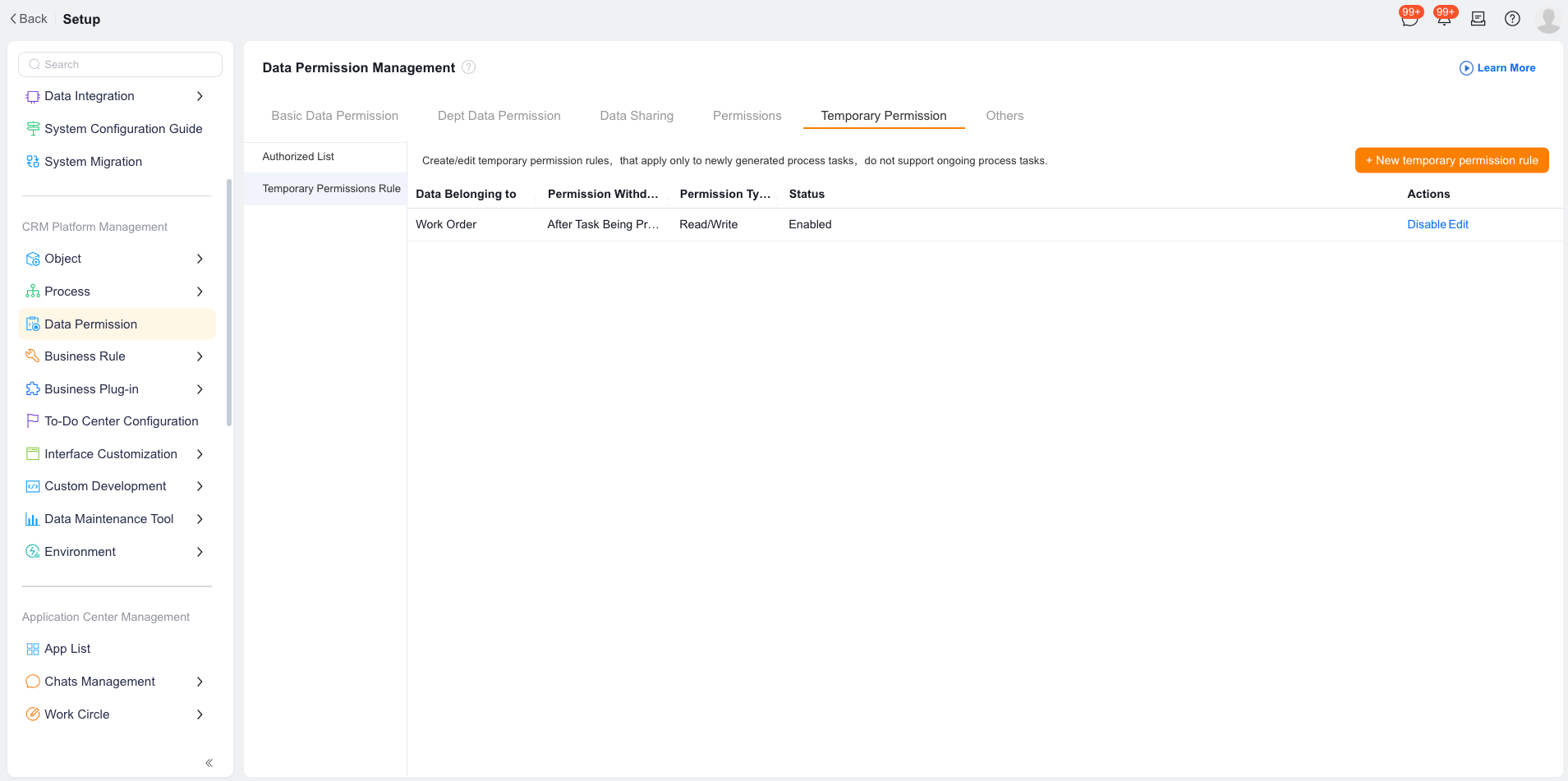
  1. Go to CRM Platform Management > Data Permission.
  2. Open the Temporary Permission tab, select the rule list, and click New temporary permission rule.
  3. Configure the rule:
    • Applicable object: Select the business object, such as Contract or Refund Request.
    • Permission start time: Trigger authorization when the task reaches the current handler.
    • Permission revocation time: Keep authorization for a defined period, such as 30 days, or revoke it when the task or approval ends.
    • Permission type: Grant Read Only or Read/Write access to the current record.
  4. Click Confirm to save the rule.

2. Revoke or monitor temporary permissions manually ​

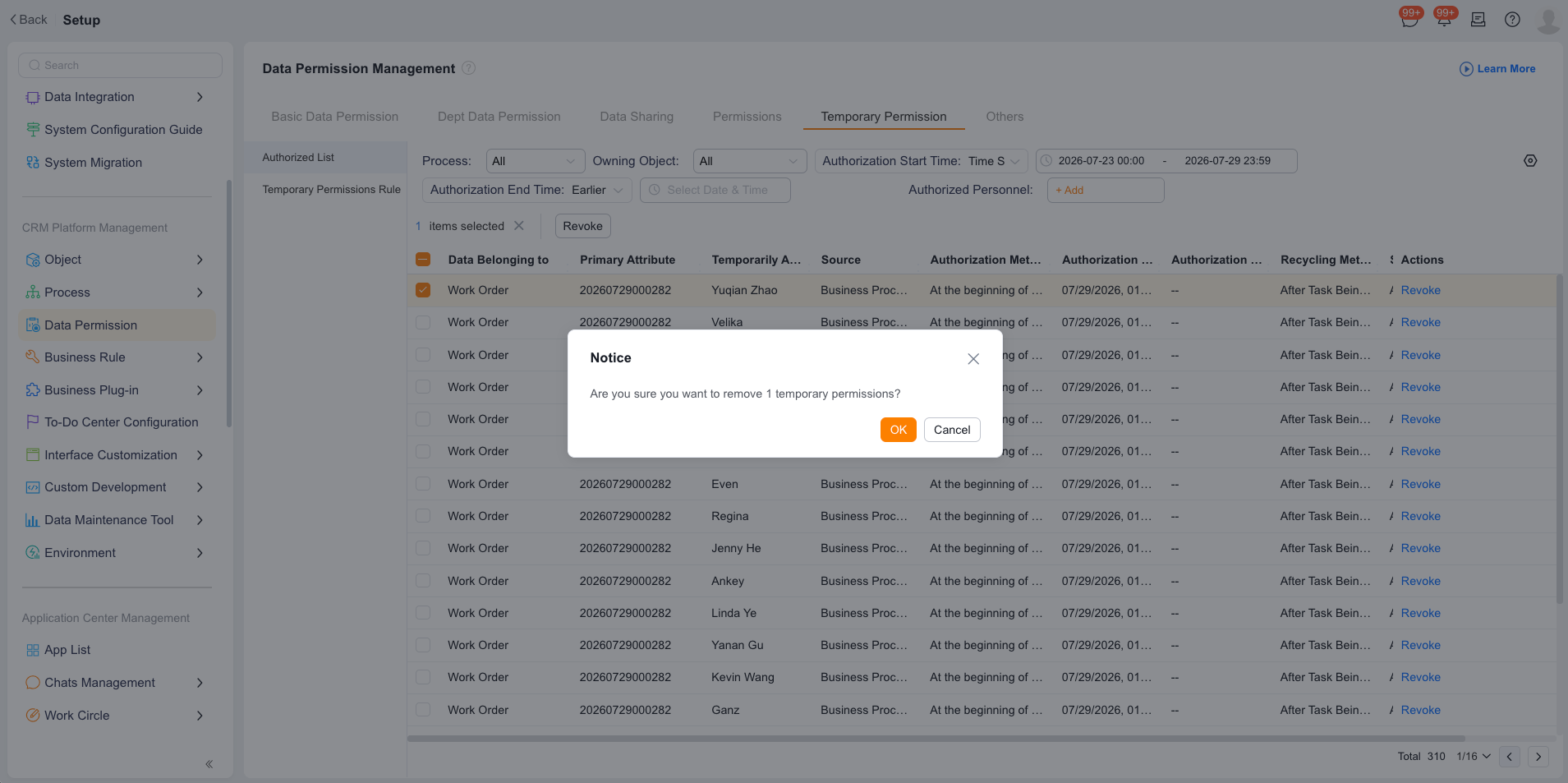
  1. On Temporary Permissions, click Authorized List to view active permissions.
  2. The list includes the authorized person, record, authorization start time, and end time.
  3. Select a record and click Revoke. The employee immediately loses visibility of the record.

Considerations ​

  • Security and compliance: Plan standard department data permissions and sharing rules first. Minimize reliance on temporary authorization rules to preserve auditability.

Verify the result ​

  1. Configure a Contract rule to grant read-only access during an approval task.
  2. Sign in as finance employee A, who has no Contract data access.
  3. Submit a test contract and assign A to the approval node.
  4. Expected result: The contract appears in A's To-Do Center, and A can open its details.
  5. Have A approve the task so the process advances.
  6. Expected result: The task disappears from A's To-Do Center. Searching for the contract again shows that A has no access after approval ends.