Appearance


CRM homepages provide an employee workspace after users enter CRM.
Create tenant-level homepages and control the default with Applicable Scope and template priority. A homepage can contain sales briefs, To-Do items, tasks, schedules, announcements, charts, and business components.
IMPORTANT
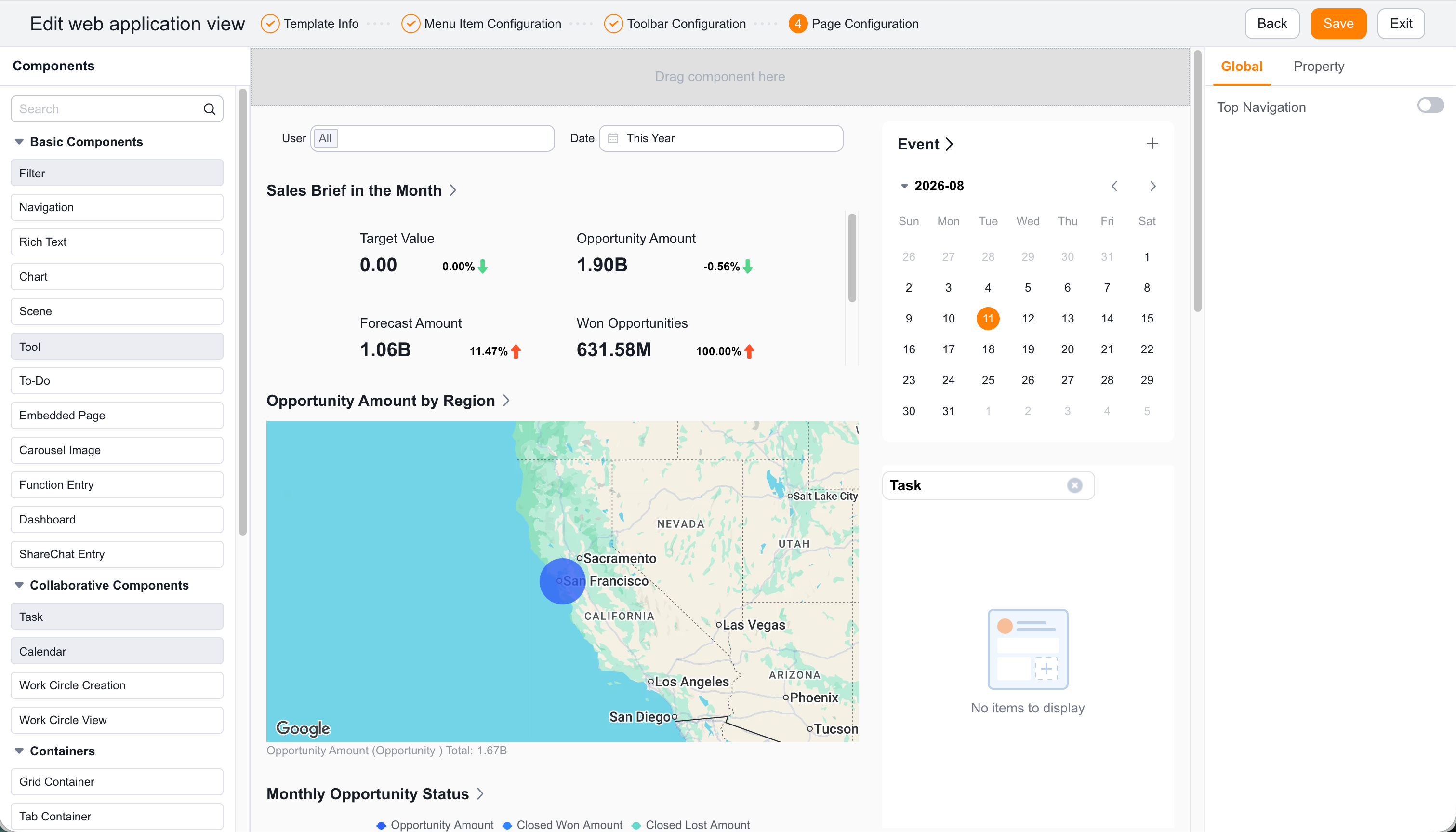
| Field | Description |
|---|---|
| Homepage Name | Name shown in the user-facing list. |
| Template Priority | Higher values appear earlier. |
| Homepage Description | Purpose of the homepage. |
| Applicable Scope | Employees, departments, or roles that can see it. |
| Page Layout | Page structure for components. |
Personal visit history can affect the default homepage. Rich Text components may require a rollout setting. Legacy CRM homepages differ from CRM app views. Before release, ask the localization owner to review component names.
Employees in scope can switch to the homepage and see the configured components and layout.