Appearance


Learn about field definitions, types, basic attributes, and common configuration rules.
Fields are the fundamental units for storing data in objects and are the core elements for building business models. The system supports 32 field types and 3 business components, covering text, selection, numeric, date/time, relationship, and calculation categories. This topic describes field definitions, field type details, basic attribute configuration, and common configuration rules.
Fields carry all specific information for each object. Enterprises can add fields as needed for data maintenance. Each object supports up to 500 fields.
To add a field, go to Setup > Object Management > Standard Object Management / Custom Object Management, select the object to configure, and click Add Field.
System-standard fields (also called pre-built fields) are the fields automatically included in every object upon creation. There are 15 in total:
| Field name | Field type | Purpose | Editable |
|---|---|---|---|
| Primary attribute | Single-line text | Uniquely identifies each record | Partially editable |
| Owner | Personnel | The owner of this record | Partially editable |
| External owner | Personnel | The external owner of this record (user interconnection scenario) | Not editable |
| Organization | Department | The organization this record belongs to | Not editable |
| Owner department | Department | The department this record belongs to. Does not change when the Owner field changes | Partially editable |
| Owner primary department | Single-line text | The primary department of the record owner. Changes when the Owner field changes | Not editable |
| Lock status | Single select | Indicates whether the data is locked | Not editable |
| Record type | Record type | Every record must have a record type | Not editable |
| Life status | Single select | Indicates the current life status, typically used with approval workflows | Not editable |
| Last modified time | Date/Time | The last time this record was modified | Not editable |
| Create time | Date/Time | The time this record was created | Not editable |
| Last modified by | Personnel | The user who last modified this record | Not editable |
| Created by | Personnel | The user who created this record | Not editable |
| Exchange rate | Number | For transaction scenarios, pre-built when multi-currency is enabled | Not editable |
| Currency | Single select | For transaction scenarios, pre-built when multi-currency is enabled | Not editable |
Because these standard fields represent common data storage needs, they cannot be deleted. Some fields support editing.
NOTE
Similarities:
Differences:
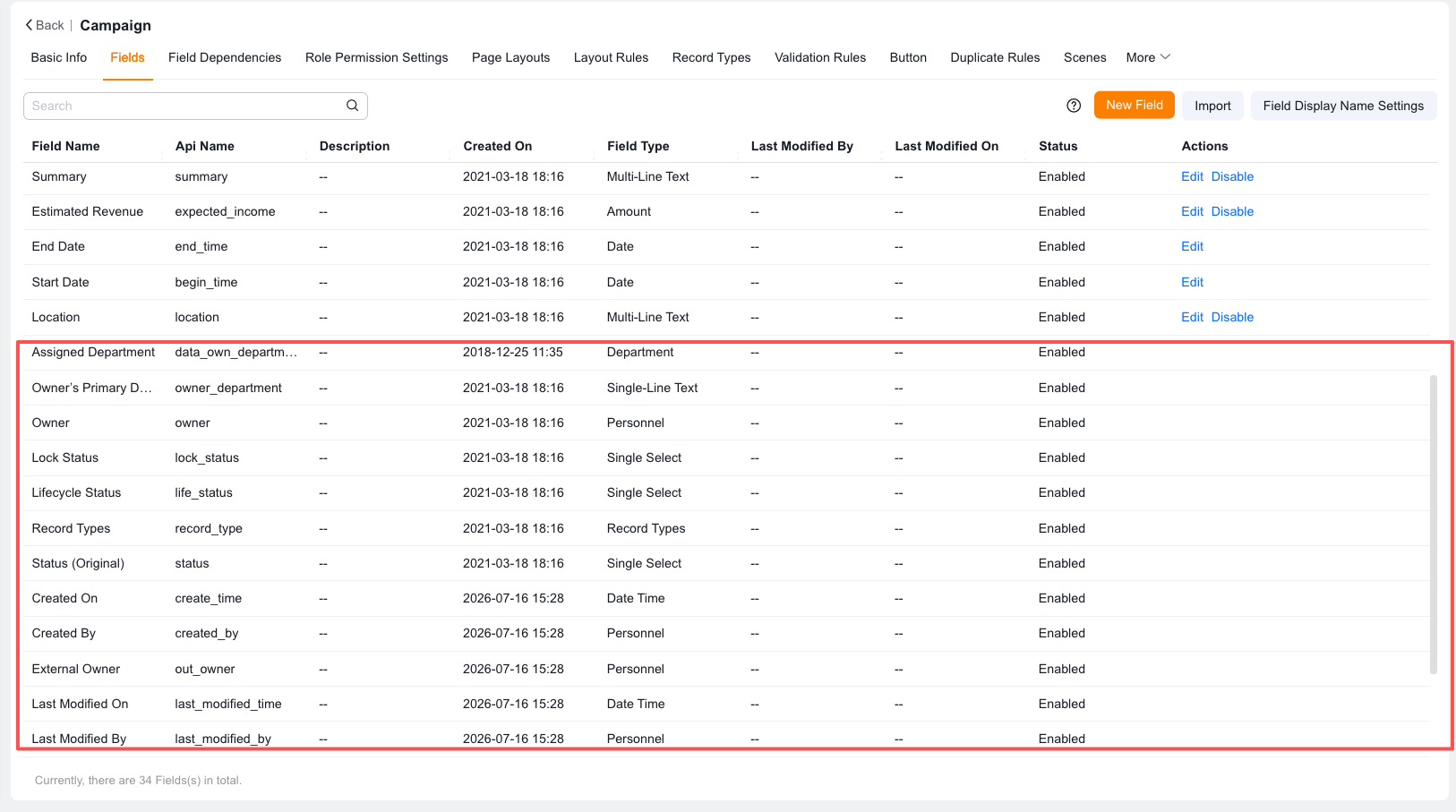
Among standard fields, Lock Status, Record Type, Life Status, External Owner, Owner Primary Department, Last Modified Time, Create Time, Last Modified By, and Created By do not support editing, disabling, or deletion. The Primary Attribute, Owner, and Owner Department fields are partially editable.
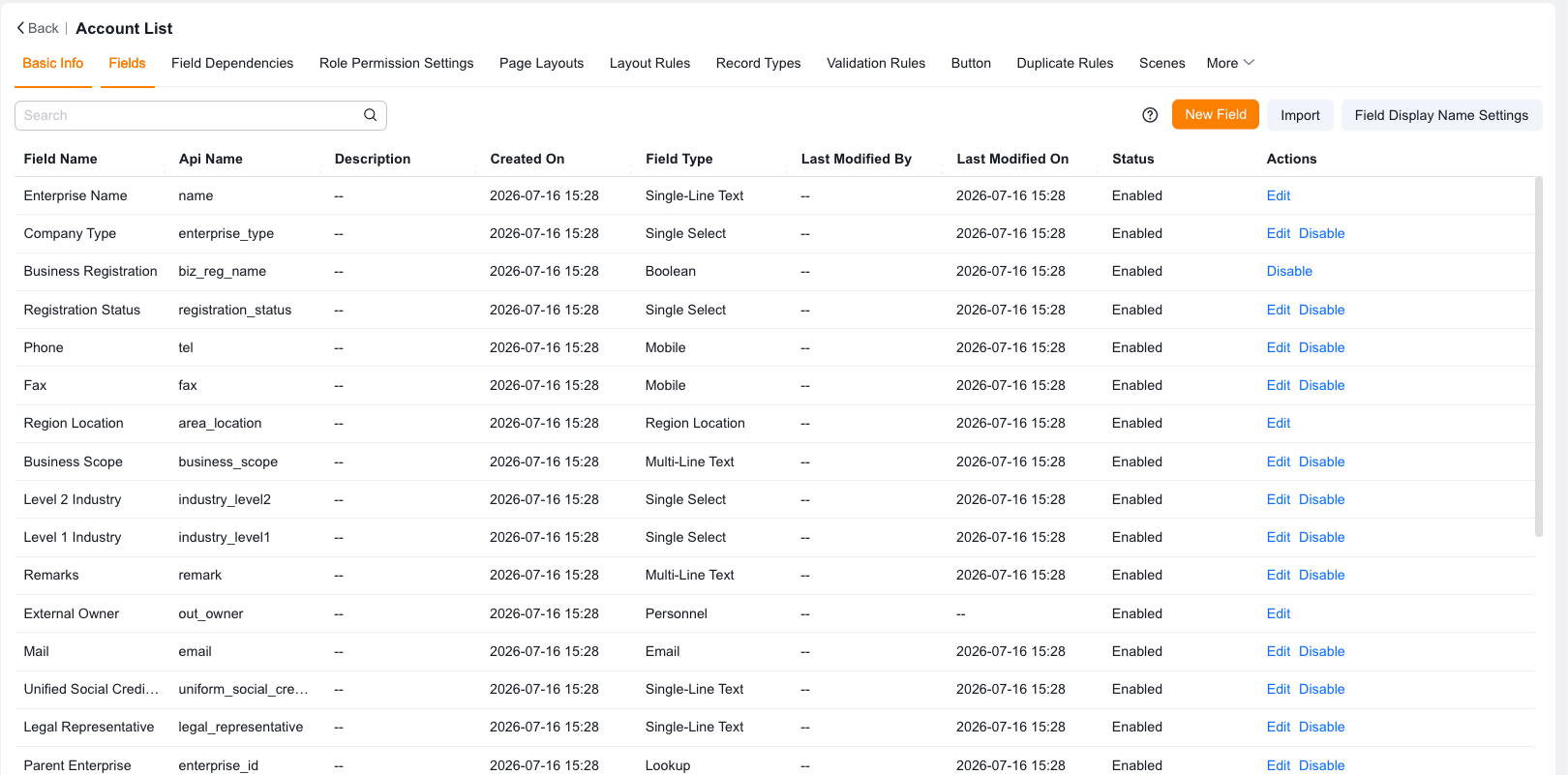
The system supports 32 field types and 3 business components. The following tables describe each type's use cases and restrictions.
| Field type | Description | Example | Notes |
|---|---|---|---|
| Single-line text | For short text such as names | Text | Up to 100 characters |
| Multi-line text | For longer text such as remarks or suggestions | Text typically longer than 10 characters | Up to 2,000 characters |
| Rich text | For mixed text and image content such as product descriptions | Text + images | Up to 131,072 characters |
| Collaborative rich text | For mixed text and image content with more collaboration features than rich text | Text + images | Up to 131,072 characters |
| Field type | Description | Example | Notes |
|---|---|---|---|
| Single select | For selecting one option from a list, such as grade or gender | Grade A | Up to 3,000 options |
| Multi-select | For selecting multiple options from a list, such as interests | A, B | Up to 3,000 options |
| Boolean | For selecting "Yes" or "No" | Yes | — |
| Field type | Description | Example | Notes |
|---|---|---|---|
| Number | For numeric values such as age or order quantity | 10.01 | — |
| Amount | For monetary values with thousands separators, such as order amount | 66.66 | — |
| Percent | For entering and displaying percentages | 90% | — |
| Field type | Description | Example | Notes |
|---|---|---|---|
| Date | Select a specific date | 2099-12-31 | Supports "Year-Month-Day", "Year-Month", "Year-Quarter", "Year" format variations |
| Time | Select a specific time | 16:31 | — |
| Date/Time | Select a specific date and time | 2099-12-31 16:31 | — |
| Date range | Set a specific time period | 07/03/2023, 00:00 - 05/04/2023, 10:00 | Supports precision down to seconds |
| Field type | Description | Example | Notes |
|---|---|---|---|
| Mobile phone | For phone numbers | 18888889999 | — |
| For email addresses | user@example.com | — | |
| URL | For web addresses | www.example.com | — |
| Image | For uploading images. Supports watermark photos and OCR text recognition | — | Up to 20 per object (expandable via resource packages) |
| Attachment | For uploading files with configurable quantity limits | — | Up to 50 per object (expandable via resource packages) |
| Large attachment | For uploading files larger than 100 MB | — | Up to 1 per object (resource packages not supported) |
| Field type | Description | Example | Notes |
|---|---|---|---|
| Lookup relationship | Links the current object to another object (or itself) | [Order] linked to [Account] | Up to 10 per object (expandable via resource packages) |
| Master-detail relationship | Defines a master-detail relationship where the child object's data permissions follow the parent | Order - Order Products | Up to 1 per object |
| Reference field | Supports cross-object data retrieval | — | Up to 20 per object (expandable via resource packages) |
| Auto number | System-generated code following configured rules. Cannot be modified manually | 20191219-00001 | Up to 10 per object (expandable via resource packages) |
| Formula | Calculates field values using formulas. Result types include numbers, percentages, dates, and booleans | 66.66 | Up to 20 per object (expandable via resource packages) |
| Roll-up summary field | Supports cross-object data aggregation | — | Up to 20 per object (expandable via resource packages) |
| Field type | Description | Example | Notes |
|---|---|---|---|
| Department | Select a specific department in the company | Sales Department 1 | — |
| Personnel | Select a specific person in the company | John Smith | — |
| Location | Create location information displayable on a map | No. 63 Zhichun Road, Haidian District, Beijing | — |
| Signature | Capture personnel signature information | — | — |
| Component type | Description | Notes |
|---|---|---|
| Area location component | Records specific geographic location information for business data | — |
| Check-in component | Records the time, location, and duration of business activities | Up to 1 per object |
| Payment collection component | Completes business payment collection to a specified account through this field definition | Up to 1 per object |
Help text provides field entry guidance for front-end users and supports two display modes:
| Display mode | Display location | Applicable scenario |
|---|---|---|
| Hover question mark | Create page, edit page, details page | Long descriptions or on-demand viewing |
| Inline display | Create page and edit page only | When you need to directly prompt the entry format or criteria |
Different field types support different default value configuration methods:
| Field type | Default value method |
|---|---|
| Single-line text, multi-line text, percent | Text input or formula calculation |
| Rich text, email, URL | Text input only |
| Number, amount | Number selection or formula input (integers up to 12 digits, decimals up to 2 digits) |
| Boolean | Set "Yes/No" as the default value (option names are editable) |
| Mobile phone | Only supports mobile/phone fields from other objects via lookup relationships |
| Single select, multi-select | Set a specific option as the default value |
| Date, date/time, time | Formula input |
When designing field default value formulas, it is easy to confuse them with formula fields. The following table compares the key differences:
| Dimension | Field default value (using formula) | Formula field |
|---|---|---|
| Design purpose | Provides entry assistance. Generates an initial recommended value that front-end users can adjust based on actual business needs | Ensures strictly correct results. Auto-calculates and is read-only |
| Typical scenario | Default product price (cost + margin). Sales reps can adjust the price based on customer discounts | Base currency amount (original currency × exchange rate). Must be strictly calculated and read-only for financial records |
| Historical data recalculation | After creating or modifying a default value formula, the system does not recalculate existing historical data | After modifying a formula, the system automatically recalculates all historical data (with some delay) |
| Trigger scenario | Only triggers on the create page, edit page, or list page edit when a dependent field physically changes. The default value formula does not re-trigger when data is modified through back-end APIs, imports, custom functions, or button operations | Triggers in all scenarios (including front-end manual entry, API imports, automation buttons, UI functions, and custom workflows) whenever a dependent field changes |
| Attribute | Description |
|---|---|
| Placeholder text for empty value | Displays placeholder text when the field is empty on the create/edit page. Currently supported by single-line text, multi-line text, number, amount, mobile phone, and URL fields |
| Allow duplicates | When set to "Do not allow duplicates", the system validates data uniqueness. Records with identical values cannot be created, edited, saved, or imported |
| Required | When set to "Yes", the field is required during creation, editing, and import. Records cannot be saved without a value |
| Cloneable | When set to "Yes", the field value is carried over when cloning a record from the details page |
| AI content generation | When enabled, you can select or create a prompt template. Front-end users can click the AI button to generate content when creating records |
When AI content generation is enabled, you need to configure prompt templates:
| Property | Description |
|---|---|
| Scenario category | Categorize the prompt template |
| Primary object | The object this field belongs to. Cannot be modified |
| API name | Auto-generated by the system. Modifiable, but do not change unless necessary |
| Template name | Serves as the unique identifier for selecting the prompt template. Required. Avoid duplicating existing template names |
| Description | Required. Not displayed when selecting the prompt template |
| Prompt content | Enter text and variables (supports current object fields, other object fields, scenario-related variables, and custom functions) |
The selected model generates content based on the "prompt content" according to "generation language", "language style", and "content length". Click "Generate Preview" to view the template result. After configuration, front-end users can click the AI button on the field when creating records. The AI model generates key business information summaries including historical data based on the template.
When you need to add multiple fields to an object at once, use batch field import. Batch import is suitable for the initial object setup phase, such as migrating a field list from a legacy system or quickly creating fields based on a business design table.
For detailed steps and the supported field type list, see Batch import fields.
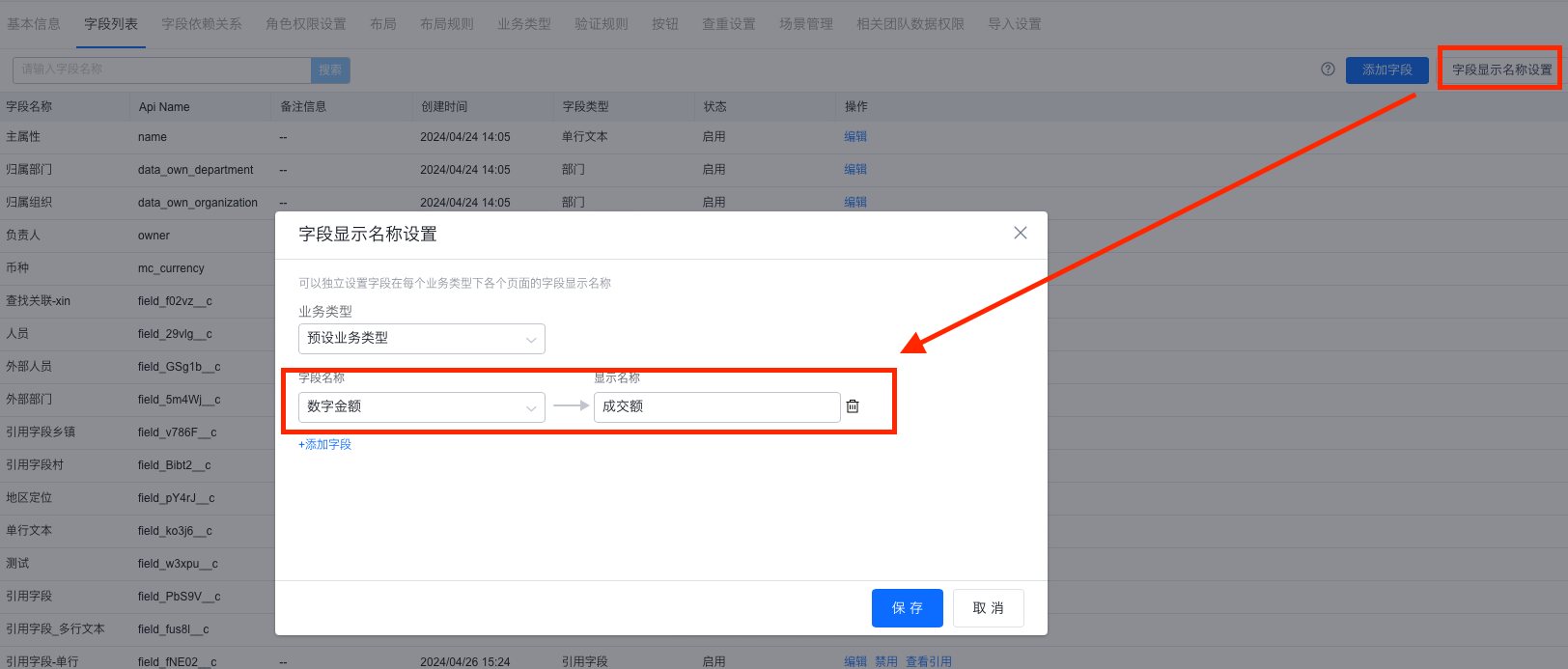
When the same object has multiple record types, administrators can set different front-end display names for the same field. This is suitable for scenarios where different business lines share the same field but use different business terminology.
NOTE
Field display name settings only affect the front-end display name. The physical field name in the back-end field configuration remains unchanged.
For detailed configuration steps and results, see Field display name settings.
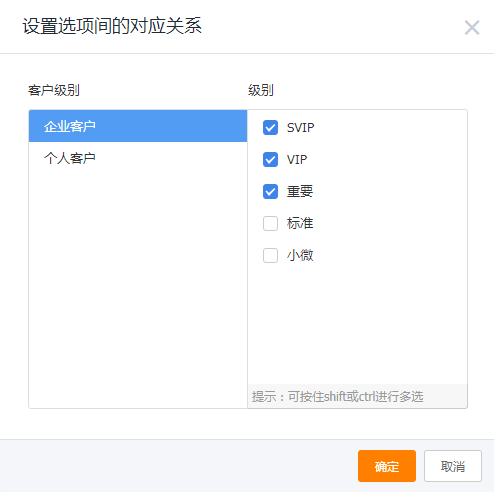
Field dependency relationships control how the available values of single-select/multi-select child fields dynamically change based on the parent single-select field value within the same business object.
In the "Account" object, there is a Customer Level single-select field (options: Level 1, Level 2, Level 3) and a Customer Assets single-select field (options: Less than 100K, 100K-1M, More than 1M). If the business rule states that when a user selects Level 1, the "Less than 100K" asset option should be hidden, you need to configure a field dependency relationship.
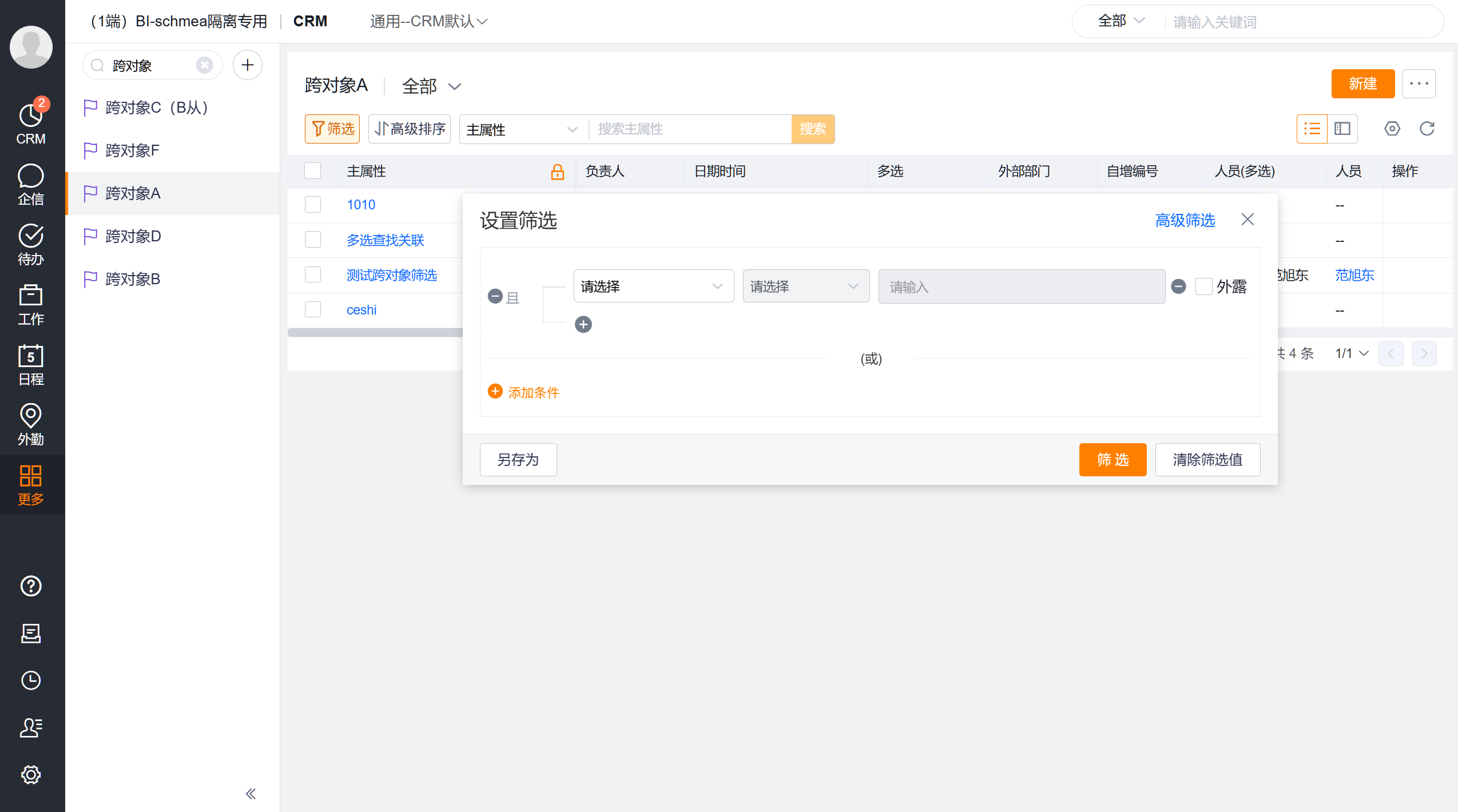
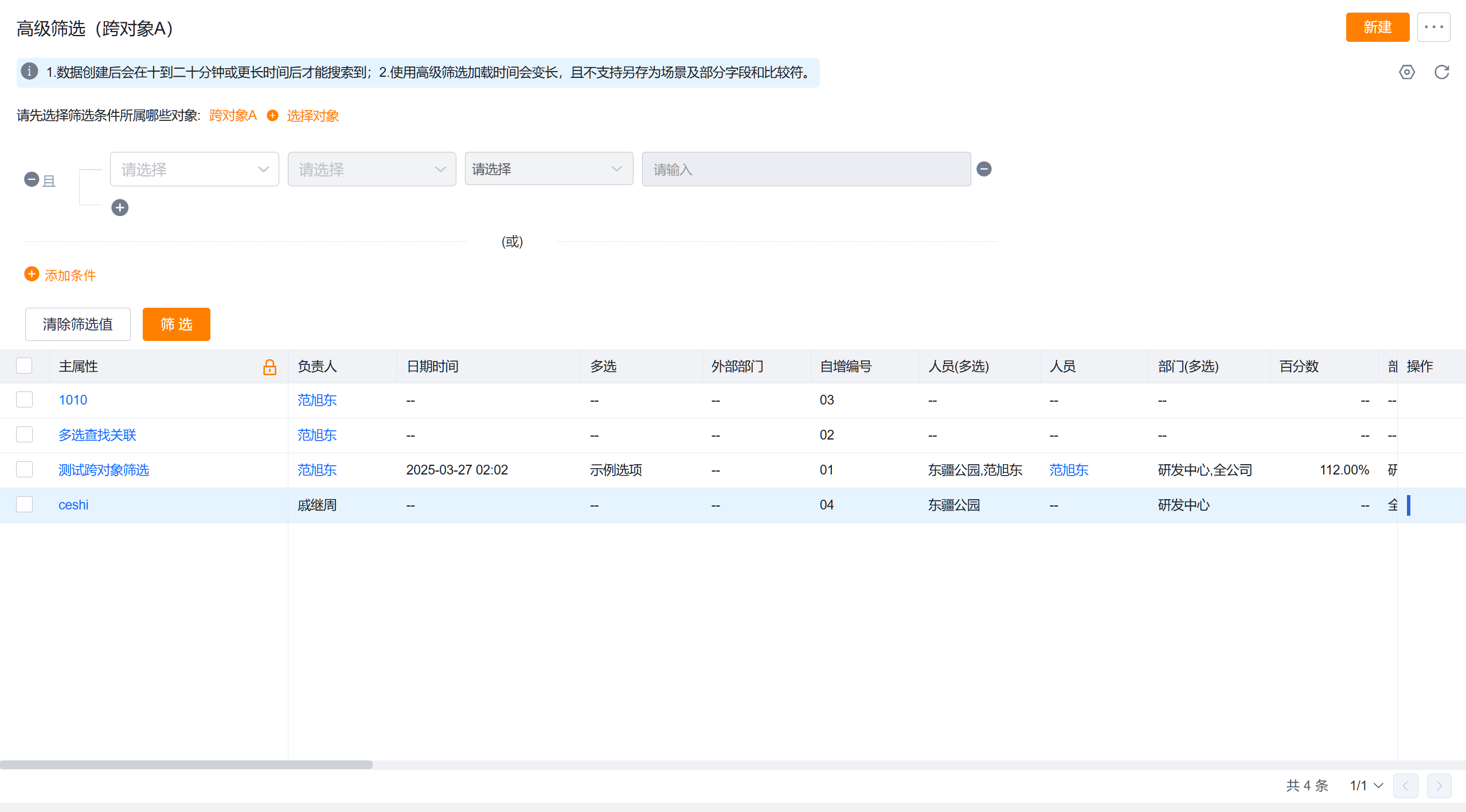
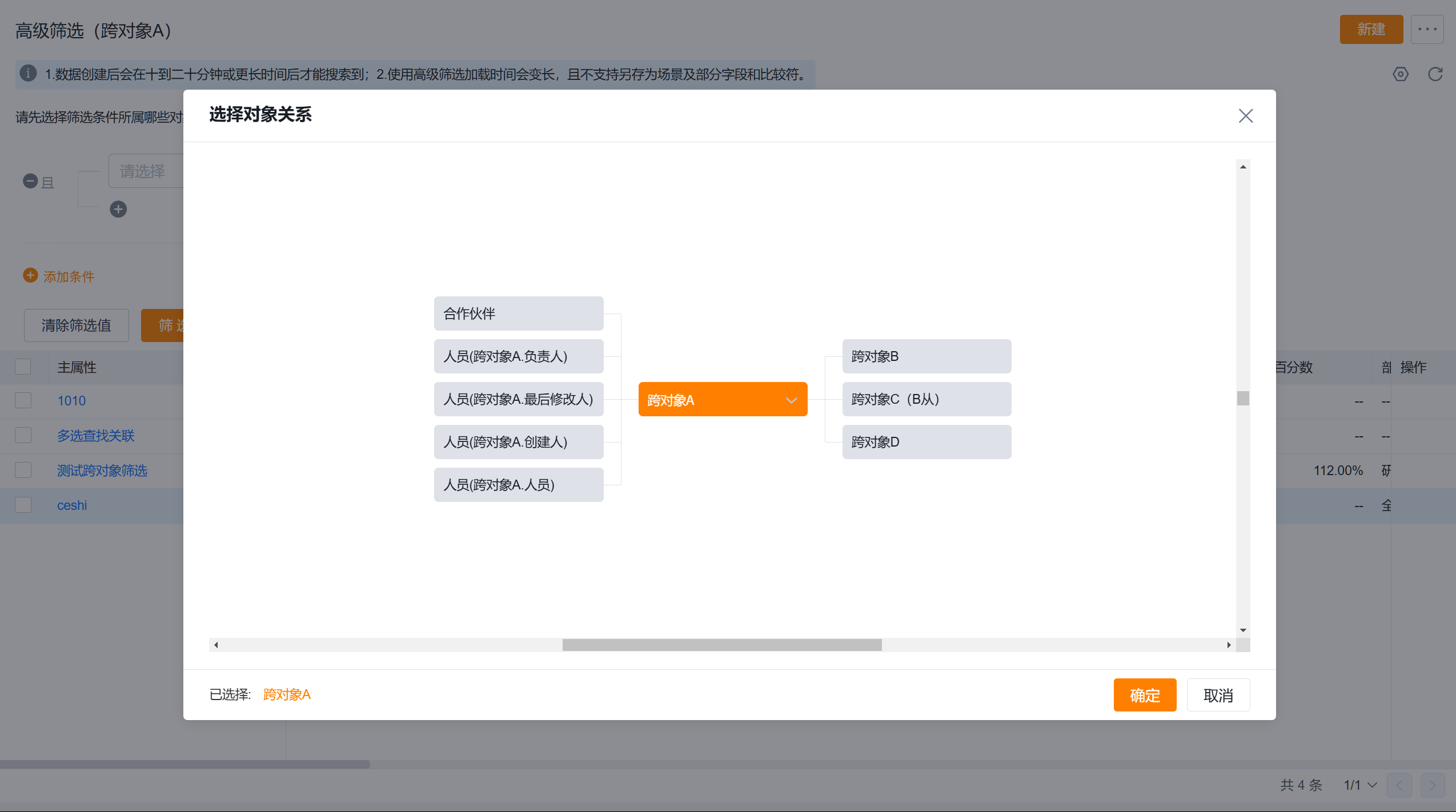
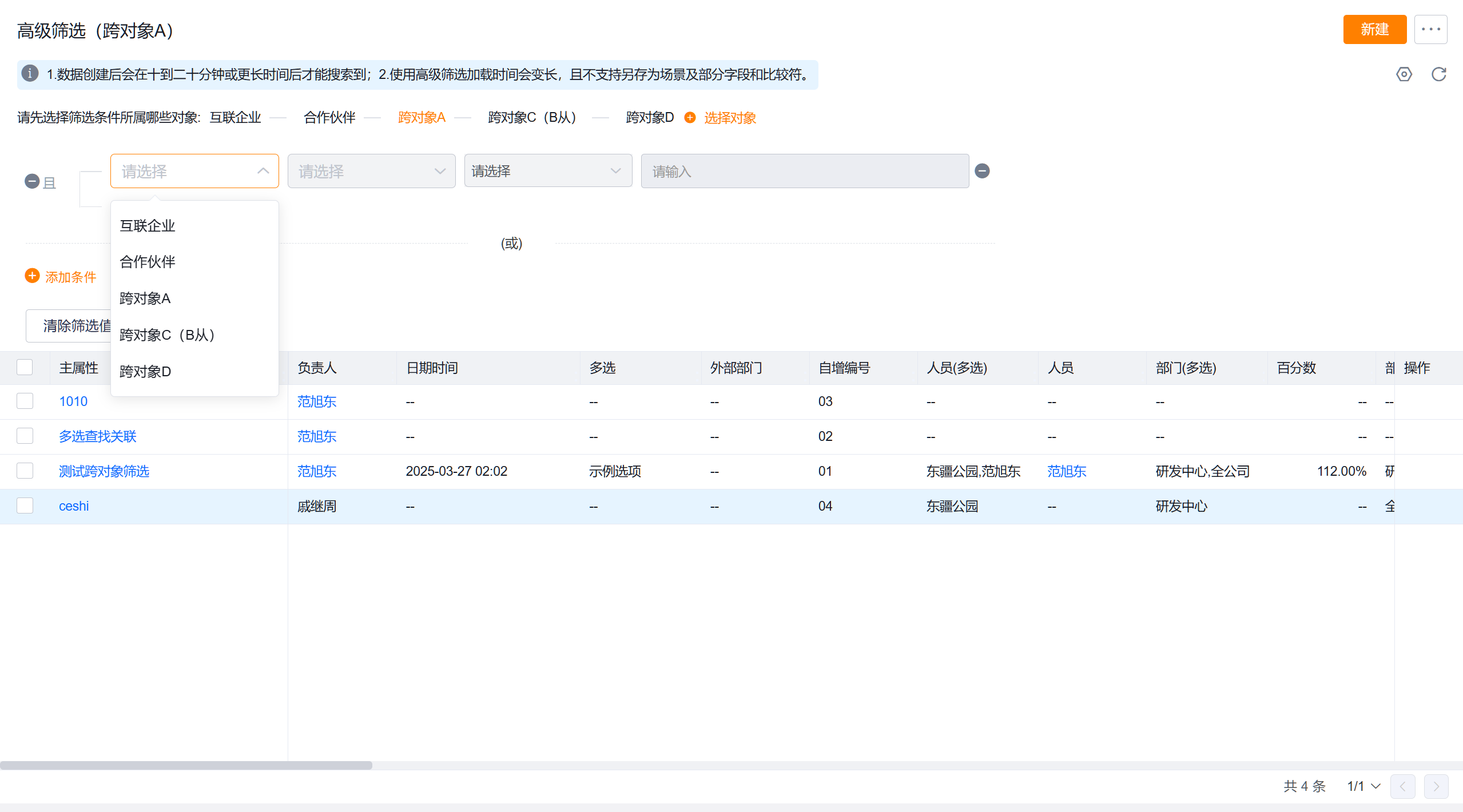
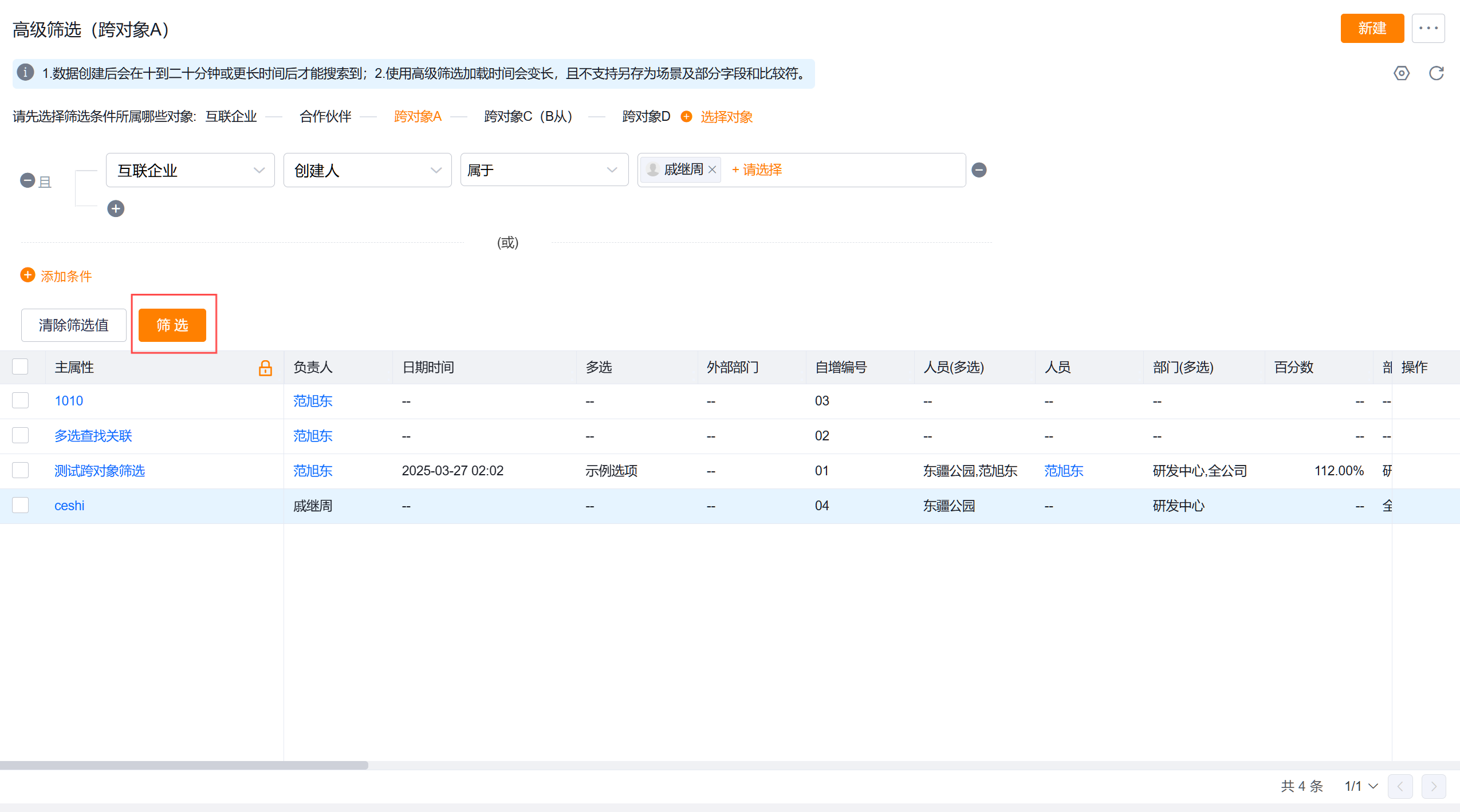
Cross-object filtering allows users to set cascading filter conditions across different objects through master-detail fields, lookup relationship fields, or reference fields. For example, in the "Account" list, filter accounts that have "contact records in the last 30 days".
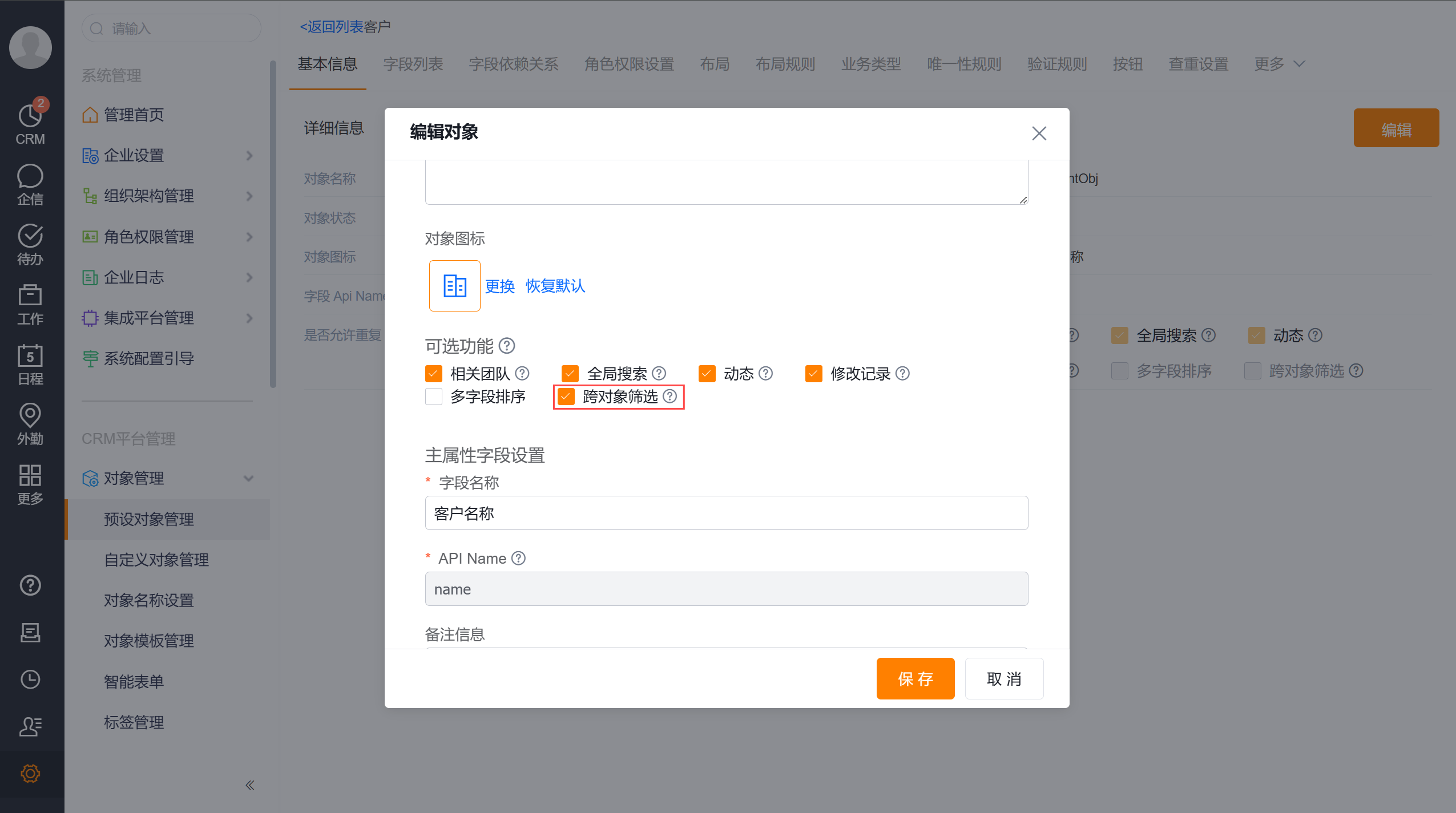
After the feature is enabled in Setup, users can perform advanced multi-dimensional filtering on the front-end list page:
You cannot directly rename a standard field on the field list page. Instead, use the Object Name Settings menu to modify the locale value corresponding to the field name.
For example, to change "Owner" to "Data Owner", modify the Chinese locale value from "Owner" to "Data Owner". The display name then shows "Data Owner" in the Chinese locale.
These fields involve data permissions and can only be modified on the create page. During editing, the Owner, Owner Primary Department, and Owner Department fields cannot be modified and can only be changed through buttons and functions.
To change these fields after record creation, configure a business button with a field change event.
Possible cause 1: The option name retrieved is not the latest
Possible cause 2: A non-existent option value was backfilled