Appearance


Customize how users view one record so key business information is easy to find.
A details page layout controls fields, components, buttons, related lists, and the mobile summary. Assign a dedicated layout by user role and Record Type.
The editor has a navigation area, canvas, and settings area.
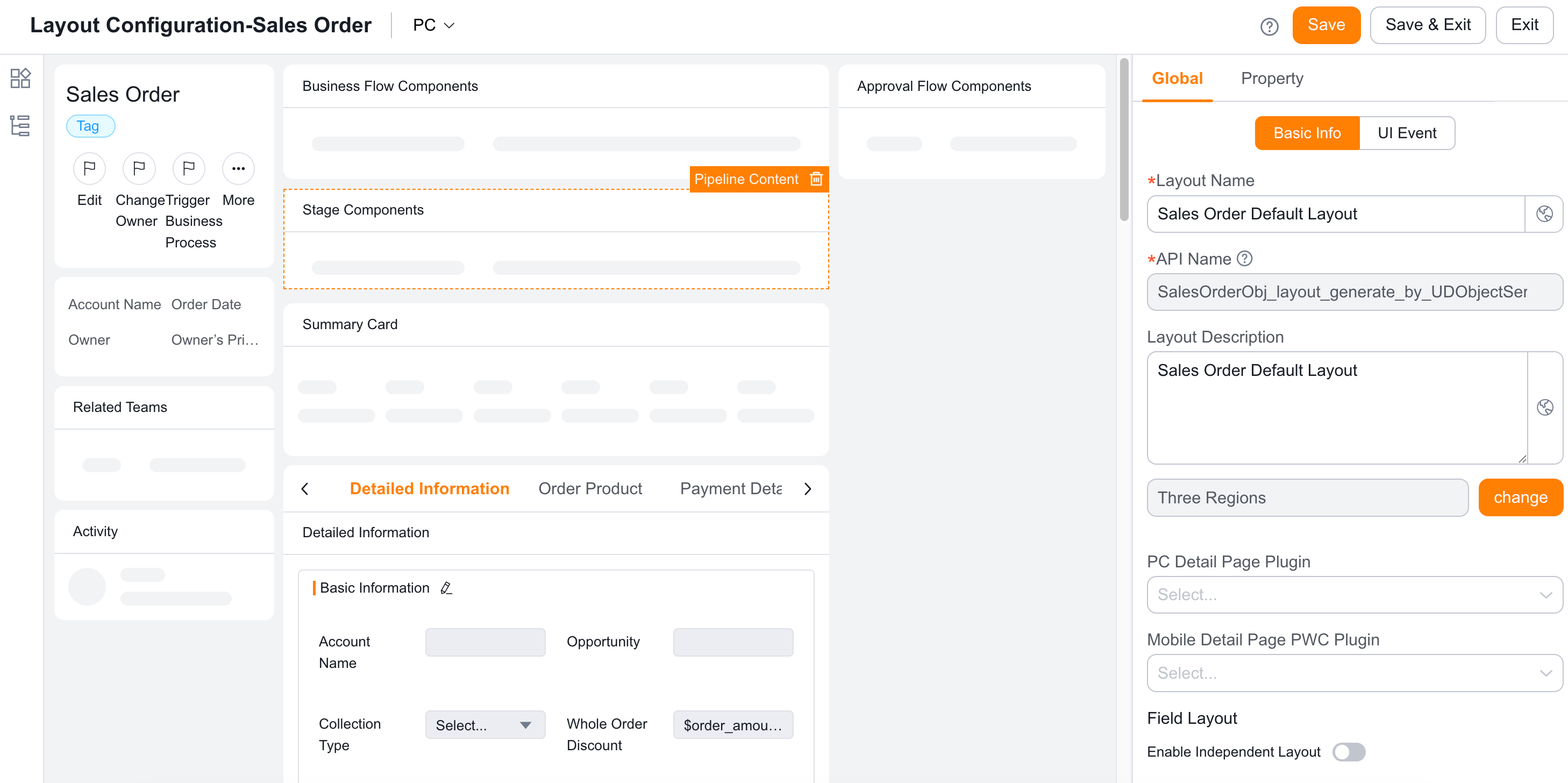
| Category | Components | Description |
|---|---|---|
| General | Title and buttons | Configures labels, buttons, and exposed-button count |
| Summary | Configures key fields | |
| Other | Related Teams, Follow-Up Activity, details, Modification Record, process and approval lists, embedded pages, and charts | |
| Business | Related Object and detail object | Includes SFA components; detail objects inherit list settings unless Standalone Configuration is enabled |
| Container | Tab Container and Grid Container | Configures grid count and proportions |
The field area supports creating fields and configuring visibility. It includes 32 Field Type values and three scenario-based field groups.
Drag components from the left and configure field visibility in the live preview.
The right area contains Global Settings and Component Settings.
| Setting | Description |
|---|---|
| Layout Name | Custom multilingual name |
| API Name | Generated and read-only |
| Description | Custom layout description |
| Layout Template | Header and One Region or Header and Right Sidebar |
| JS Plugin | Desktop and mobile details-page plugins |
| Field Layout | Left aligned, Midline Aligned, or Top Aligned |
WARNING
Header and One Region removes the right-side Related Teams card area from Header and Right Sidebar.
UI events run functions that dynamically change the page.
IMPORTANT
UI events affect only the Form Page, and saved data determines the final result. All Custom Object values are supported. Some Standard Object values are supported, including Sales Lead, accounts, Order Product, and opportunities. This feature requires the Ultimate or Group edition.
| Event | Trigger Timing | Example | Configuration |
|---|---|---|---|
| Field event | A field changes and loses focus | Copy an Account Address to an order delivery address | UI Event > Add Data Update Event > Field Event |
| Detail-object event | A detail is created, edited, or deleted | Set a Product Details discount by Account Level | UI Event > Add Data Update Event > Detail Object Event |
| Page-load event | The Form Page loads | Create signer details from Business Data | UI Event > Add Data Update Event > Page Load Event |
A Validate Event runs a Custom Function after a field changes and loses focus. Use it to validate a phone number or email immediately.
NOTE
Only buttons placed on the details page appear here. Other buttons appear under More Actions.
Configure summary field visibility.
When the Form Page layout is disabled, configure field visibility and Data Range in details.
Configure whether to show only nonempty lists, the Record Type style, independent detail-object settings, and preset filters.
Related lists can expose a Batch Operation when configured for the detail object.
| Button type | Support | Configuration |
|---|---|---|
| Detail general button | Not supported | Not applicable |
| List Page Bulk Operation | Visible or hidden | Set the button location on the detail object |
| List Page Single Operation | Visible or hidden | Set the button location on the detail object |
NOTE
Bulk buttons remain available after selection. Records that fail preset conditions do not run the operation.
The mobile layout can inherit the desktop layout or use Standalone Configuration.
Configure summary field visibility.
NOTE
Detail objects inherit Web settings unless configured independently. If user tabs differ from Setup, select Navigation Settings > Restore Initial Configuration on mobile.
Set visibility for details-page buttons. They appear at the bottom of the mobile details page.