Appearance


When you need to add multiple fields to an object at once, use batch import. This feature is ideal for the initial setup phase, such as migrating a field list from a legacy system or quickly creating fields based on a business design table.
Go to Setup > Object Management > Standard Object Management / Custom Object Management. Open the target object, and click Import on the object configuration page.
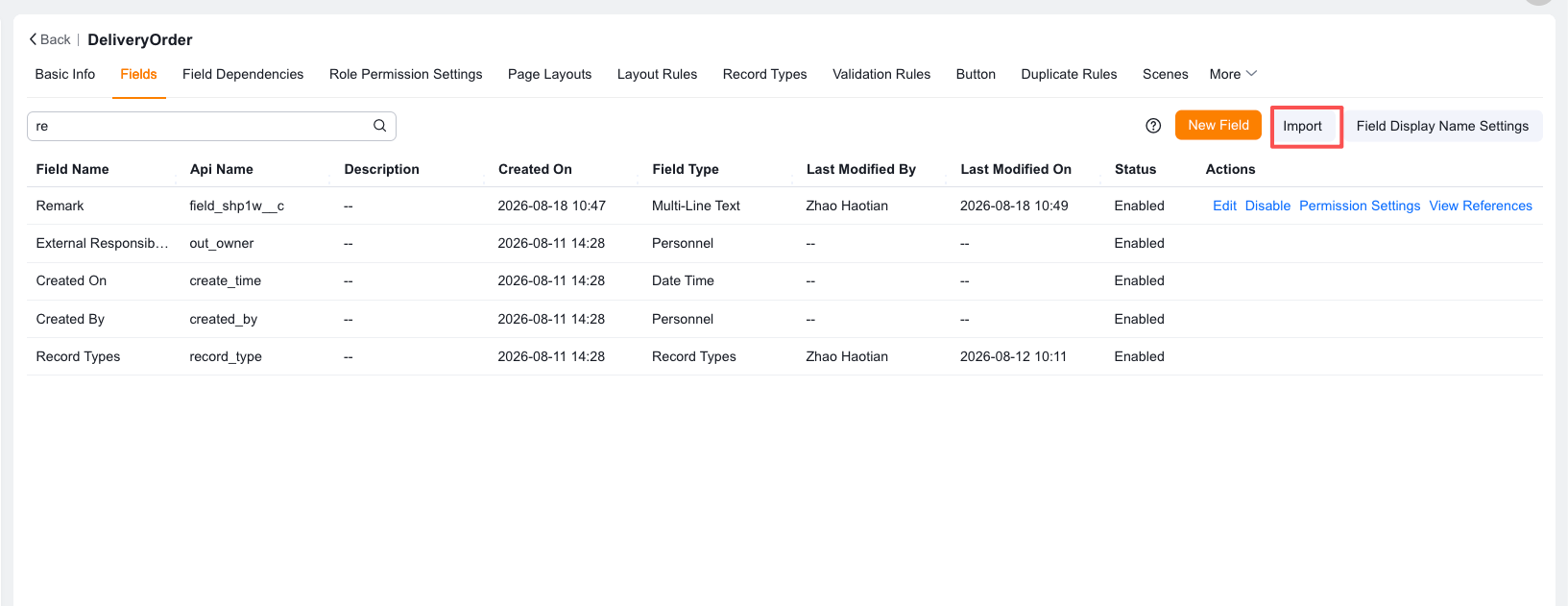
Batch import supports the following field types: single-line text, multi-line text, rich text, picklist, multi-select, number, amount, date, time, date/time, phone, image, attachment, email, boolean, lookup relationship, percentage, URL, auto-number, department, multi-select department, personnel, multi-select personnel, location, and master-detail relationship.
NOTE
Other field types do not support batch import at this time.
TIP
The template does not cover all advanced settings. After import, administrators can still edit fields in the field list to add default values, formulas, or other advanced properties.