Skip to content

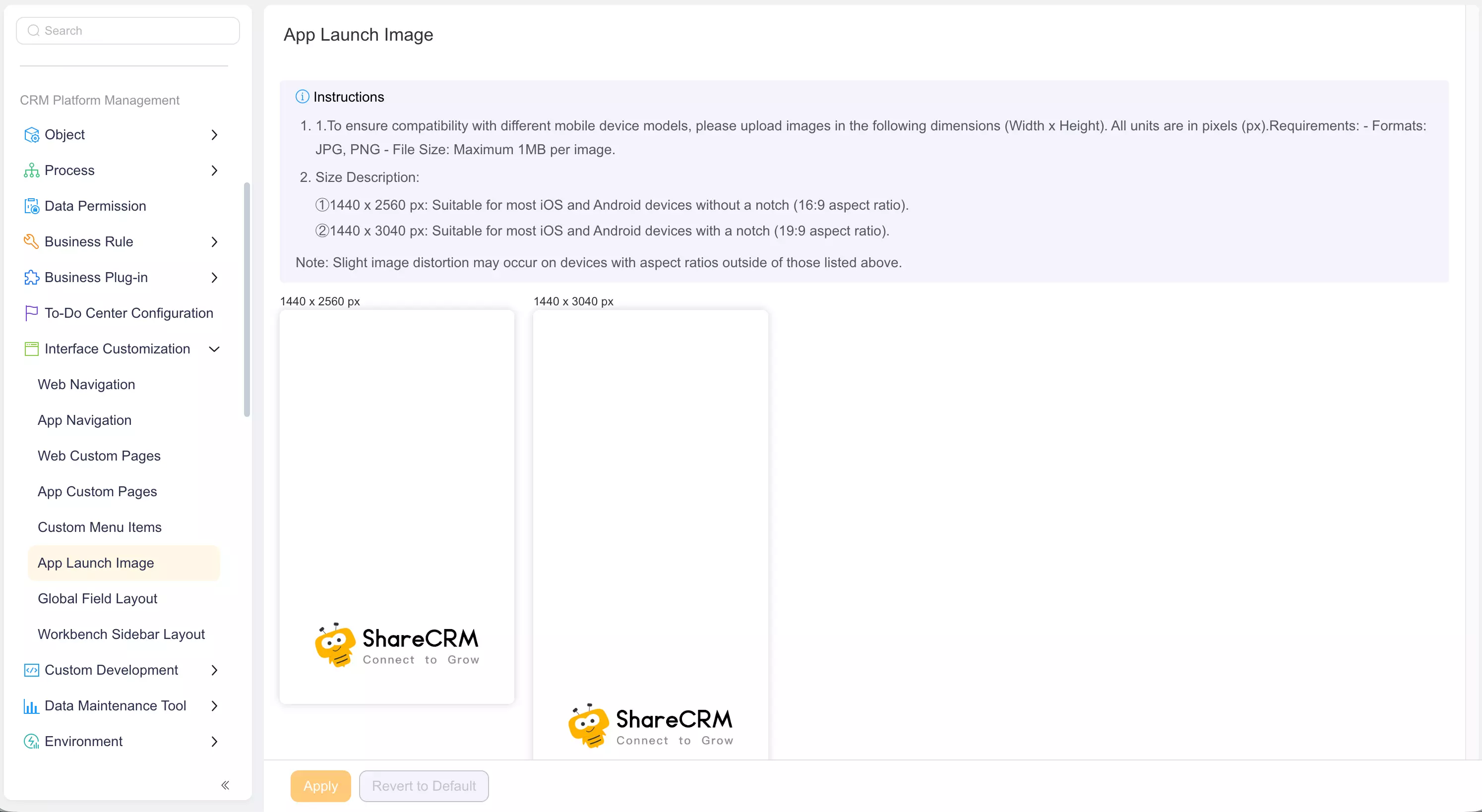
Configure App startup images ​

Display enterprise branding when users open the Mobile Client. Android and iOS support custom startup images.

Overview ​

A startup image presents the enterprise brand while the App opens. Use it for brand identity, not complex Operation instructions.

Before you begin ​

IMPORTANT

  • Permissions: You need System Administrator permissions.
  • Asset: Prepare a 1440x2560 or 1440x3040 image.
  • Review: Follow the current format, size, and version requirements in Setup.

Configure a startup image ​

  1. In Setup, open Interface Customization Management > Mobile Customization > Startup Image Management.
  2. Click Replace and select the image.
  3. Review the preview, then click Use Now.
  4. Reopen the App with a test account and Confirm the image appears correctly.

Manage App startup images

Reset to Default startup image ​

  1. On Startup Image Management, click Use Default Startup Image.
  2. Confirm the change and reopen the App.

Considerations ​

  • Use approved brand assets and avoid excessive text.
  • Display may vary across Mobile Client versions and device sizes.

Expected result ​

Users see the enterprise startup image when opening the App.