Skip to content

Configure Theme Color and Skin Color ​

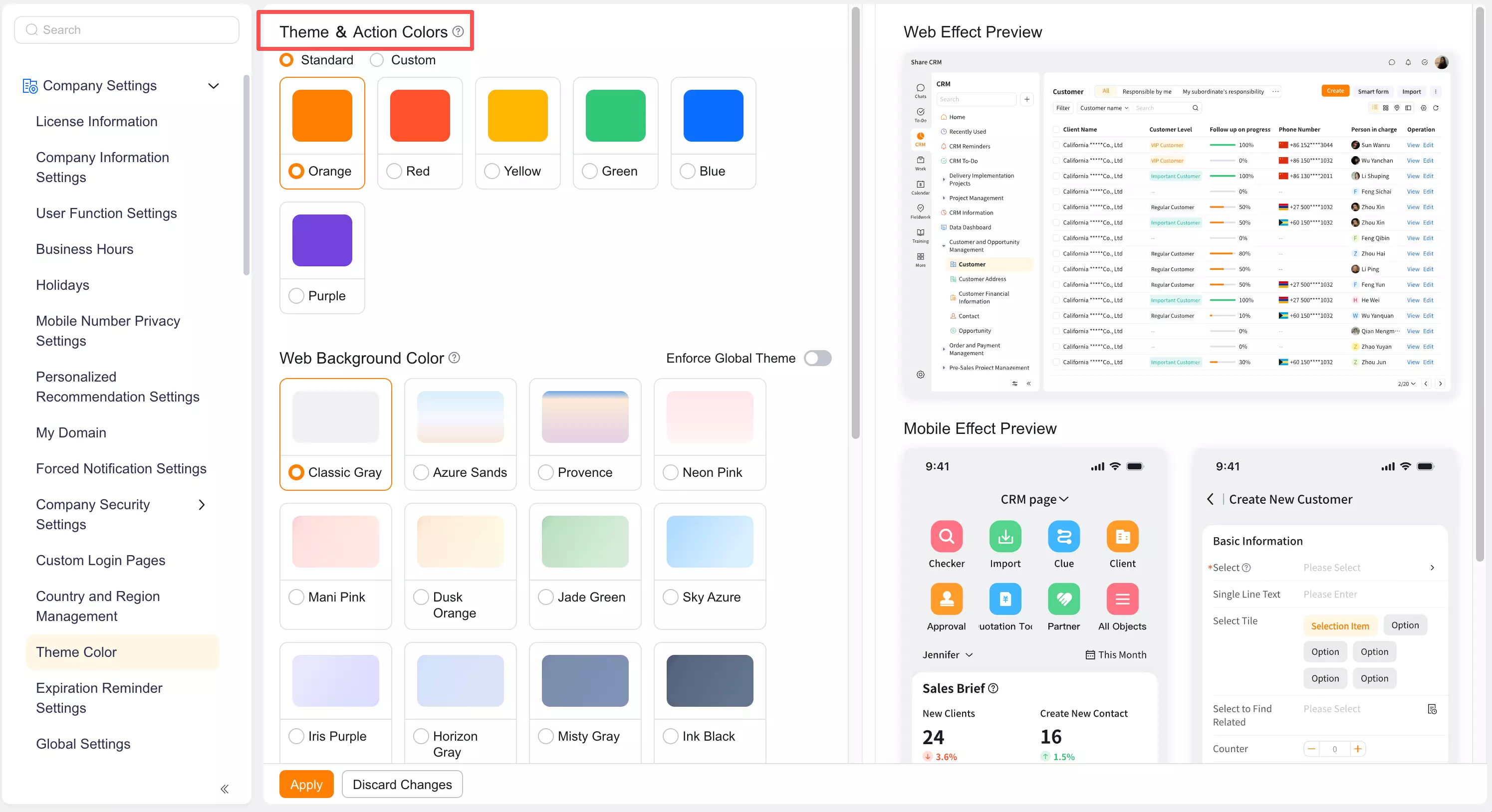
Theme Color controls buttons, tabs, switches, and other controls. Skin Color controls Web main navigation and the Mobile Client top bar.

Overview ​

Administrators can use preset colors or enter Custom Color values for system controls and selected navigation regions.

Before you begin ​

IMPORTANT

  • Permissions: You need System Administrator permissions.
  • Brand: Prepare the enterprise color values.
  • Readability: Confirm adequate contrast among text, icons, and backgrounds.

Configure selected and button colors ​

  1. In Setup, open Enterprise Settings > Theme Color.
  2. Select a preset or Custom Color, then enter a hexadecimal value if needed.
  3. Preview buttons, tabs, and switches.
  4. Click Use Now.

Configure selected and button colors

NOTE

The system prompts for correction when saturation or brightness is too low.
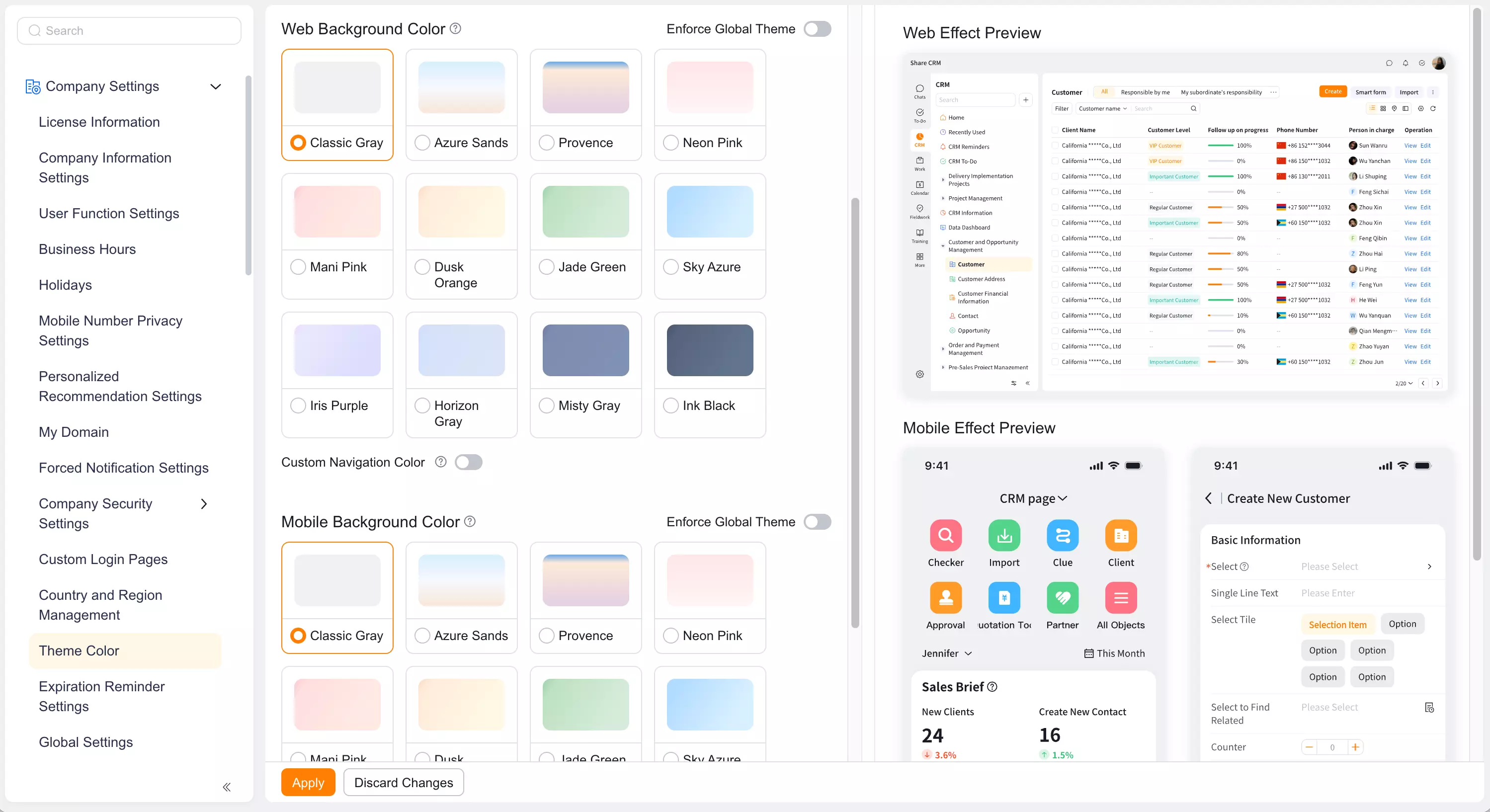
Configure the Web background ​

  1. Under Skin Color, select Web Main Navigation.
  2. Select a preset or Custom Color.
  3. Configure the navigation background, default text and icons, and selected text and icons.
  4. Preview the result and click Use Now.

Configure the Web background

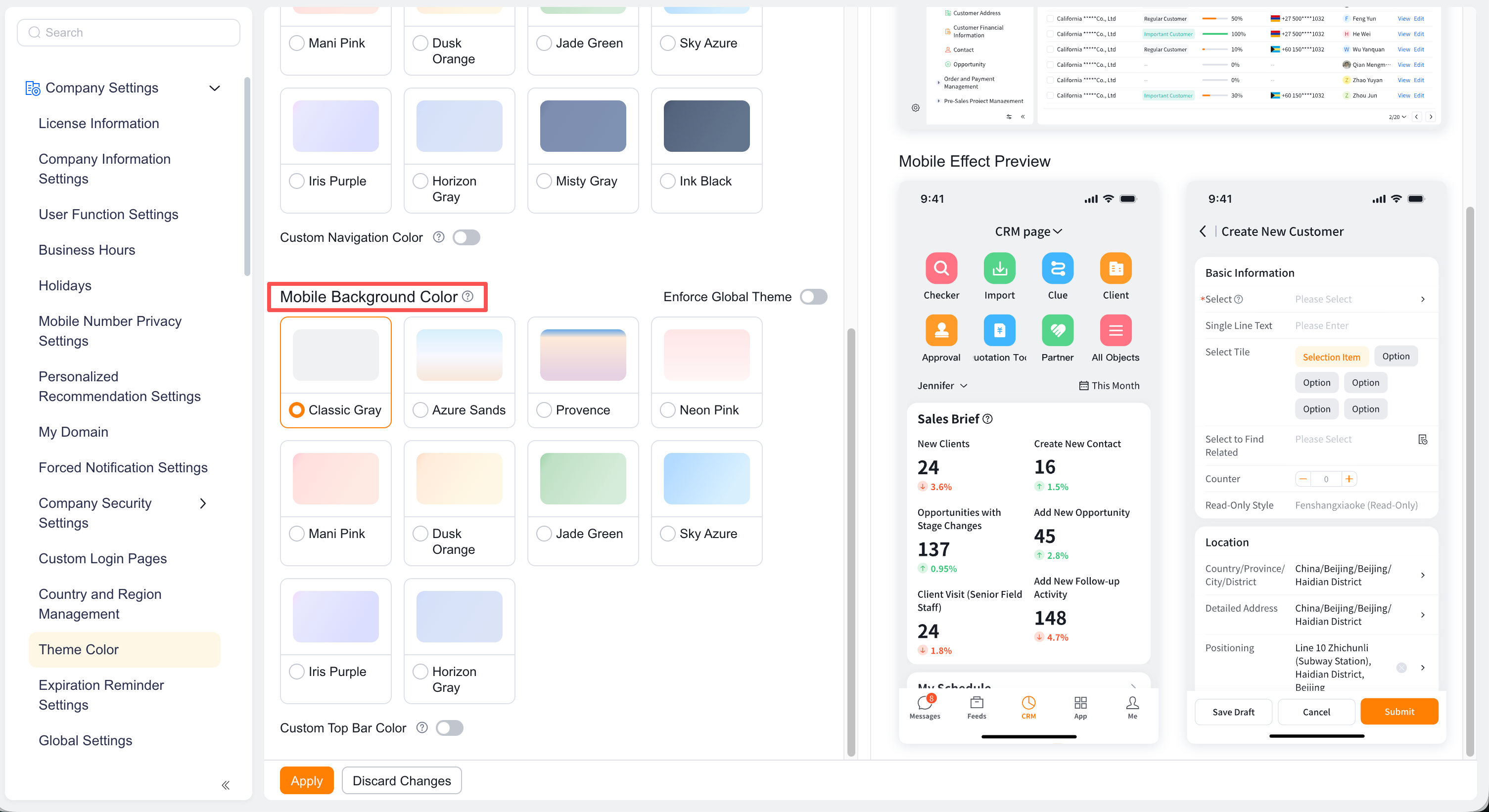
Configure the mobile background ​

  1. Under Skin Color, select Mobile Top Bar.
  2. Configure the background and text colors.
  3. Preview the result and click Use Now.

Configure the mobile background

Color capability comparison ​

CapabilityAreaMethod
Theme ColorSystem controlsSix presets or a Custom Color.
Web Skin ColorNavigation background, text, and iconsPreset or Custom Color.
Mobile Skin ColorTop bar background and textPreset or Custom Color with live preview.

Considerations ​

  • Preset Skin Color options include neutral, light, and dark tones.
  • Check text and icon readability carefully when using a Custom Color.
  • Theme Color is an Enterprise-Level setting. Ask the brand Owner to Confirm changes before applying them.

Expected result ​

Users see the new Theme Color and Skin Color on Web and Mobile Client after the settings become Effective.