Skip to content

Configure basic data permissions ​

Configure basic data permissions by object to set the default visibility baseline.

Overview ​

💡 Basic data permissions define the minimum access a user has when the user is not the record owner. This setting is the lowest-level baseline of the data security architecture.

Before you begin ​

IMPORTANT

  • Role permissions: You need System Administrator permissions or a management role with Data Permission Management permissions.
  • Design logic: Follow the strictest-first principle. Set key business objects, such as accounts, opportunities, and contracts, to Private first. Then expand access with department permissions, sharing rules, and related teams.

Procedure ​

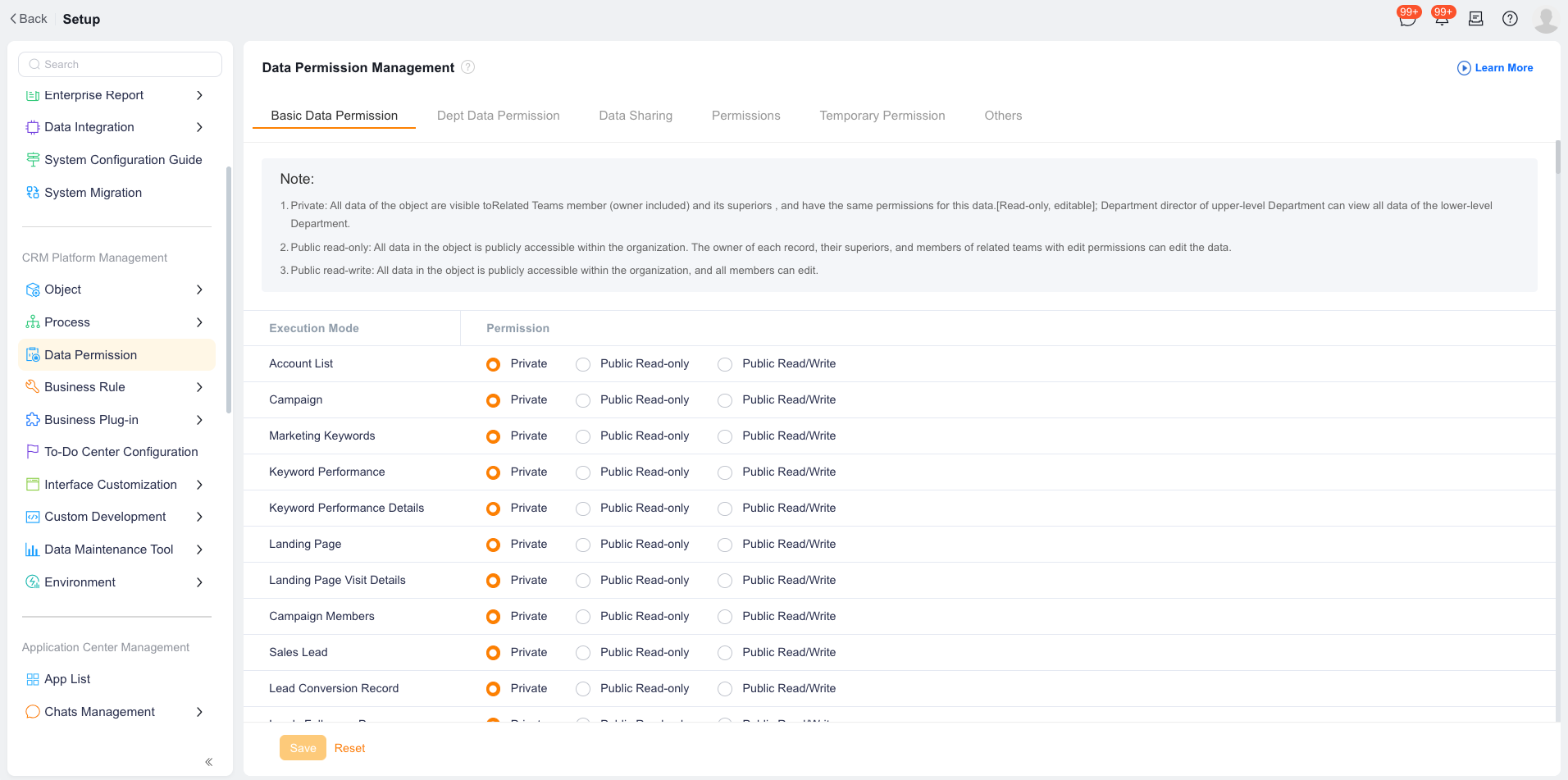
  1. Go to CRM Platform Management > Data Permission.
  2. Open the Basic Data Permission tab. The system lists all enabled standard and custom objects.
  3. Locate an object and select one default permission:
    • Private: The strictest setting. Only the owner, the owner's direct or higher-level manager, the department manager and assistant, and related team members can view and edit records. Other users cannot see the records in lists or search results.
    • Public Read-only: All employees with function permissions for the object can view all records. Only the owner, the owner's manager, and related team members with Edit permission can modify records.
    • Public Read/Write: All employees with function permissions for the object can view and edit all records.
  4. Click Save and confirm.

Expected results ​

  • After you set the Account object to Private, employees who are not the owner, the owner's manager, or related team members cannot find the account record.
  • After you set the Product object to Public Read-only, all sales representatives can view product parameters, but only product library managers can edit them.