

Skip to content

Configure Parallel task Nodes ​

Configure a Parallel Node that runs multiple business tasks at the same Time, so a Process can split into several business paths and Trigger multiple next tasks when the previous business step is Completed.

Overview ​

A Parallel task Node is used when multiple tasks must progress at the same Time in one Business Process. After the Process reaches the Parallel Node, the System flows out from the Node through multiple business paths and triggers multiple business Nodes at the same Time.

A Branch Node usually selects one path based on conditions. A Parallel Node enters multiple paths at the same Time, so multiple tasks can be processed in Parallel.

Parallel task Nodes are suitable for these scenarios:

  • After Work Order confirmation, simultaneously Trigger on-site Standard Operation and other collaborative tasks.
  • During Service handling, simultaneously schedule on-site Standard Operation, inspection, reports, or evaluation preparation.
  • After a Stage ends, notify multiple Roles to complete their tasks at the same Time.
  • Multiple departments or Personnel must process different items at the same Time, and the tasks have no strict dependency order.

Core Parallel task Node capabilities include:

  • Flow out from one Node through multiple business paths at the same Time.
  • Trigger multiple subsequent business Nodes at the same Time.
  • Support Parallel handling of multiple tasks in one Business Process.
  • Support Parallel business collaboration, not condition-based routing.

Before you begin ​

  • The Business Process is created, and you are on the process canvas configuration page.
  • You have Confirmed which tasks can run at the same Time.
  • You have Confirmed which next Node each outgoing Parallel path connects to.
  • You have Confirmed that Parallel tasks do not require a specific order.
  • If multiple Parallel tasks Update the same Business Data, Confirm Field Update order and overwrite risk first.

Configure Node Settings ​

Select the Parallel Node on the process canvas, and then Configure the following items on the right-side Node Settings tab.

Configuration itemDescription
Node NameThe Name of the current Parallel Node on the canvas and in Process records. Use a specific business meaning, such as “Parallel processing” or “Trigger tasks simultaneously”
Business DescriptionDescribes why the Parallel Node is used and why multiple tasks must be triggered at the same Time

The screenshot states that a Parallel Node Supports scenarios where multiple businesses are performed at the same Time in one Business Process. After configuration, multiple business paths can flow out from this Node, and multiple businesses are triggered at the same Time after the previous business step ends.
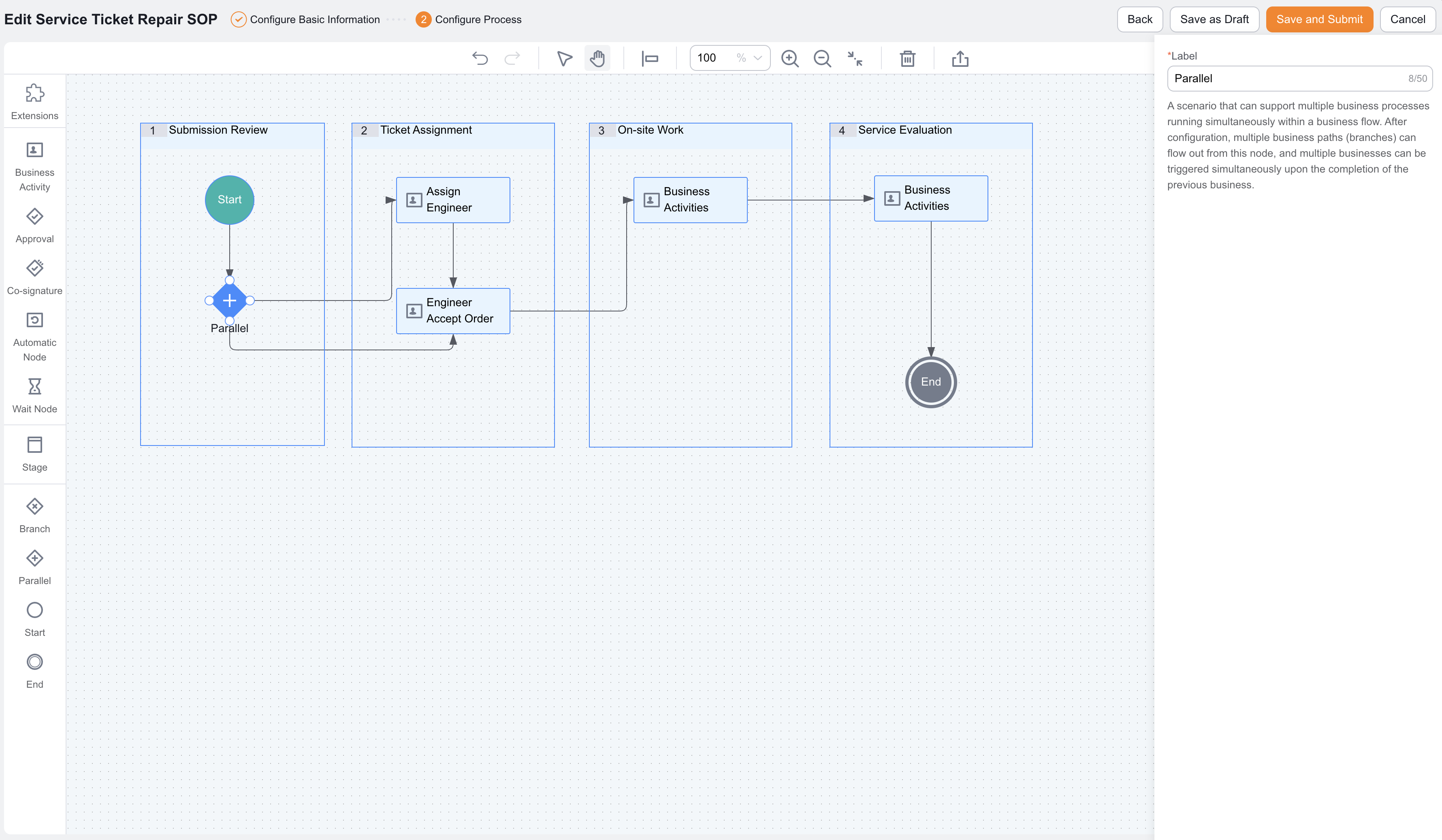
Business Process Parallel task Node

Configure Parallel paths ​

The core of a Parallel Node is configuring multiple paths that flow out from the same Node.

Configuration steps:

  1. In the left-side canvas panel, select Parallel, and drag the Parallel Node to the process canvas.
  2. In Node Name, enter a Parallel Node Name, such as “Parallel”.
  3. In Business Description, describe the tasks that this Node triggers at the same Time.
  4. Connect the first subsequent path from the Parallel Node, such as the Co-signature Node.
  5. Connect the second subsequent path from the Parallel Node, such as the On-site Standard Operation Node.
  6. To Add More Parallel tasks, continue to connect the Parallel Node to other next Nodes.
  7. Configure each business Node, Handler, completion conditions, and post-completion actions on each path.
  8. Save the Node configuration.

In the screenshot example, the Parallel Node is after Work Order confirmation and can flow to different next Nodes at the same Time. It triggers multiple business-handling tasks after the previous business step ends.

Differences between Parallel Nodes and Branch Nodes ​

Node TypeCore purposeRouting methodUse case
Branch NodeSelect a path based on conditionsEnters one path after conditions are met. Usually it does not enter all paths at the same TimeRoute by Work Order Type, Approval Decision, Amount, or Status
Parallel NodeTrigger multiple paths at the same TimeEnters multiple subsequent paths at the same Time after the previous business step endsMultiple tasks must run synchronously, or multiple Roles handle tasks at the same Time

If the business rule is “enter different paths when different conditions are met,” use a Branch Node. If the rule is “run multiple tasks at the same Time,” use a Parallel Node.

Configure Parallel tasks ​

A Parallel Node mainly splits paths. Configure the specific task on each Parallel path in the corresponding business Node.

Common configuration items include:

Configuration itemDescription
Business NodeEach Parallel path must connect to a clear Business Activity, Approval, Co-signature, extension element, or Automatic Node
HandlerManual handling Nodes require a Handler or default Handler
Completion conditionsTo restrict task completion, Configure Field conditions or APL conditions
Post-completion actionsAfter each Parallel task is Completed, execute Field changes, notifications, Initiate Process actions, or other post actions as needed
Timeout and RemindersConfigure timeout Reminders for manual tasks to prevent one Parallel path from staying Not Completed for too long

Configuration recommendations ​

  • Use a Parallel Node Name that describes the business meaning of simultaneous Trigger, such as “Trigger field service and evaluation preparation simultaneously”.
  • Connect every Parallel path to a clear next Node. Avoid Empty or dangling paths.
  • Keep responsibilities clear across Parallel tasks. Avoid Duplicate handling of the same item.
  • Avoid updating the same Field in multiple Parallel tasks, because the task that completes later may overwrite the result of the earlier task.
  • If Parallel tasks have dependencies, do not use a Parallel Node. Connect the Nodes serially instead.
  • For manual Parallel tasks, Configure Handlers, default Handlers, timeouts, and Reminders.
  • If there are many Parallel paths, use Stage frames to organize the canvas and keep the Process readable.

Expected result and validation ​

  1. Start a test Business Process.
  2. Let the Process run to the Node before the Parallel Node.
  3. Complete the previous Node, and check whether multiple Parallel paths are triggered at the same Time.
  4. Check whether tasks on each path are generated according to configuration.
  5. Complete each Parallel task, and check whether the Handler, completion conditions, and post-completion actions match expectations.
  6. Check whether Parallel tasks create overwrite or conflict risks when they Update the same Business Data.
  7. View the Process Log and Confirm the Parallel Node Trigger and each path routing record.