Skip to content

Configure Web main navigation ​

Web main navigation controls top-level application entries on the Web.

Overview ​

Configure the number and order of applications, the More Apps entry, and employee customization. Limit navigation to frequently used applications.

Before you begin ​

IMPORTANT

  • You need System Administrator permission.
  • Enable the applications that you want to show.
  • Define the template's Applicable Scope.

Create a template ​

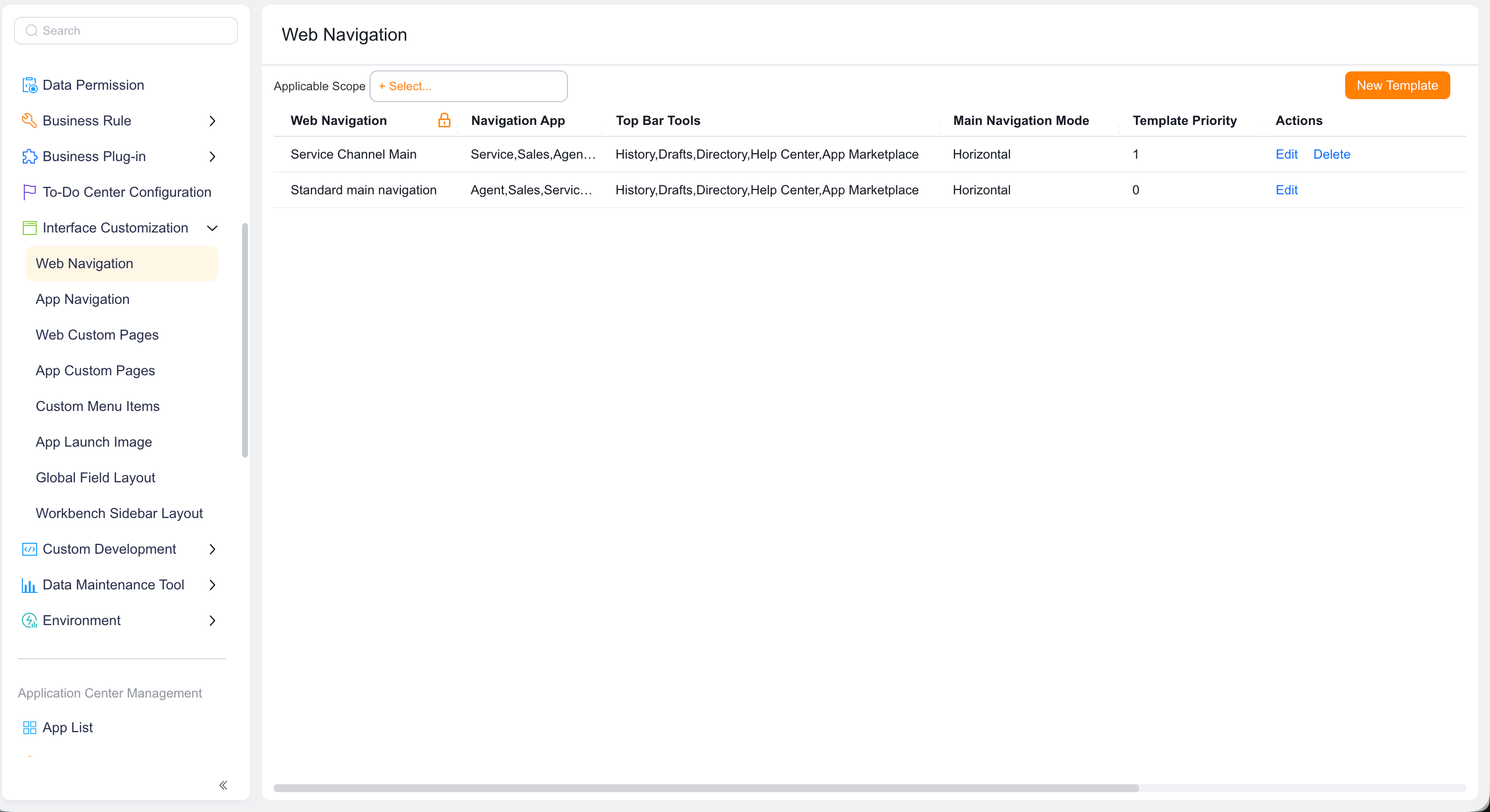
  1. Go to Setup > Interface Customization Management > Web Main Navigation.
  2. Click New.

Web main navigation list

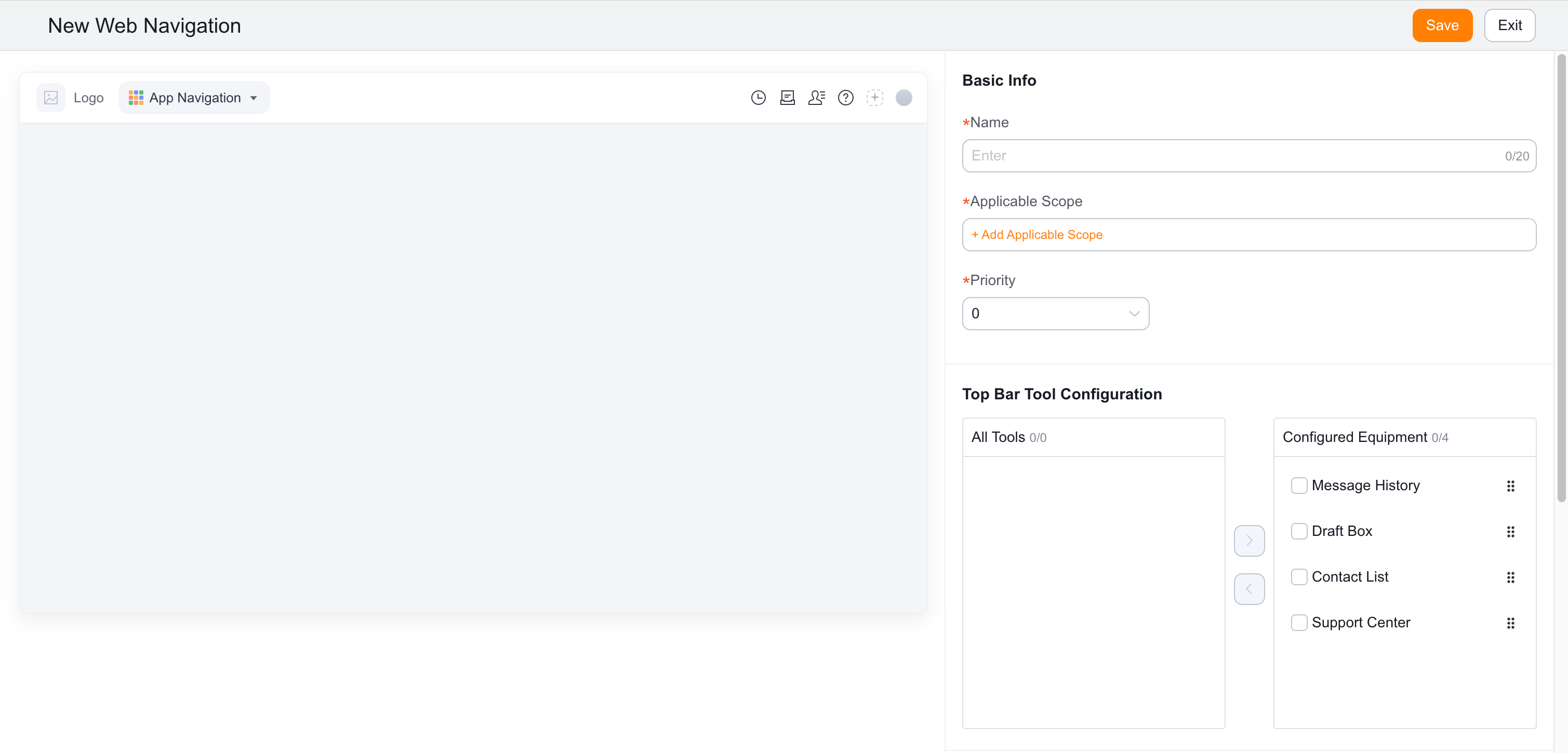
  1. Enter a Main Navigation Name of up to 20 characters.
  2. Set the Template Priority and Applicable Scope.
  3. Turn on Allow Employees to Customize This Main Navigation when needed.
  4. Click Next.

Web navigation basic information

Basic information field reference ​

FieldDescription
Main Navigation NameRequired template name, up to 20 characters.
Template PriorityOrder when several templates apply.
Applicable ScopeEmployees who can use the template.
Allow Employees to CustomizeShows personal navigation settings.

Configure the layout ​

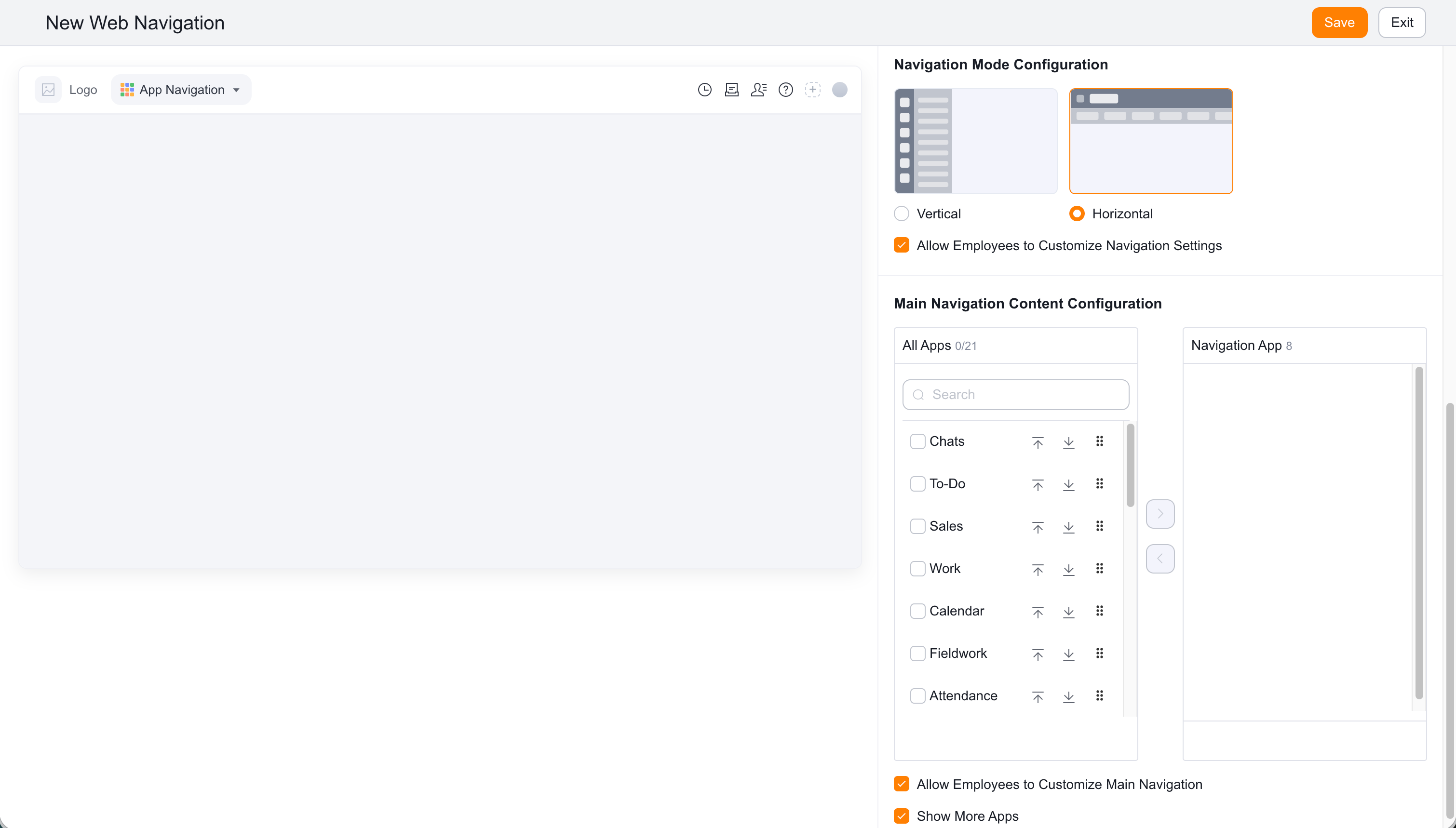
  1. Move applications from the left list to the right and drag them into order.
  2. Show no more than eight applications.
  3. Confirm scope and priority.
  4. Select and order top-bar tools, such as Drafts, Contacts, Help Center, and App Marketplace.
  5. Select vertical or horizontal navigation.
  6. Configure employee mode customization, More Apps, and application names.
  7. Click Save.

Configure Web main navigation

Layout configuration reference ​

The left side lists all applications, and the right side lists applications in main navigation. Configure up to eight applications, top-bar tools, navigation mode, employee customization, More Apps, and application-name visibility.

Notes ​

Personal navigation takes precedence over tenant navigation. If navigation differs from Setup, check personal settings first. Hiding More Apps can prevent access to applications not shown.

Expected result ​

Employees in scope see the configured applications and order after signing in on the Web.