Appearance


Understand the differences between standard and custom objects and choose the right object type for your business data.
Objects are the core of data storage in the CRM system. Nearly all business logic revolves around objects. The system provides both standard objects and custom objects to meet different business requirements.
Because many CRM customers share similar business processes, the system provides standard objects that users can use directly. Common examples include Account, Opportunity, Order, Contract, and Payment. The system pre-configures basic fields in these standard objects and develops dedicated features for specific objects.
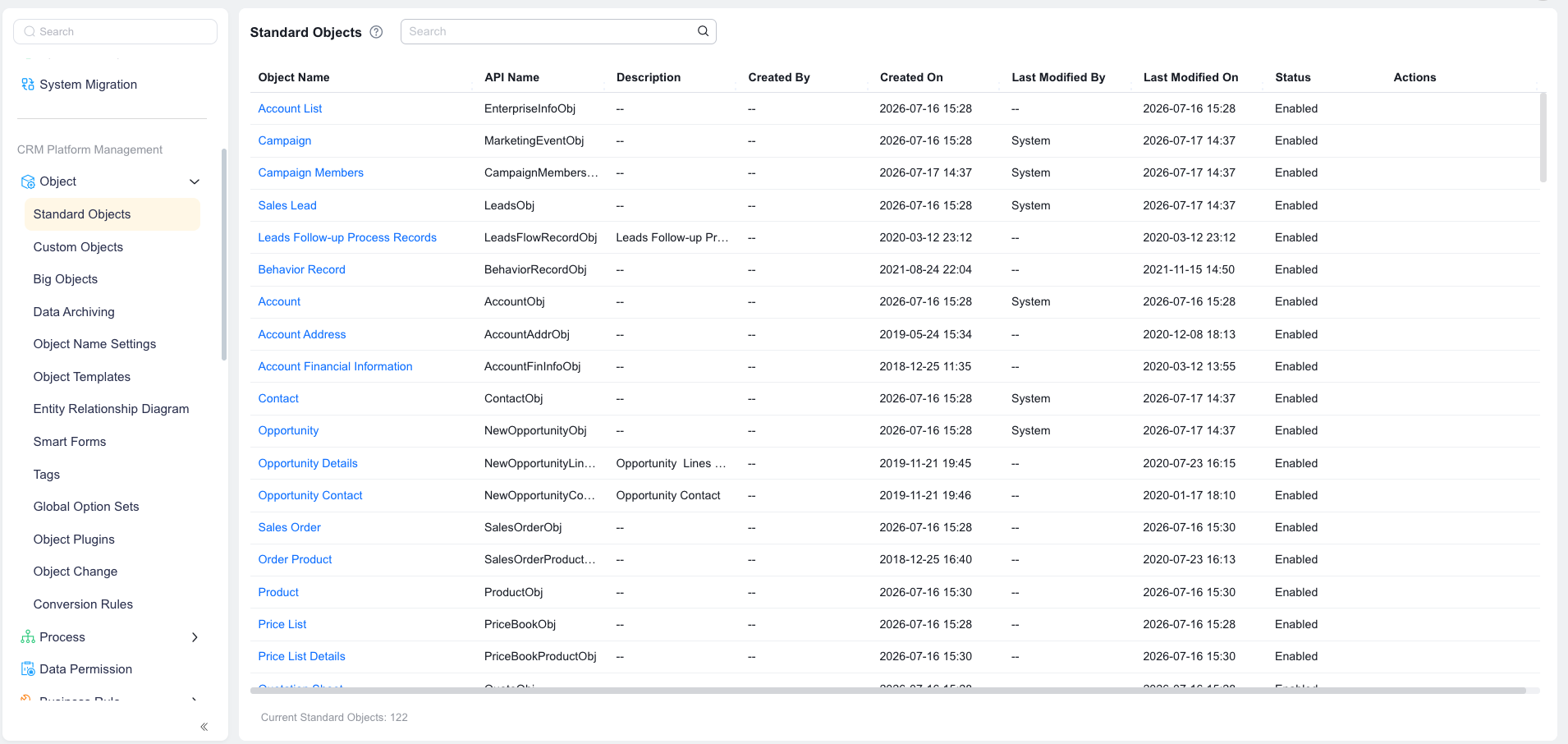
When standard objects do not fully meet your business requirements, you can modify their fields, layouts, and scenarios.
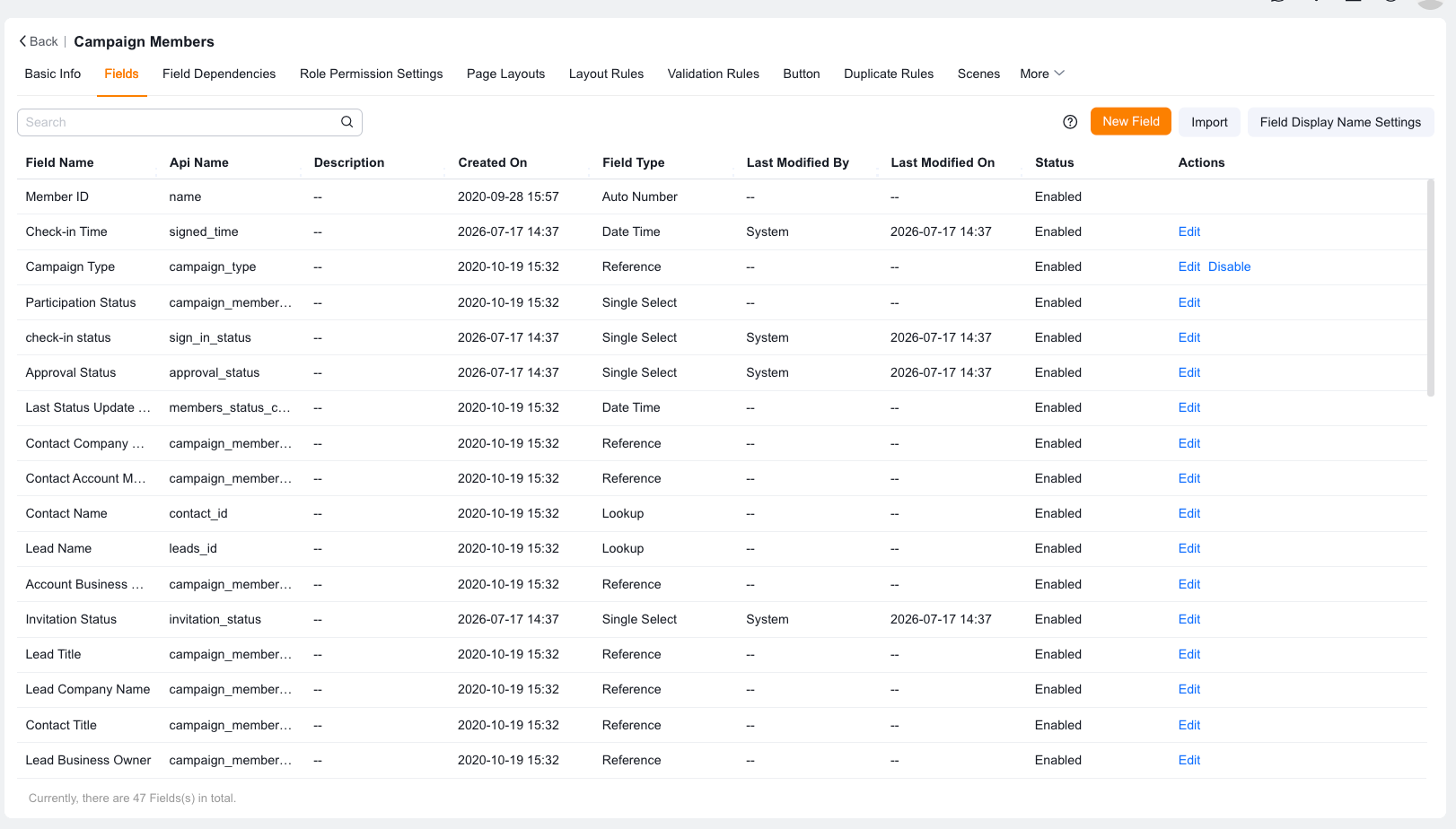
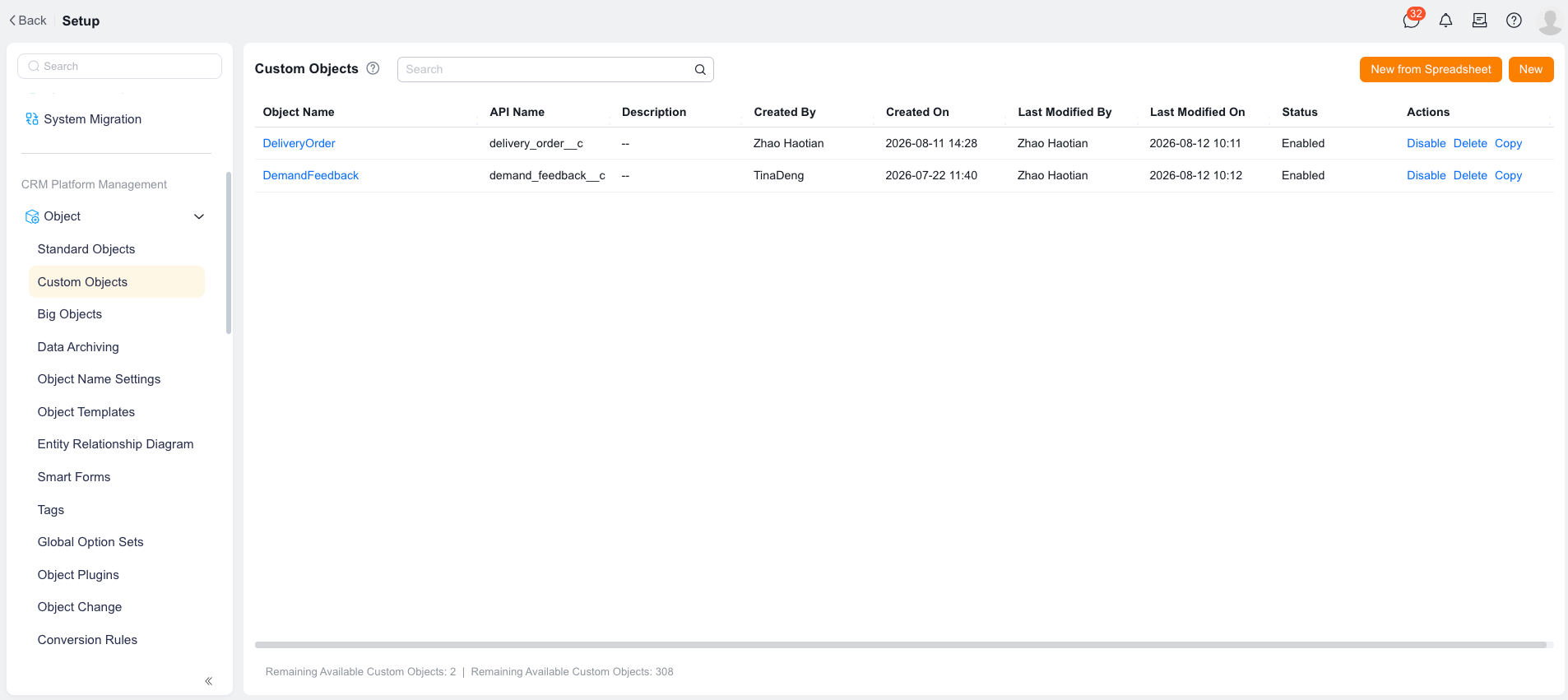
When standard objects can no longer meet your business requirements, you can use custom objects to configure your own data model. All newly created custom objects start with identical default settings. You need to manually configure fields, layouts, and scenarios.
| Dimension | Standard object | Custom object |
|---|---|---|
| Initial setup | Pre-configured with fields, scenarios, and settings based on common business needs. Objects differ from each other | All objects start with identical settings. Manual configuration required |
| Dedicated features | Has dedicated features that cannot be changed | No dedicated features. Custom configuration required |
| Applicable scenario | Standard CRM scenarios (Account, Opportunity, Order, etc.) | Customized enterprise scenarios (delivery notes, equipment ledgers, etc.) |
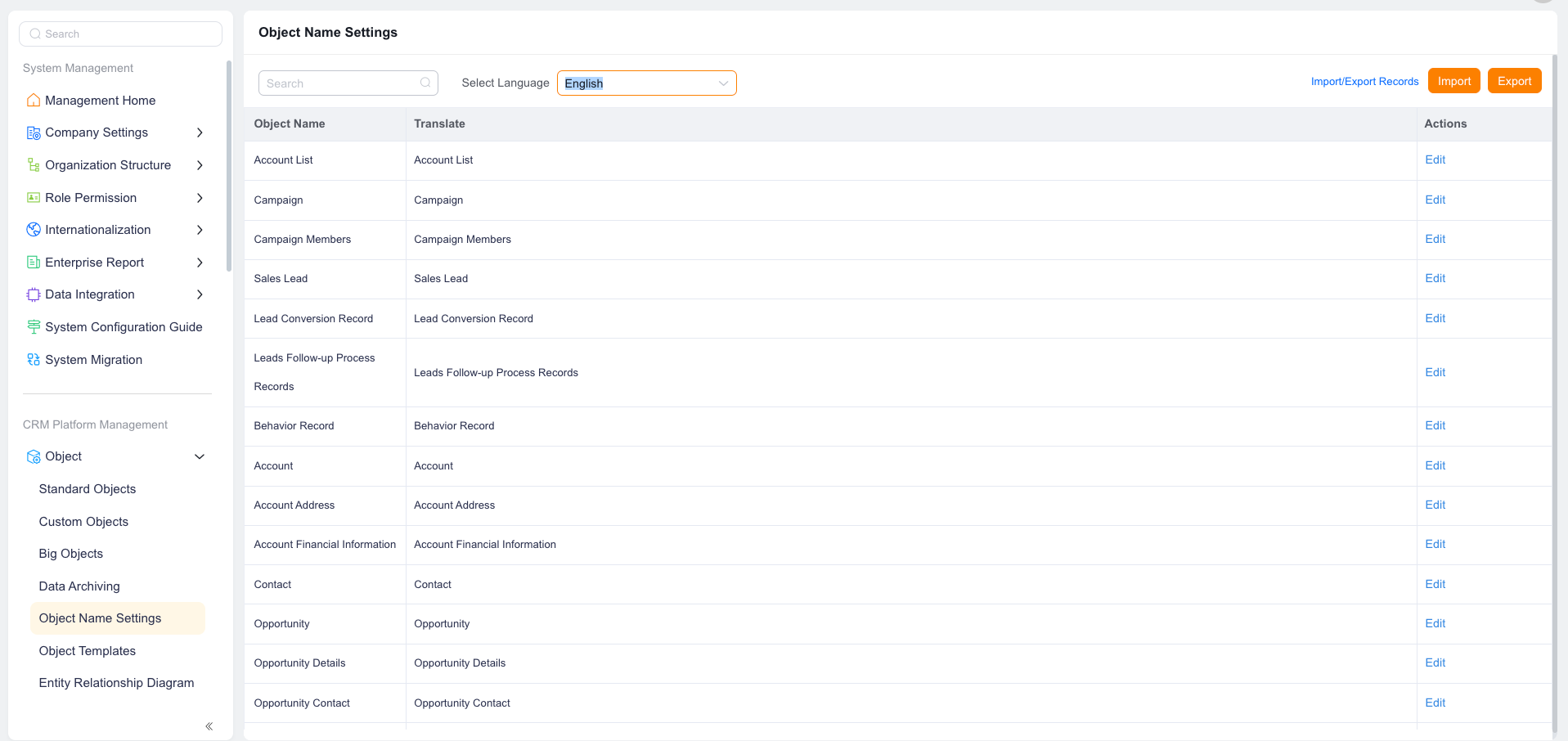
You cannot directly rename a standard object on the object edit page. Instead, use the Object Name Settings menu to modify the locale value corresponding to the object name.
For example, to change "Price Book" to "Product Price Book", modify the Chinese locale value from "Price Book" to "Product Price Book". The display name then shows "Product Price Book" in the Chinese locale.