Skip to content

Create Big Objects ​

This article describes the complete process and configuration considerations for creating Big Objects in the ShareCRM PaaS platform.

Overview ​

This document details the three steps for creating a Big Object: basic information configuration, layout configuration, and available configuration options. Each step highlights the differences between Big Objects and regular objects in terms of optional features, primary attribute types, mask configuration, and more.

Step 1: Basic information configuration ​

Path: Setup > Object Management > Big Object Management
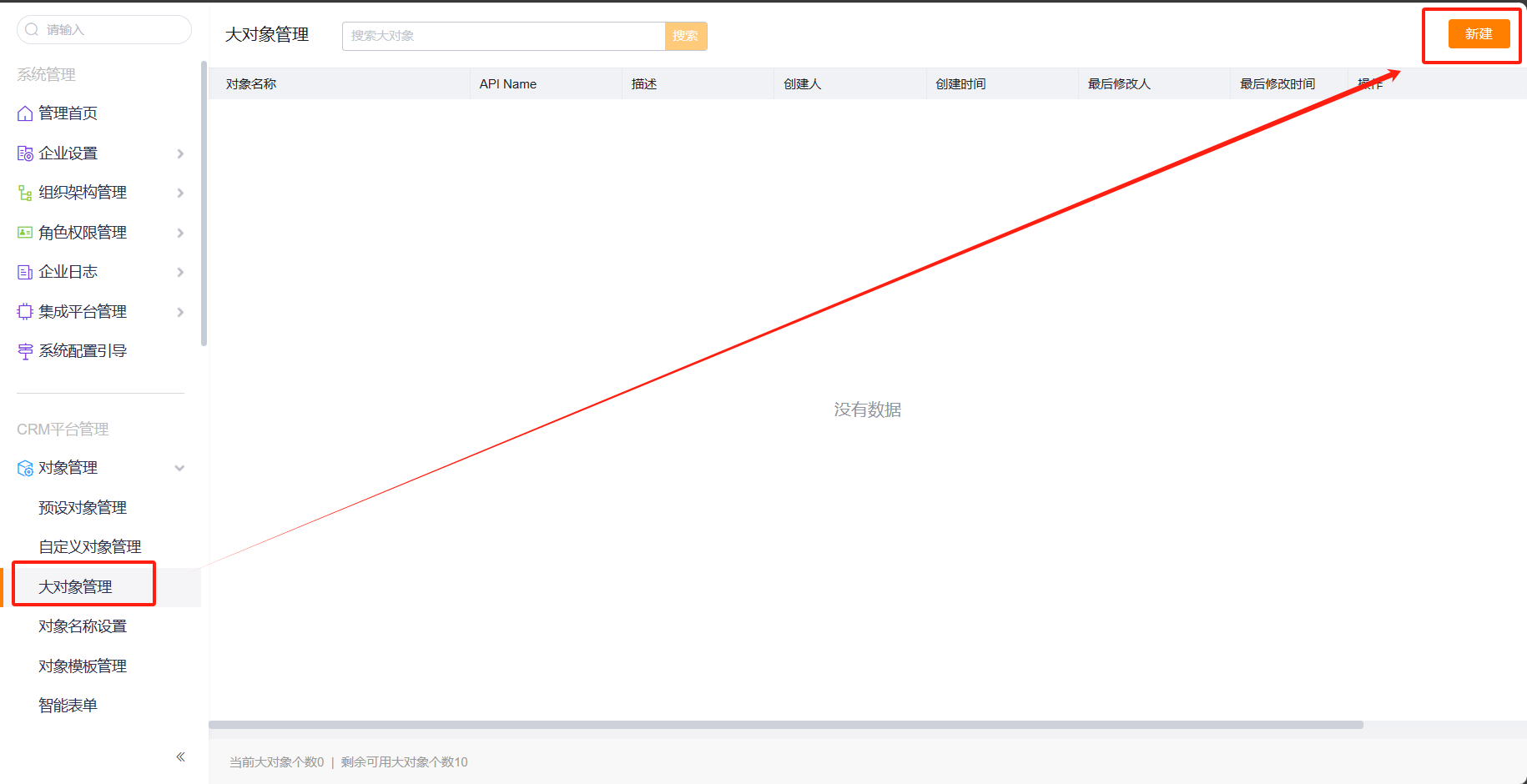
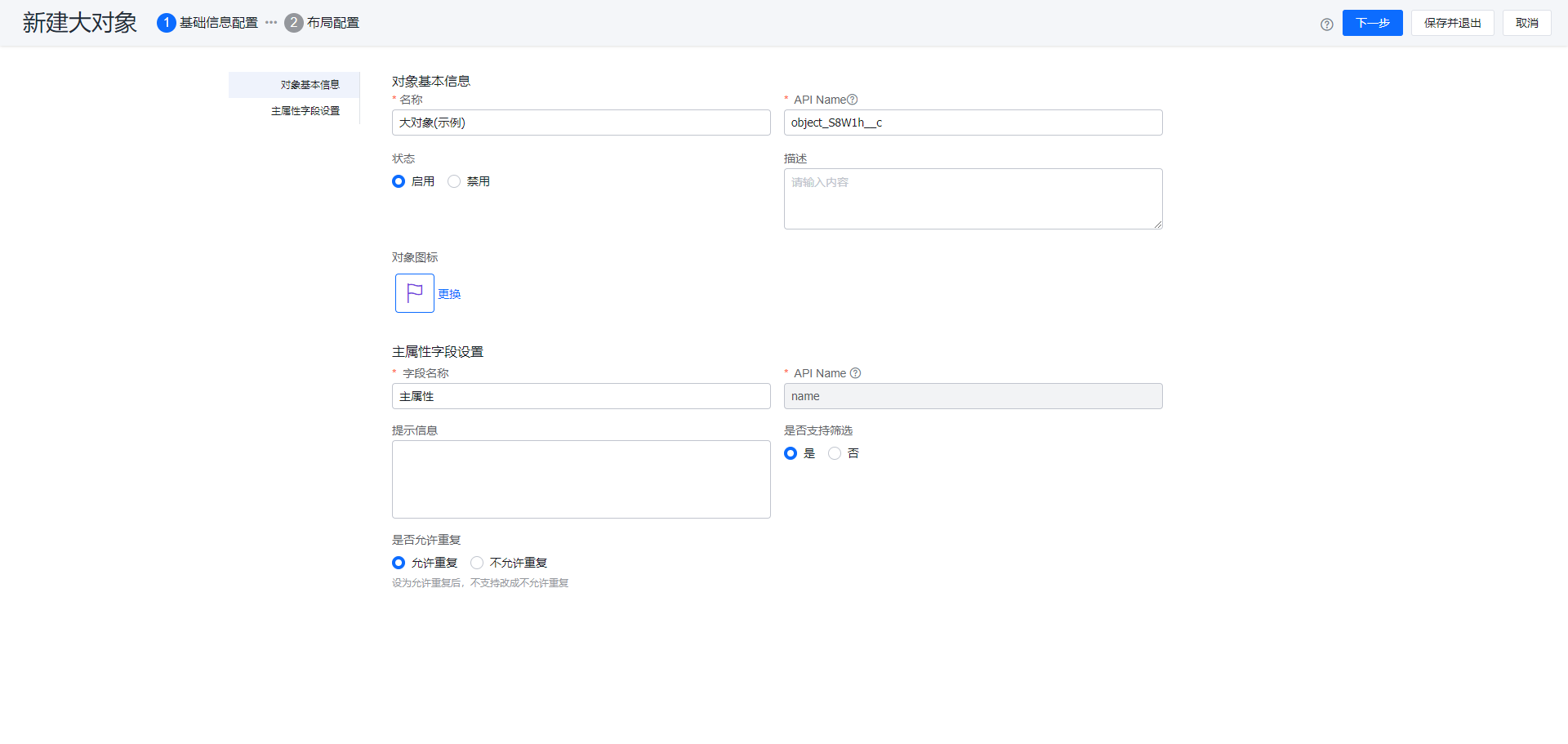
Basic information configuration - 1

Basic information configuration - 2

Differences from regular objects ​

  1. Does not support optional features: Global Search, Follow-up Activity, Related Team, or Modification History
  2. Primary attribute type: does not support the Auto Number field type
  3. Does not support fill-in settings
  4. Does not support mask display configuration (no Big Object fields support masking)

Step 2: Layout configuration ​

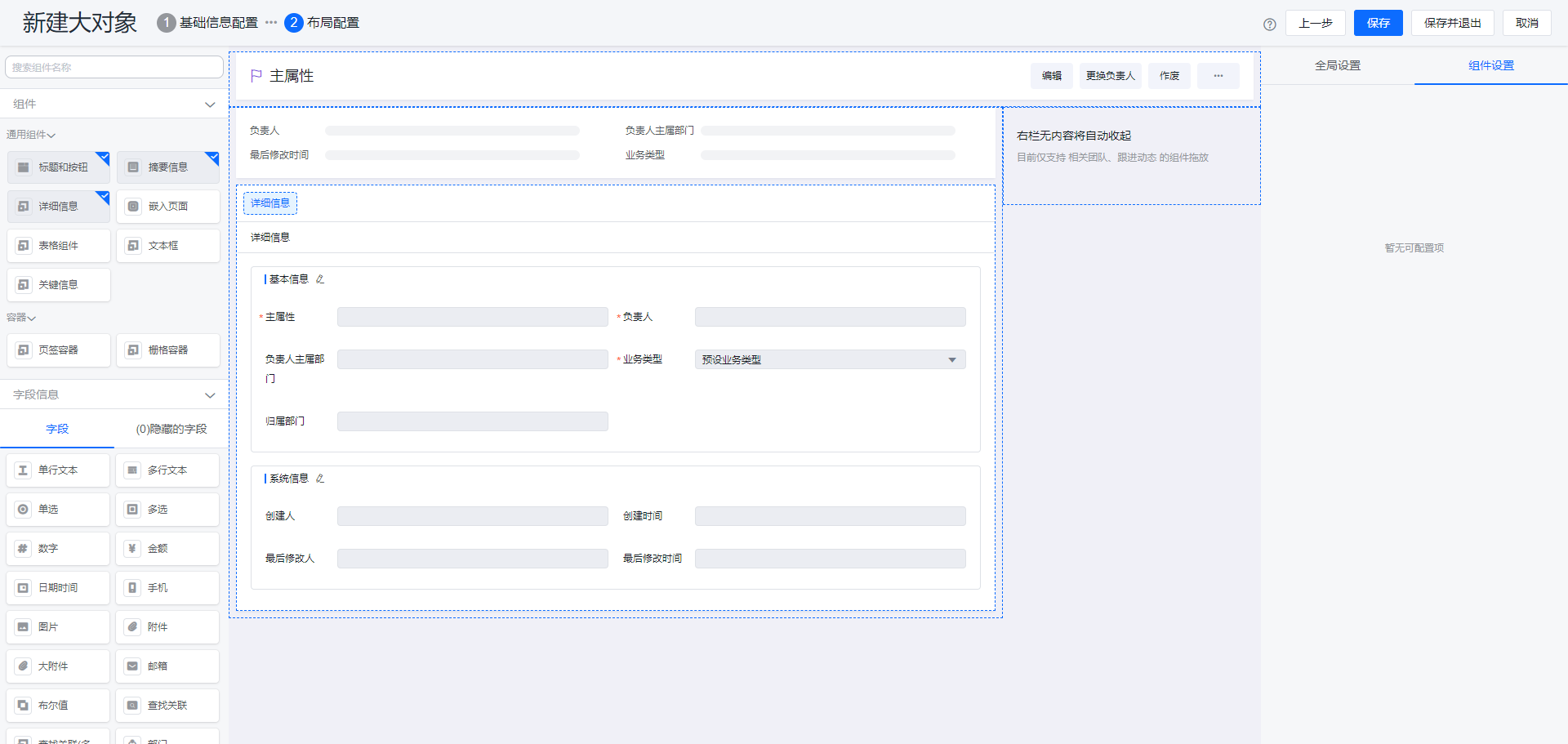
Layout configuration

Differences from regular objects ​

  1. Big Object layouts do not support UI events
  2. The Related Object Component does not support Roll-Up Summary Field settings

Step 3: Available configurations for Big Objects ​

Big Objects support only Basic Information, Field List, Role Permission Settings, Layout, Record Type, Button, and Scenario Management.
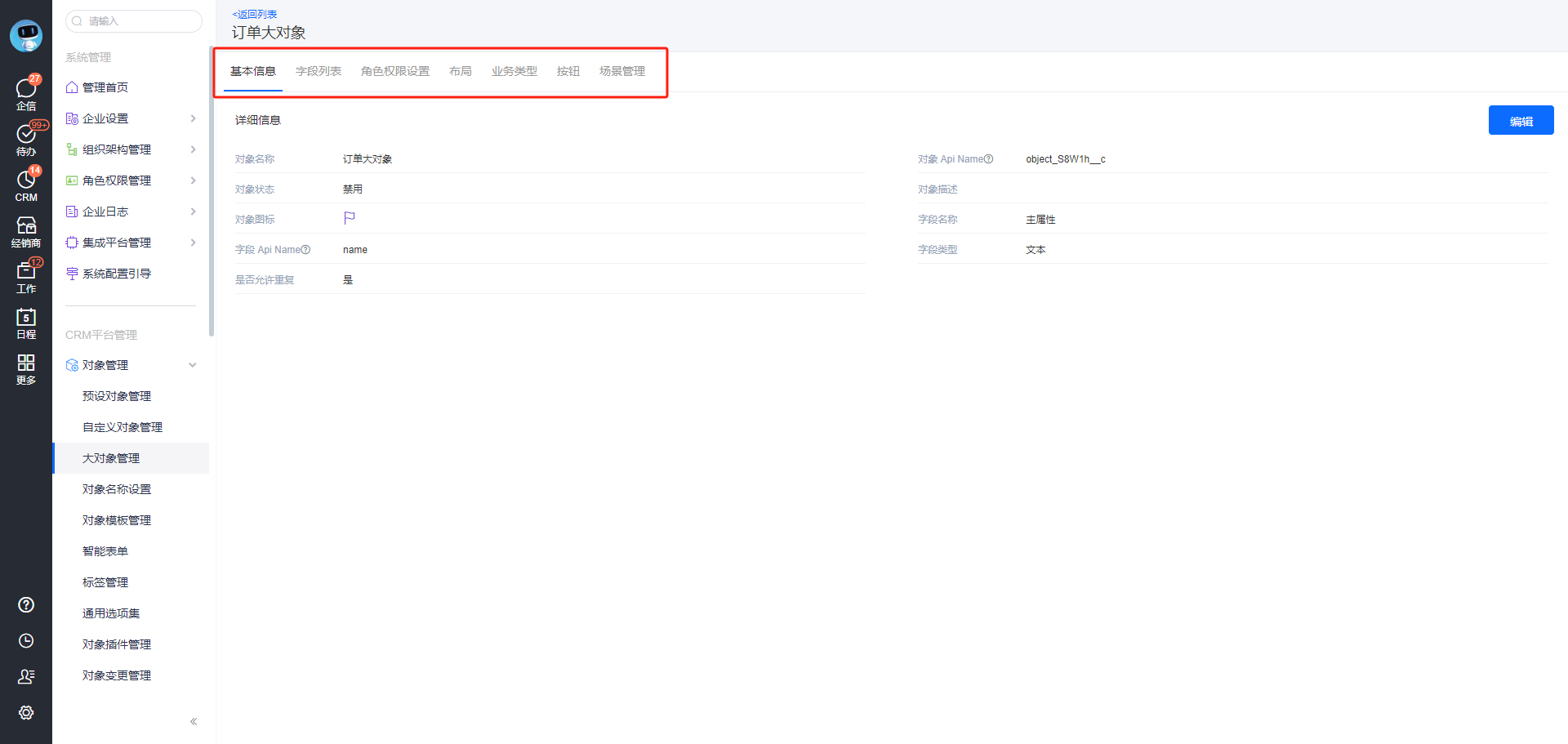
Available configurations