Appearance


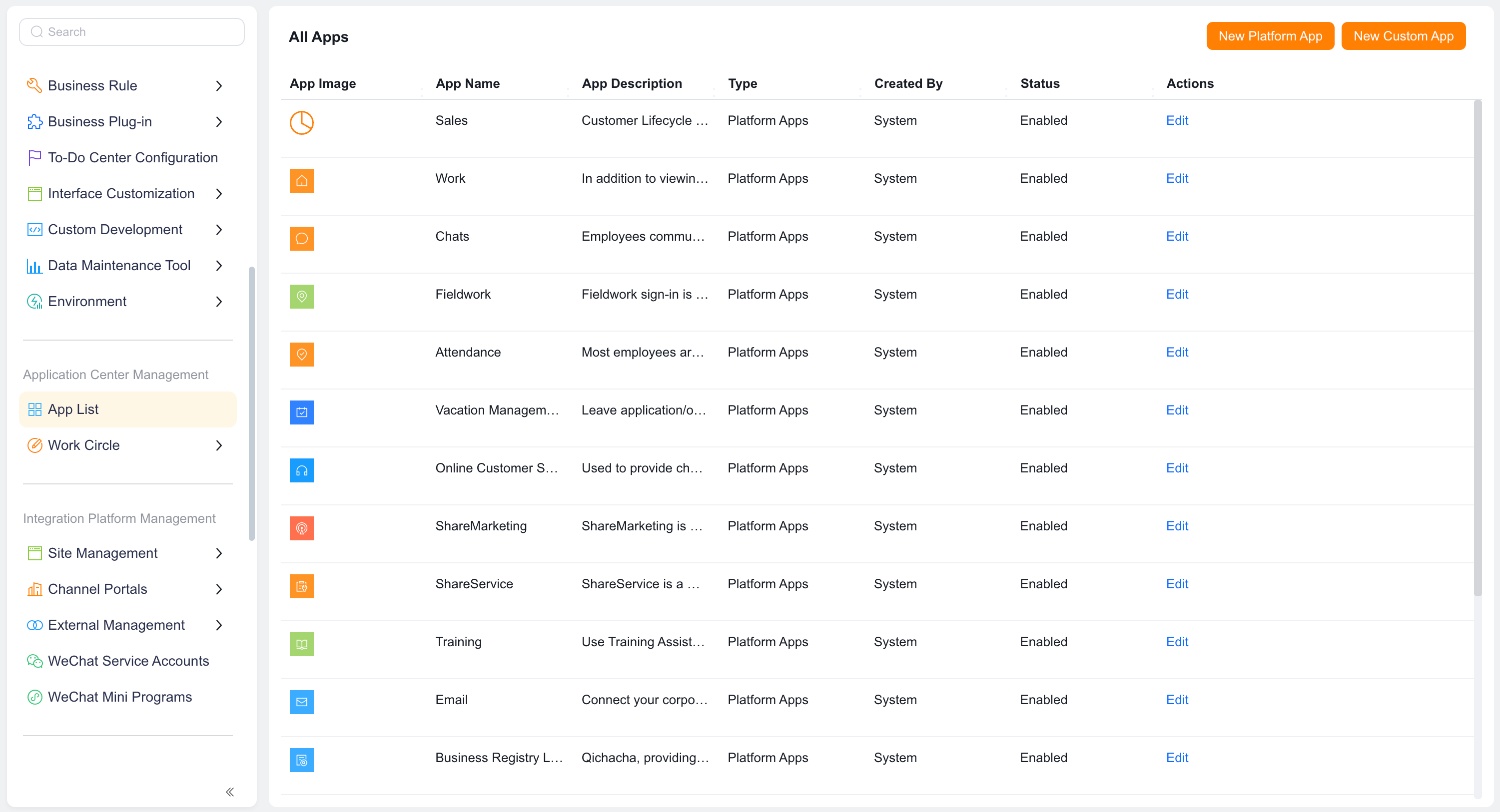
Platform applications host Web and mobile app views.
Create a platform application and configure separate Web and mobile app views. Use one to provide a dedicated workspace for sales, channel, or operations teams.
IMPORTANT
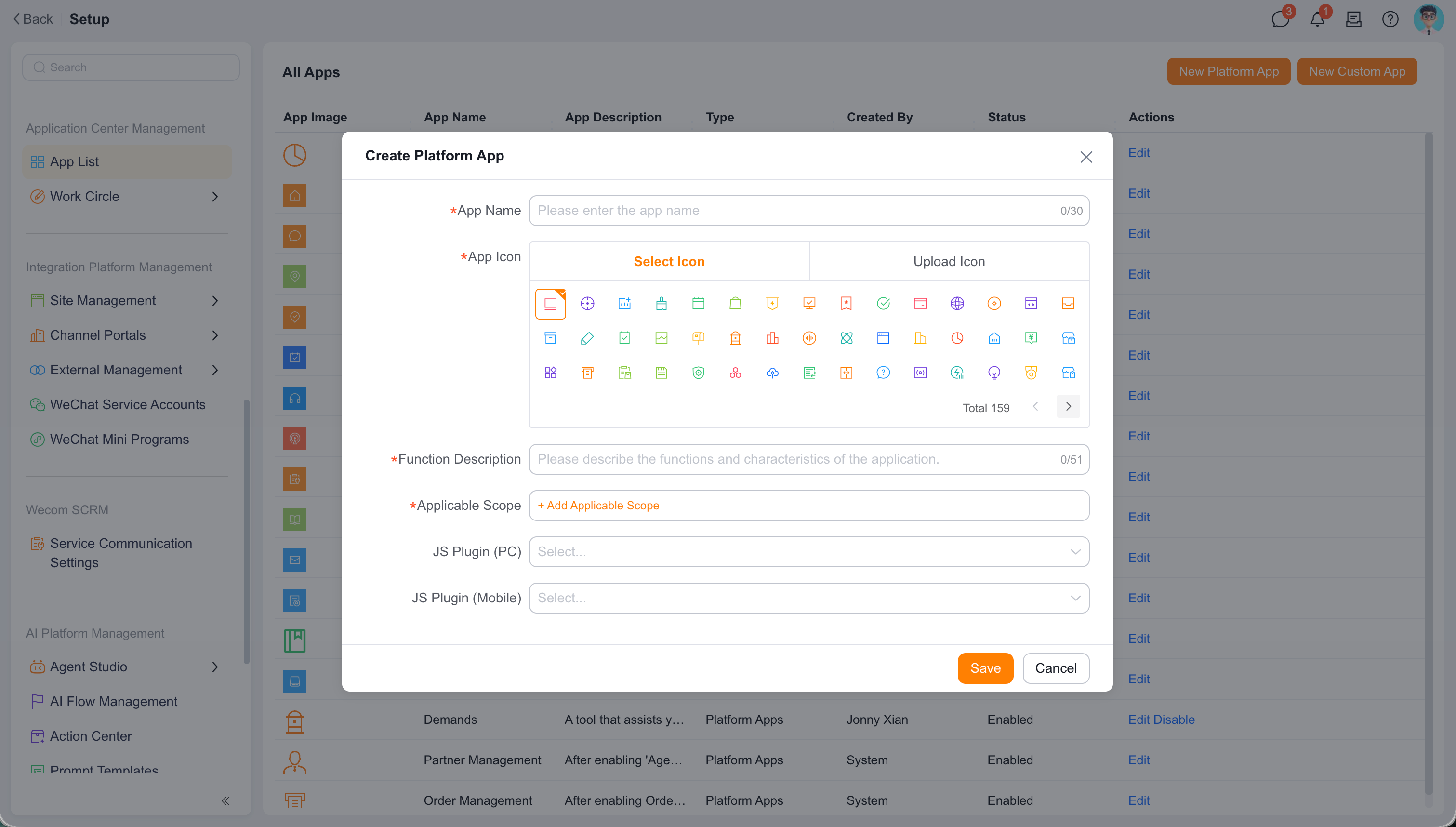
| Field | Description | Recommendation |
|---|---|---|
| Application Name | User-facing name, up to 10 characters. | Use a short team-friendly name. |
| Application Icon | Icon shown at the application entry. | Match the business purpose. |
| Feature Introduction | Application purpose and features. | Identify the roles or Business Scenario. |
| Applicable Scope | Employees, departments, or roles that can see the application. | Start with a pilot team. |
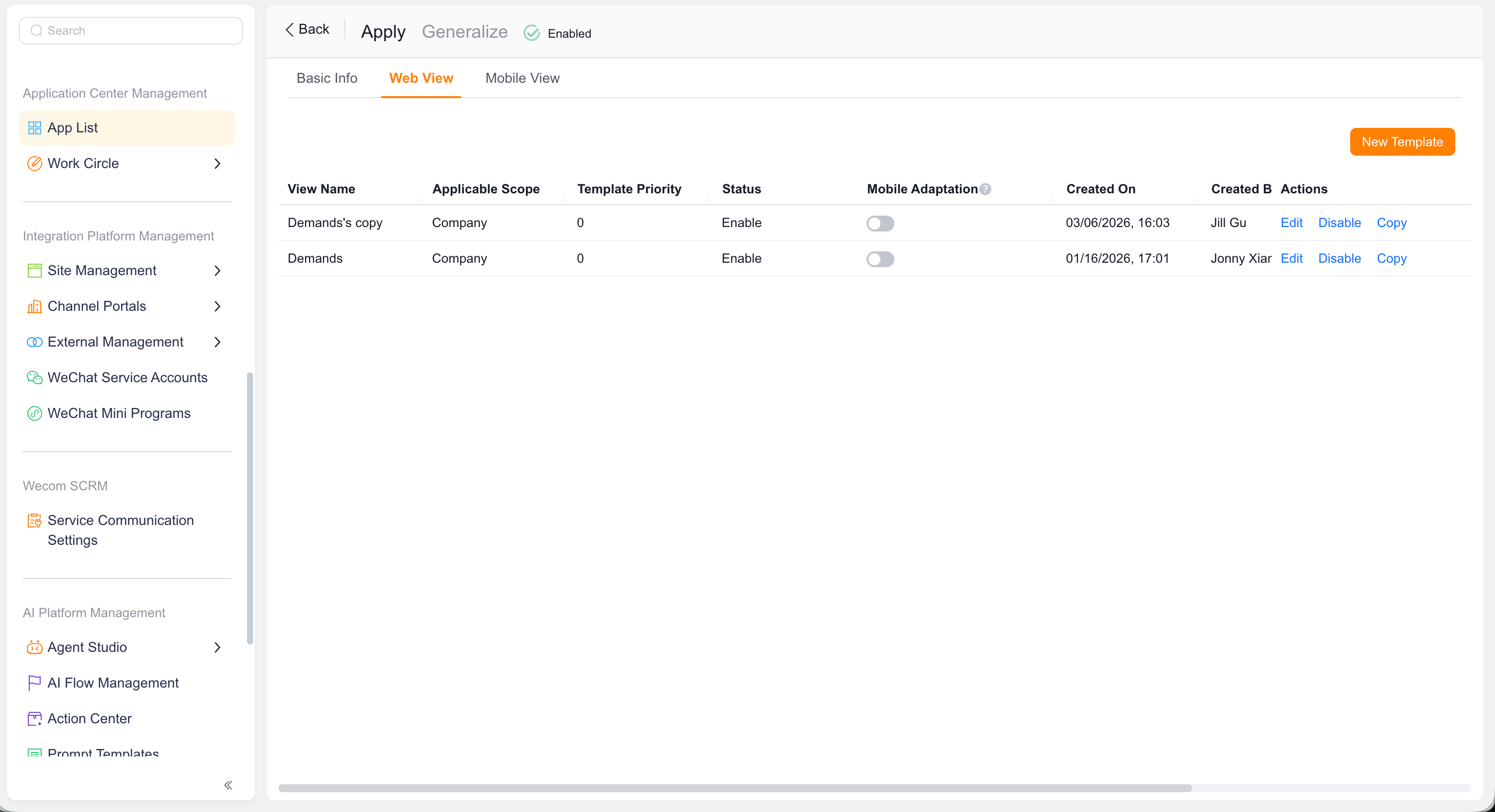
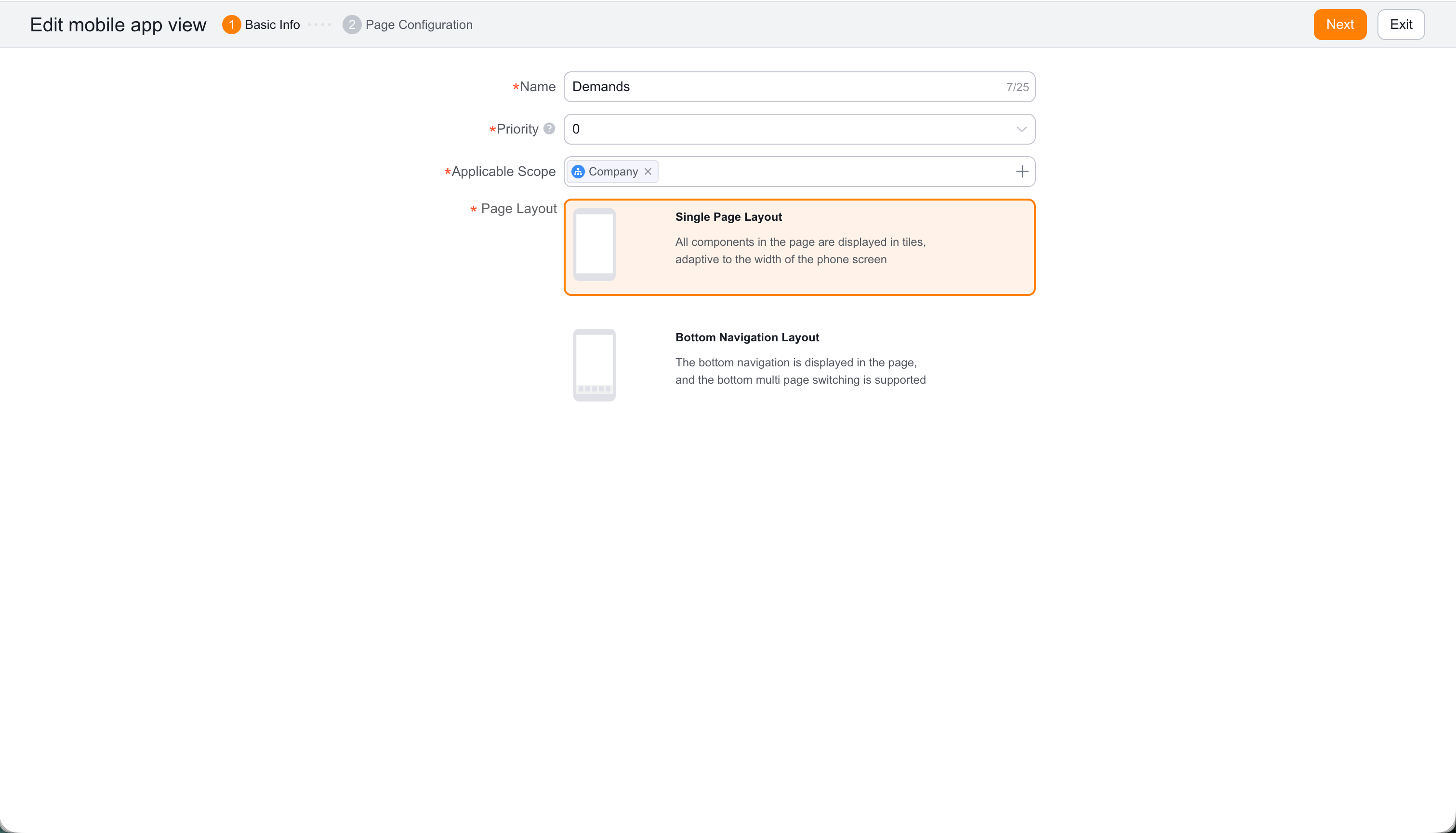
0 to 9, the Applicable Scope, and the Page Layout.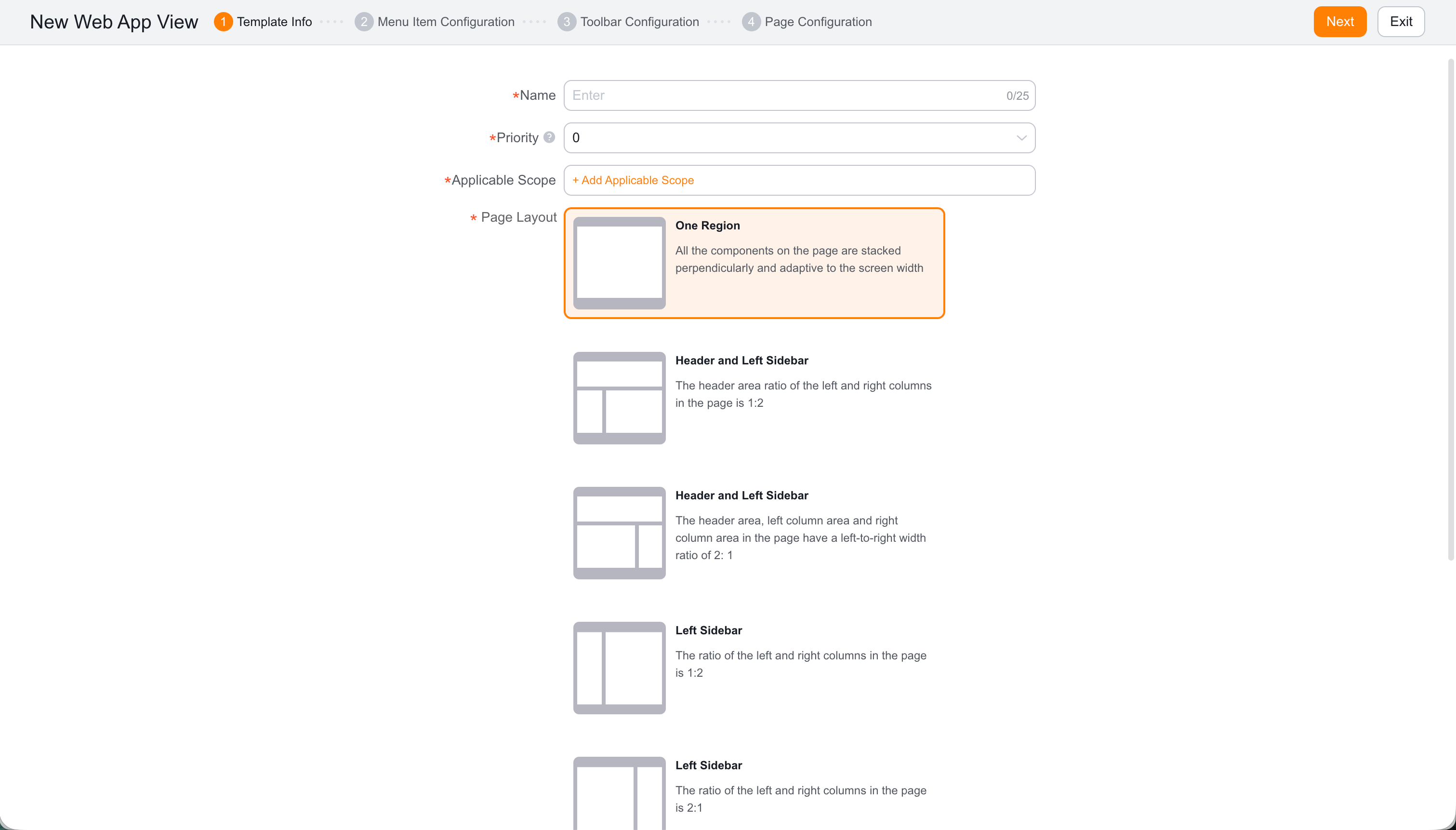
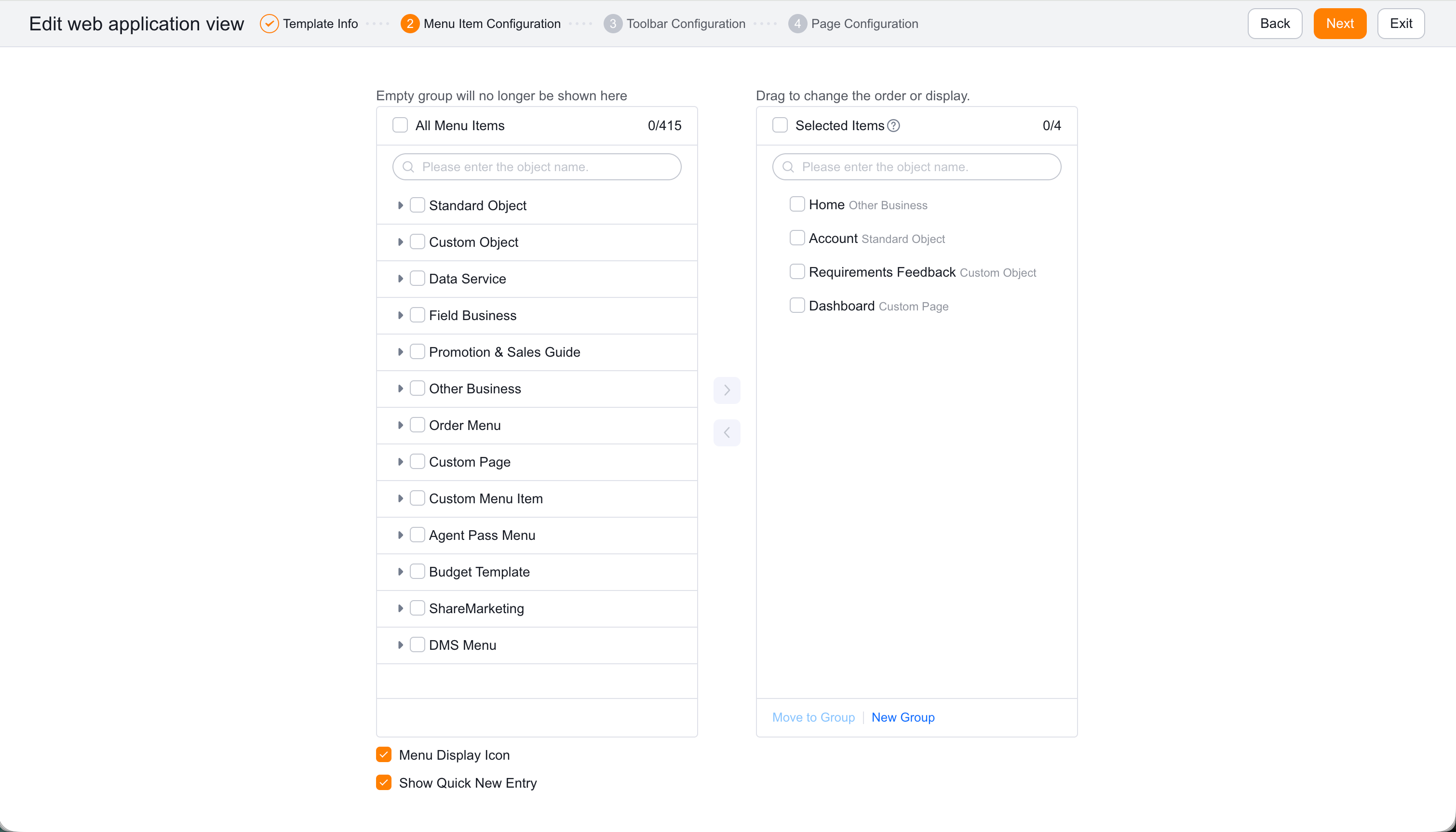
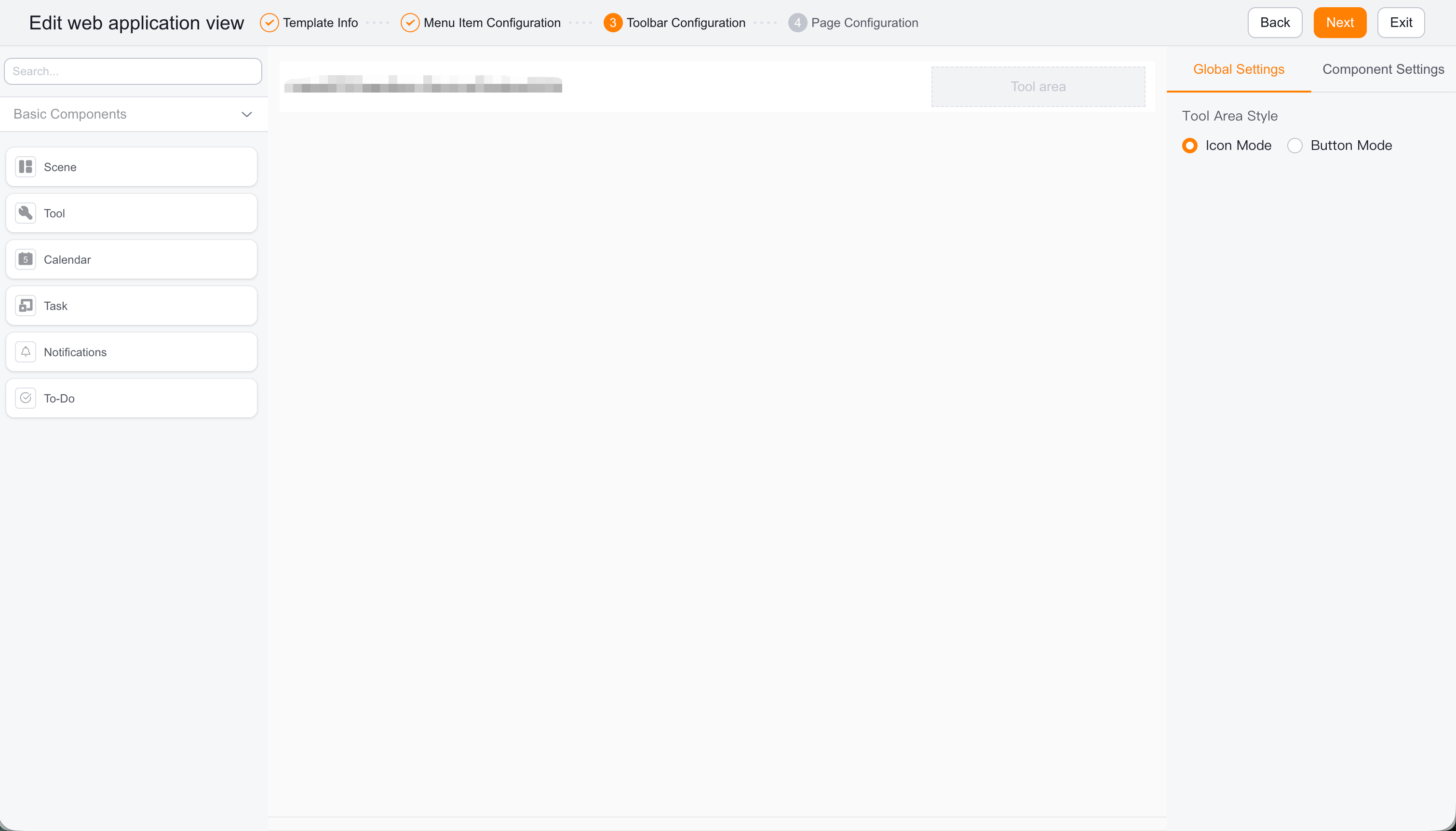
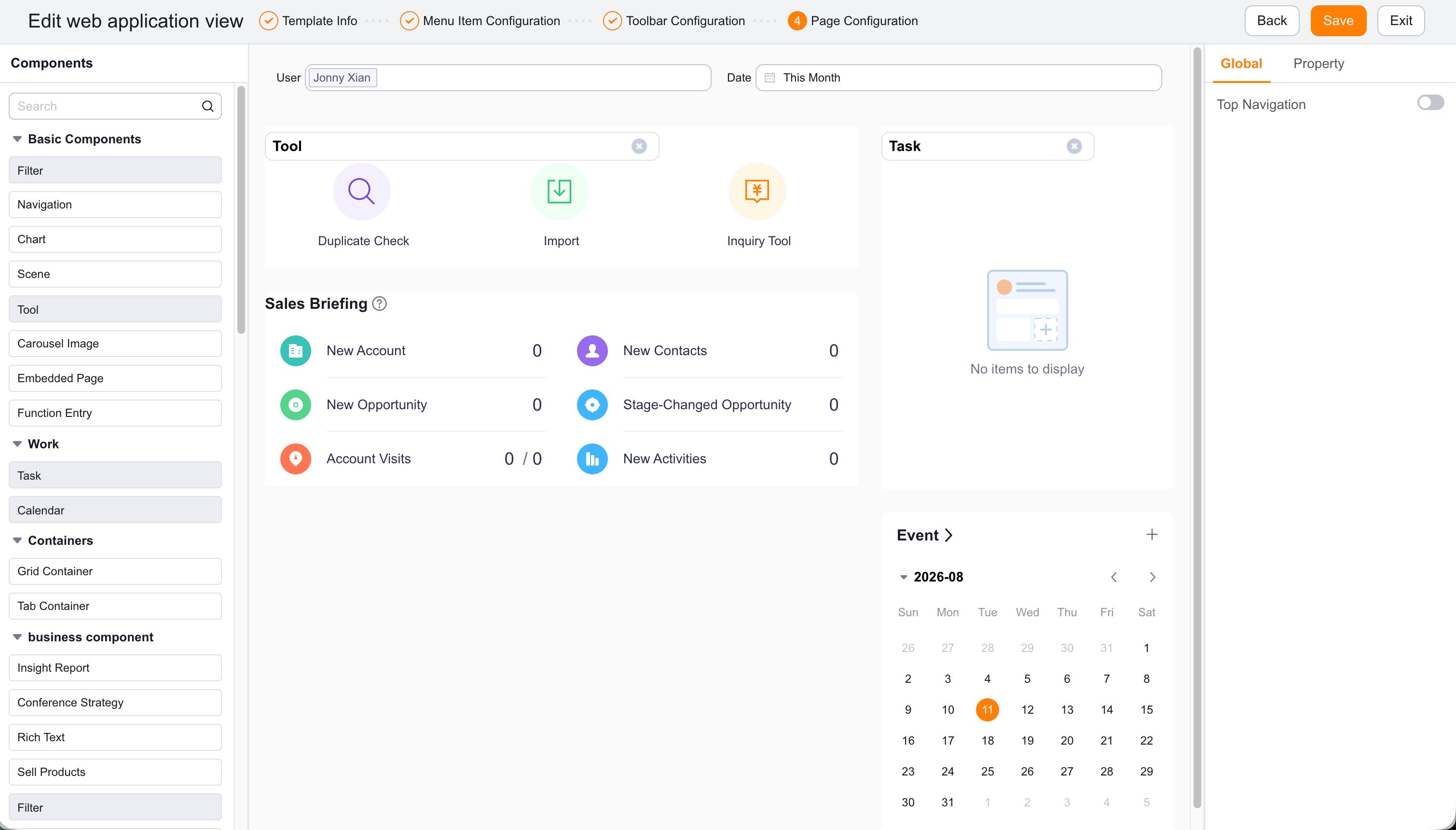
| Setting | Description |
|---|---|
| Template Name | Required name of the Web app view. |
| Template Priority | The highest applicable priority loads first. Higher numbers have higher priority. |
| Applicable Scope | Controls visibility by employee, department, or role. |
| Page Layout | The original product material lists five layouts. |
| Toolbar | Add up to three scenarios, tools, schedules, or tasks. |
| Global Search | Global Settings control availability and search-box style. |
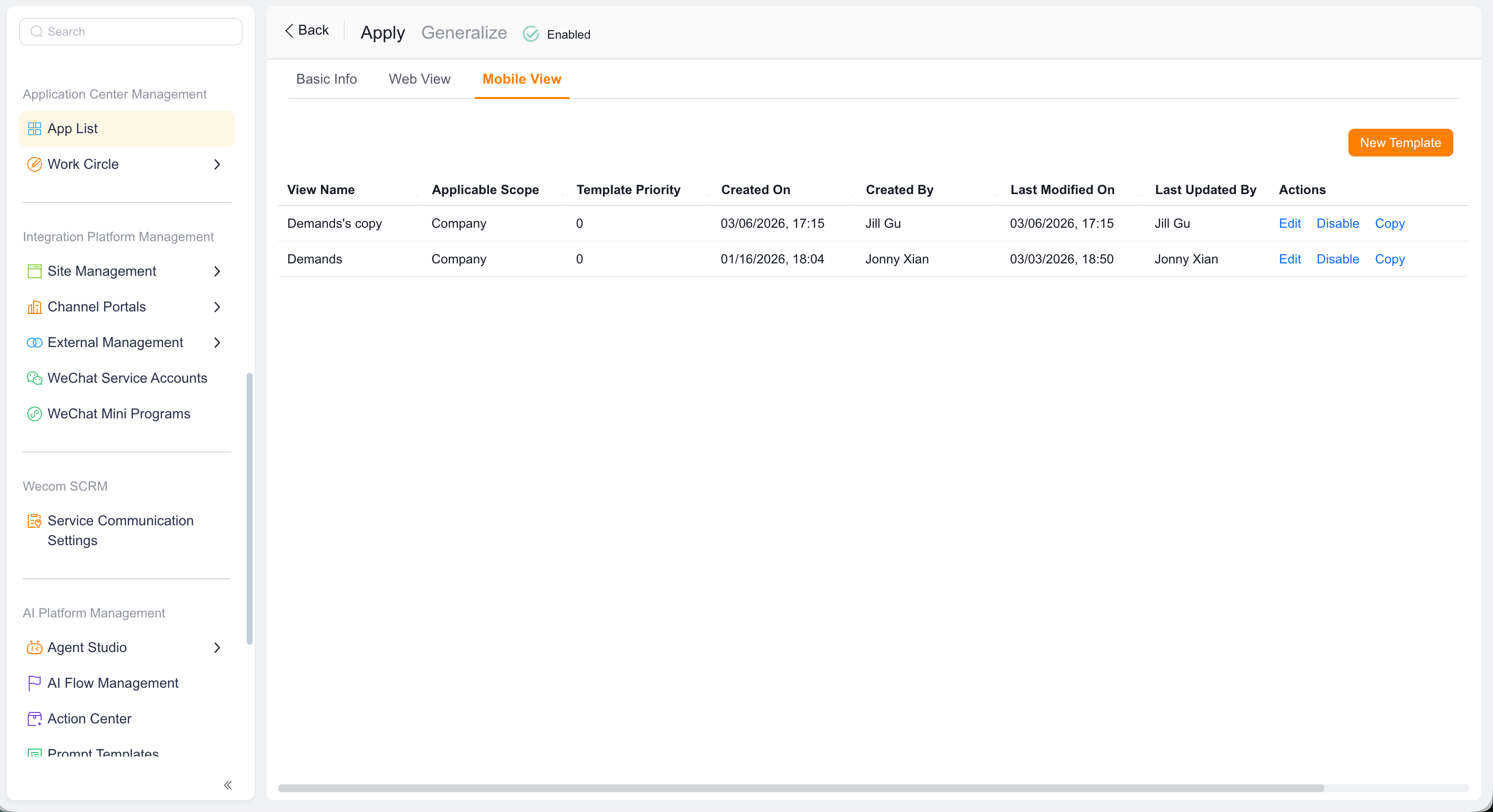
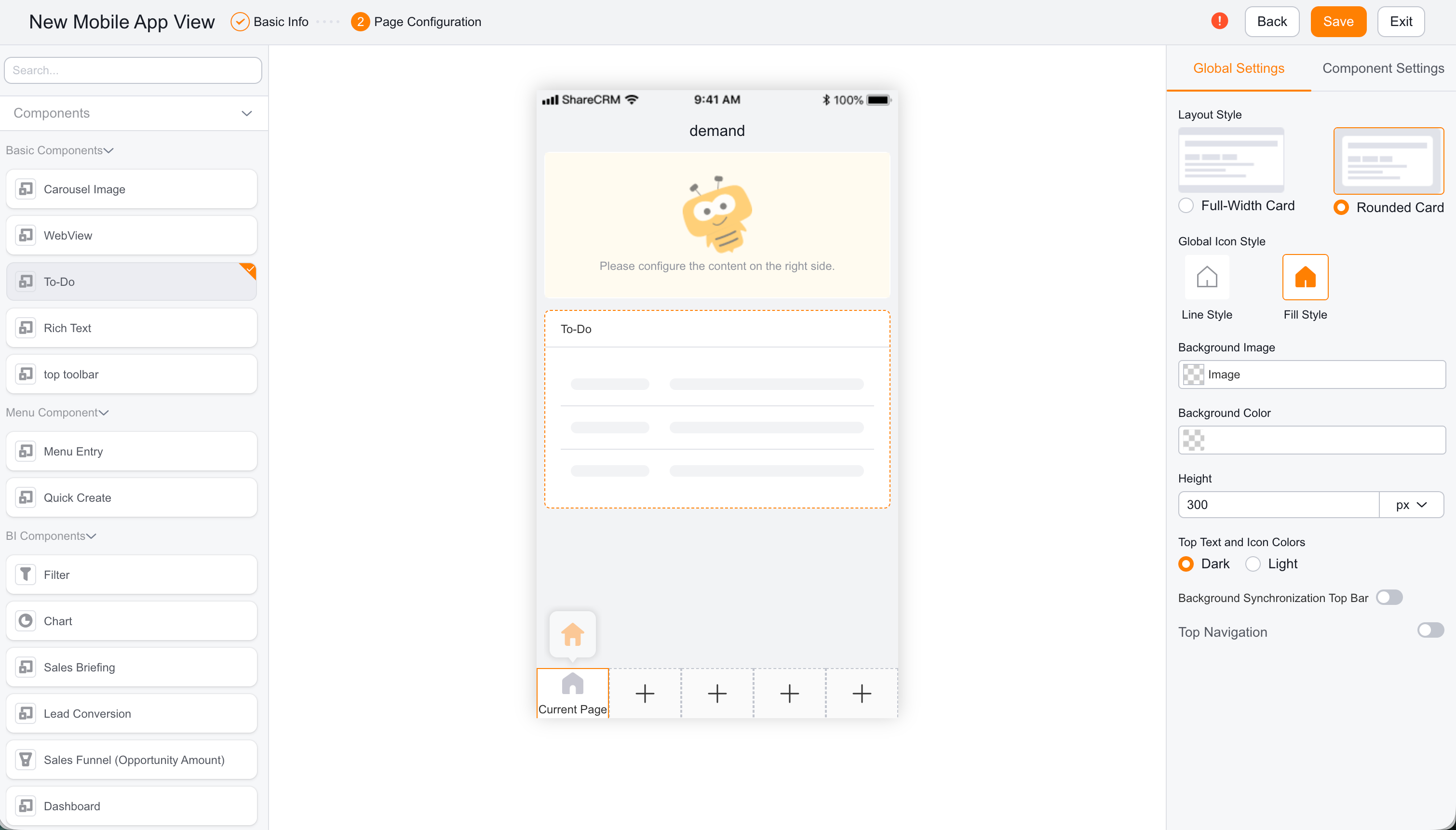
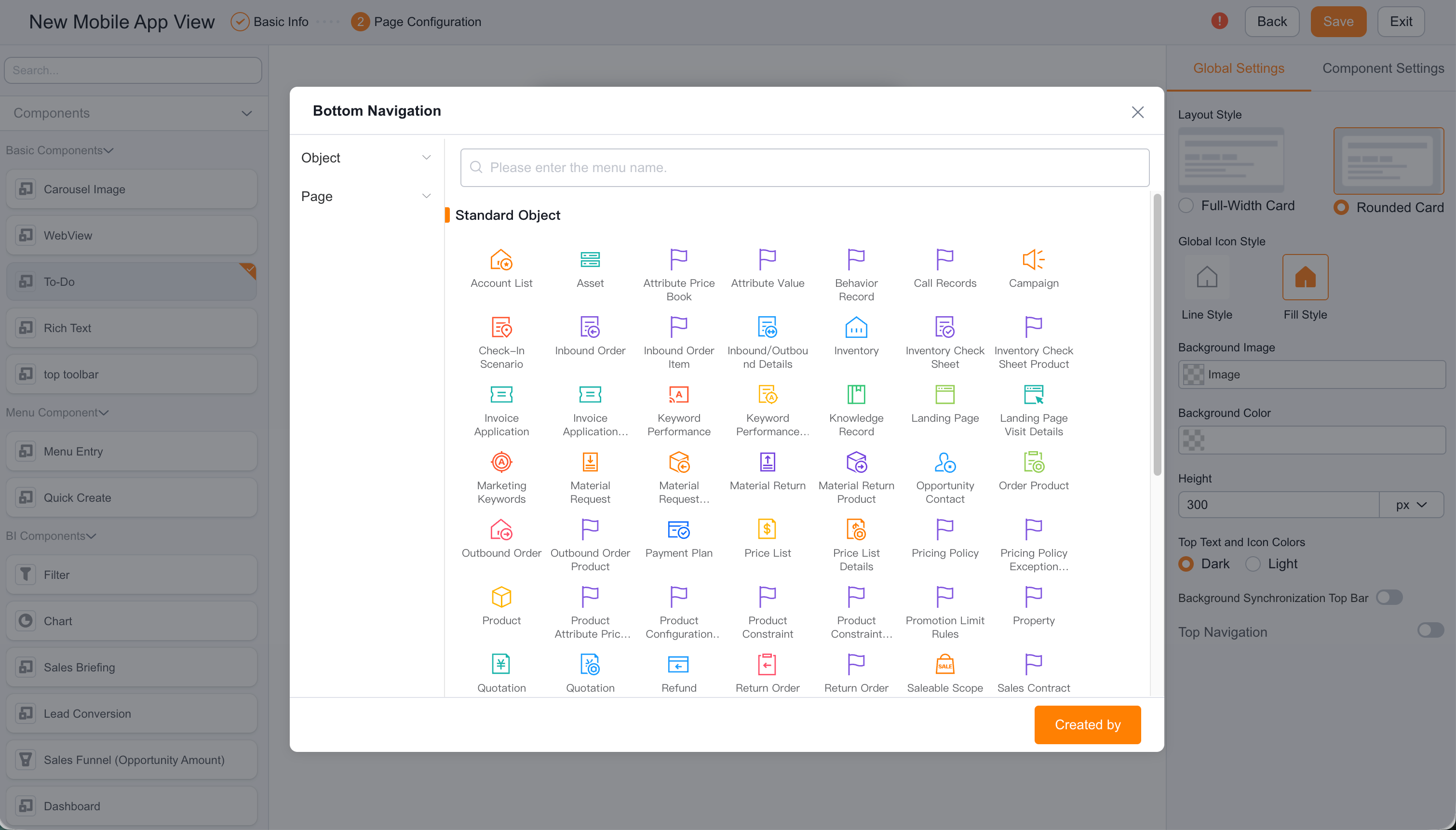
Keep frequently used entries in bottom navigation. The editor contains a component list, canvas, Global Settings, and Component Settings.
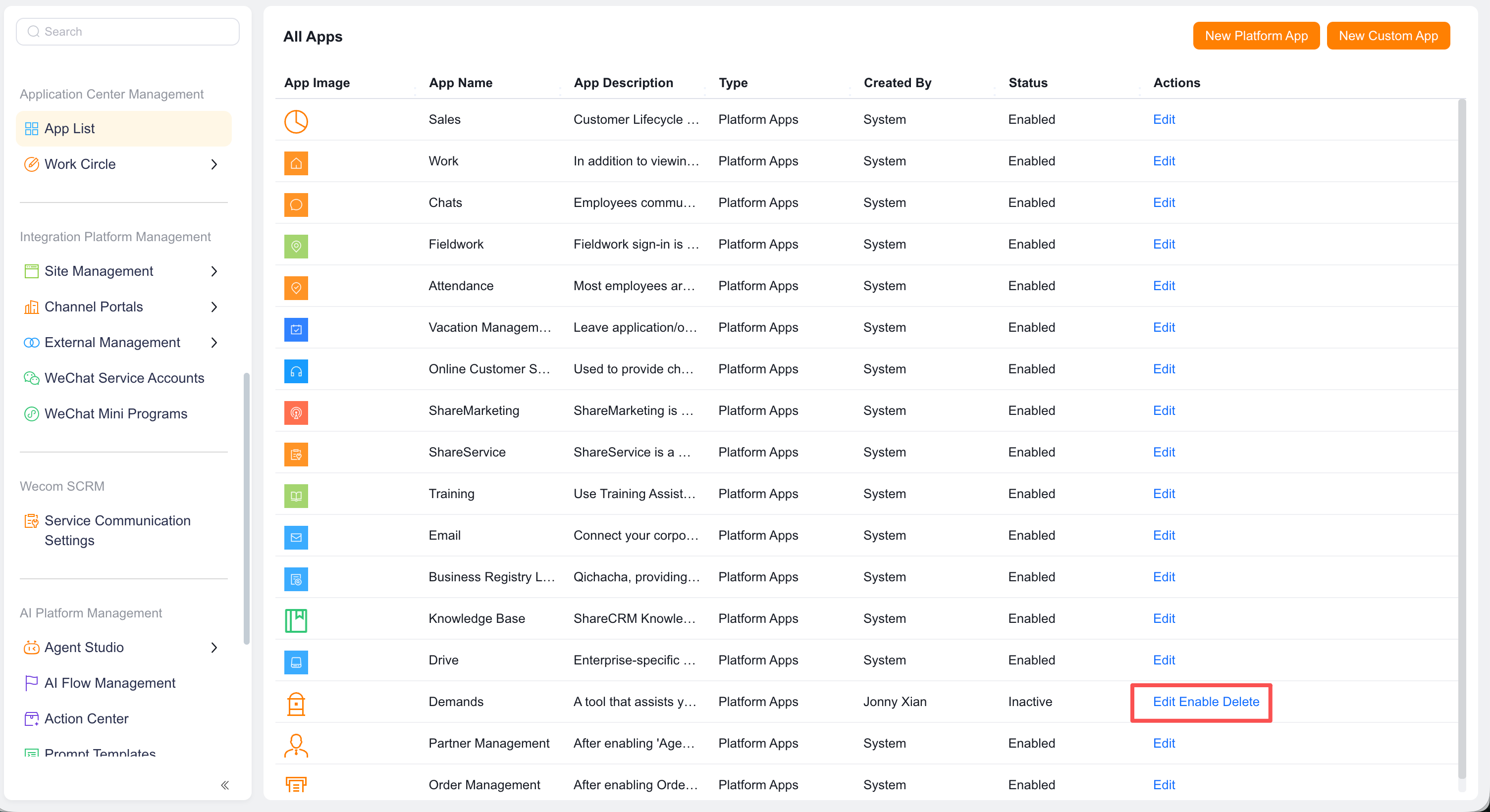
Use Enable, Edit, or Delete from the application list.
WARNING
Deleting a platform application also deletes its configuration. Confirm that employees no longer use it.
Employees in scope can open the application and its configured Web or mobile view.