Skip to content

Configure app main navigation ​

App main navigation controls first-level entries in mobile bottom navigation.

Overview ​

Configure different navigation for the ShareCRM app, DingTalk, WeCom, and Lark. Add up to five application, object, or page modules and select the mobile homepage.

Before you begin ​

IMPORTANT

  • You need System Administrator permission.
  • Confirm the platform used by the target employees.
  • Define the Applicable Scope.

Create app main navigation ​

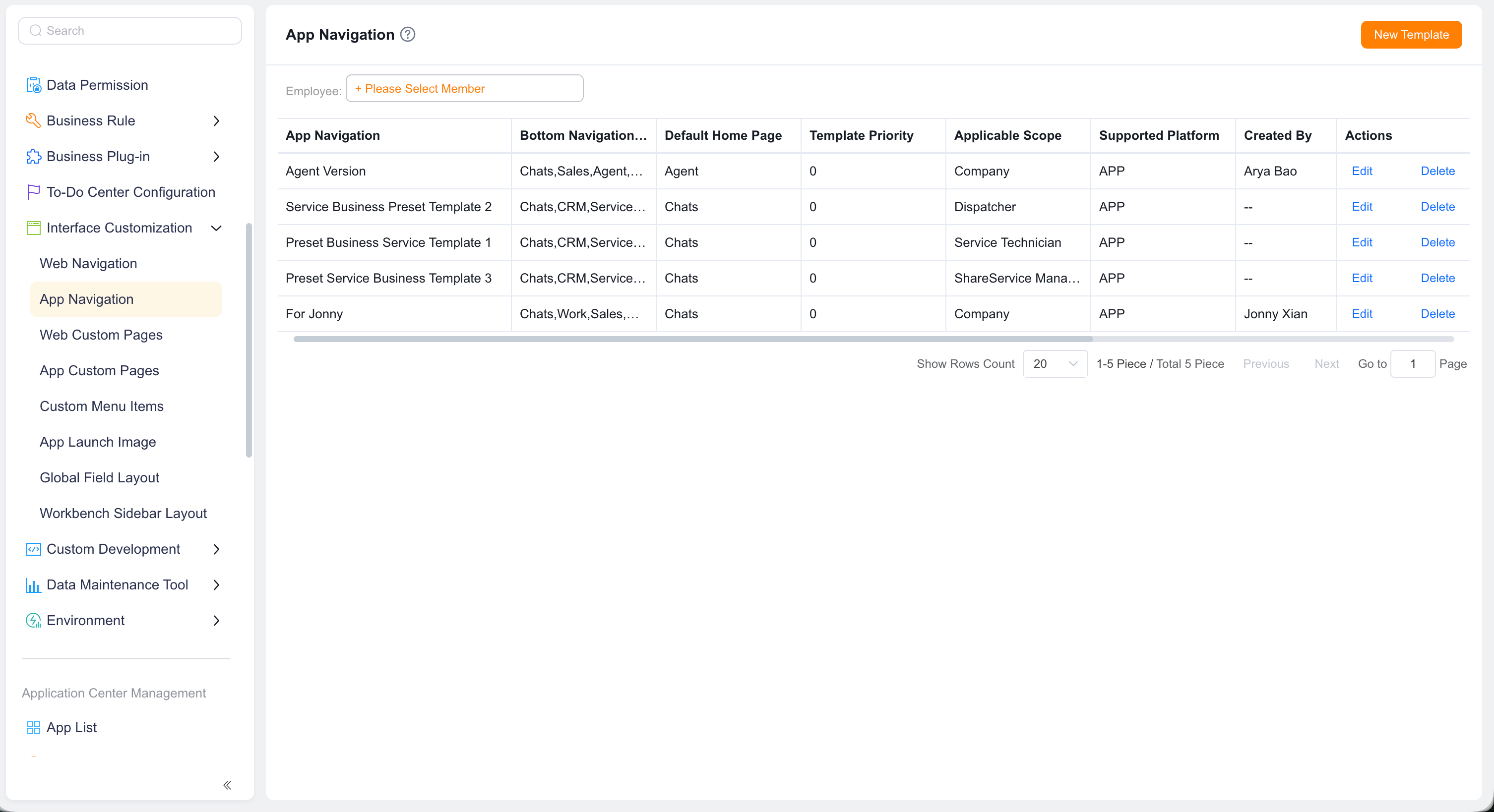
  1. Go to Setup > Interface Customization Management > App Main Navigation.
  2. Click New.

App main navigation list

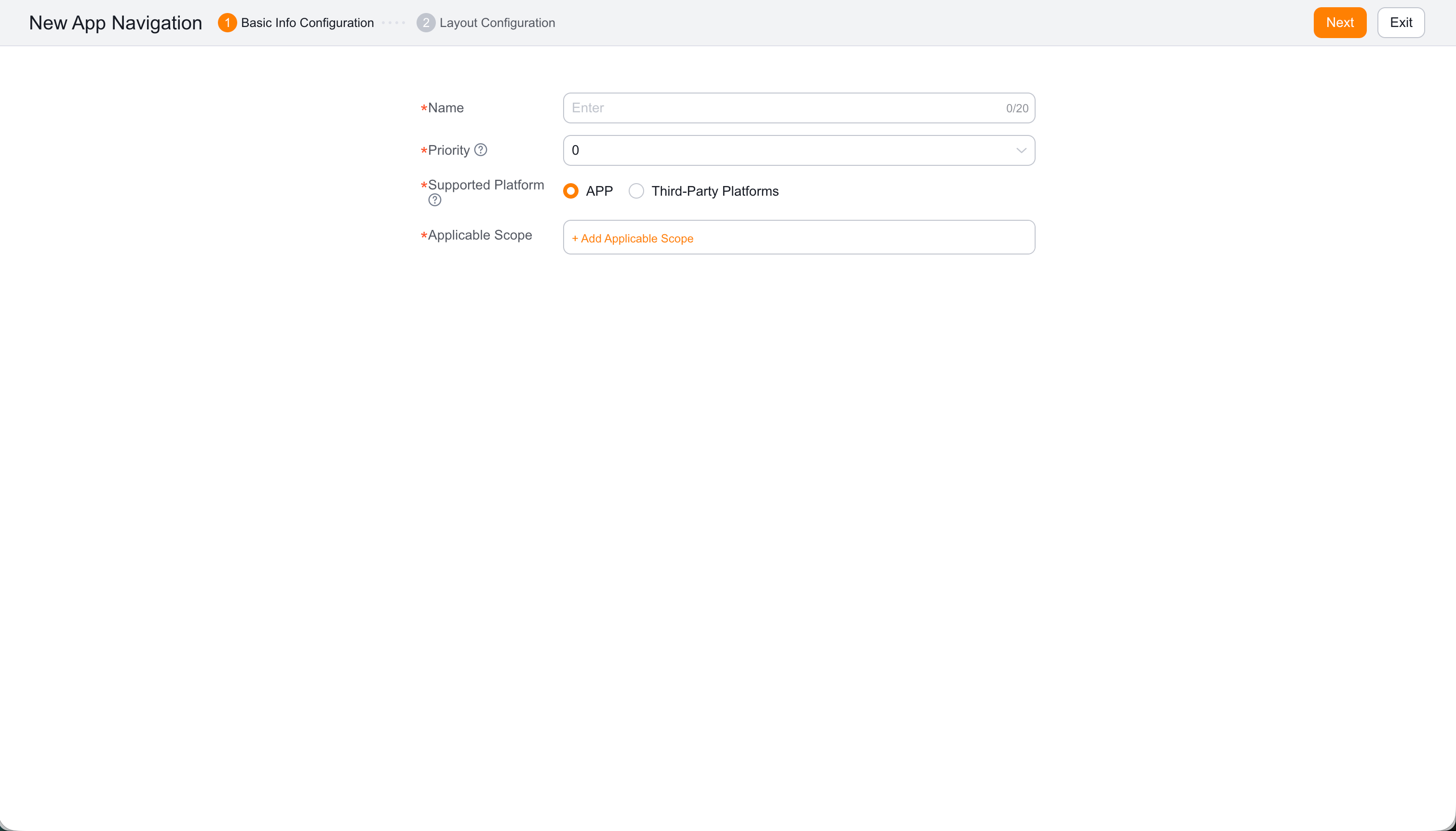
  1. Enter a Name of up to 20 characters.
  2. Under Applicable Platform, select App, DingTalk, WeCom, or Lark.
  3. Select employees, departments, user groups, or roles under Applicable Scope.
  4. Click Next.

App navigation basic information

Basic information field reference ​

FieldDescription
NameBottom-navigation template name, up to 20 characters.
Applicable PlatformApp, DingTalk, WeCom, Lark, or another supported platform.
Applicable ScopeEmployees, departments, user groups, or roles.

Configure bottom navigation ​

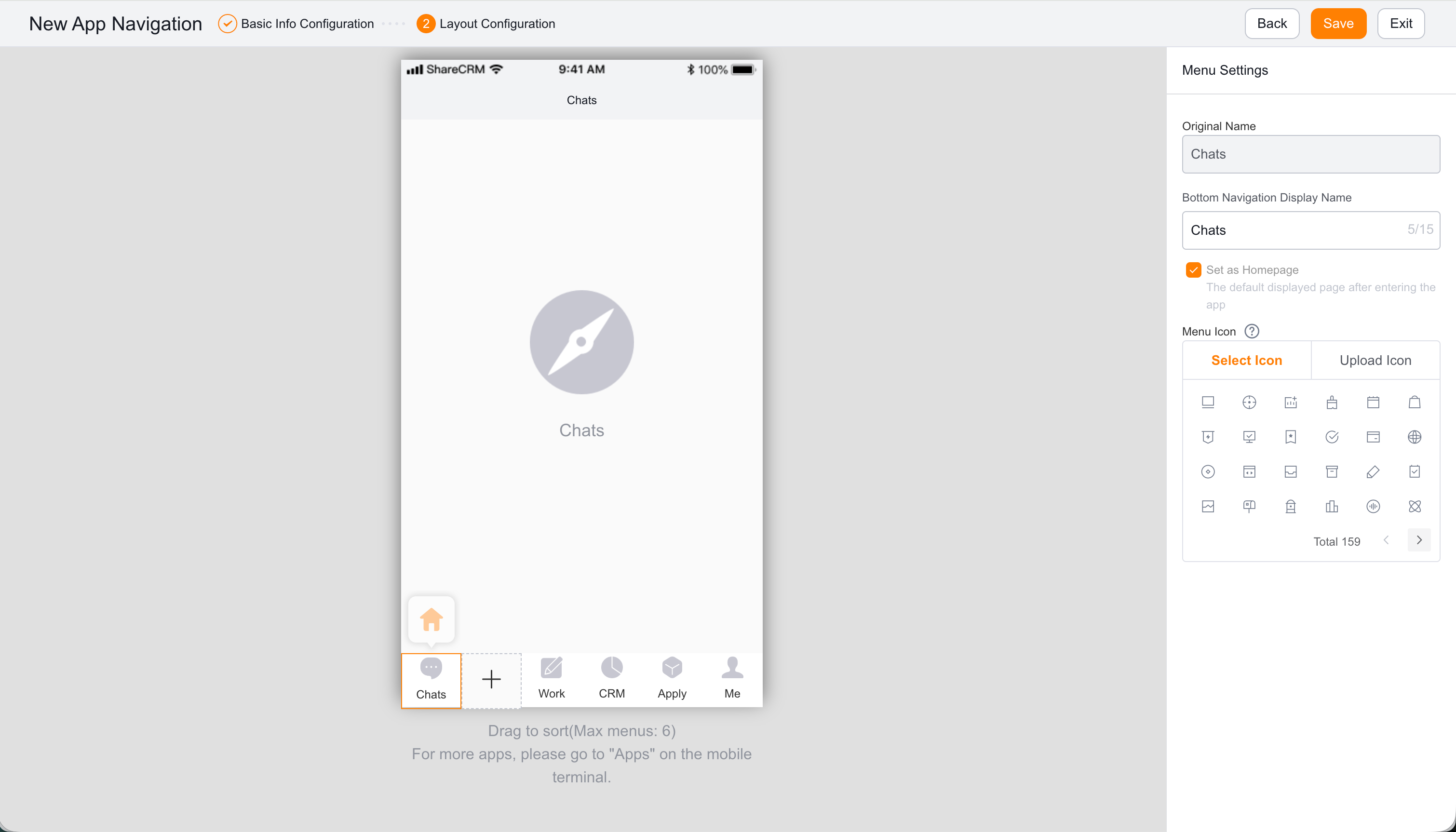
  1. Click + in the bottom-navigation preview.

Configure bottom navigation

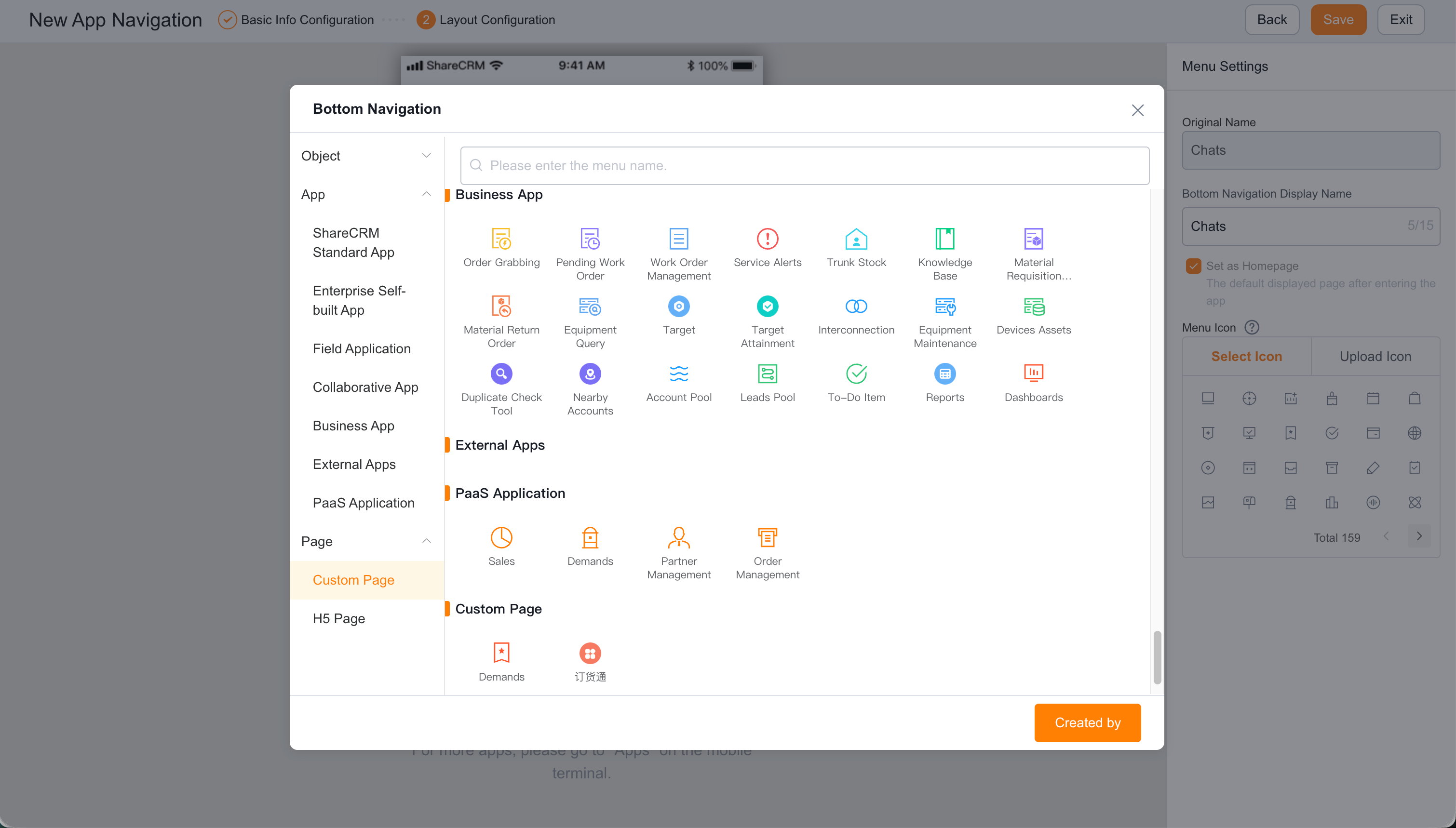
  1. Select an application, object, or page entry.

Bottom-navigation selector

  1. Edit the display name and icon.
  2. Set a module as the homepage when needed.
  3. Keep the Me module and adjust its position if necessary.
  4. Click Save.

Layout configuration reference ​

The preset modules are Chats, Work, CRM, Apps, and Me. You cannot delete Me. Add no more than five modules. To replace an application, delete it and use + again.

Activation rules ​

  • Employees must sign in again after an administrator changes navigation.
  • ShareCRM, DingTalk, and WeCom use platform-specific templates.
  • Some HarmonyOS versions may require Third-Party Platform navigation.

WARNING

DingTalk or WeCom may require a platform-specific CRM application. Verify this behavior in the tenant.

Expected result ​

Employees in scope see the applicable bottom navigation after signing in again.