Appearance


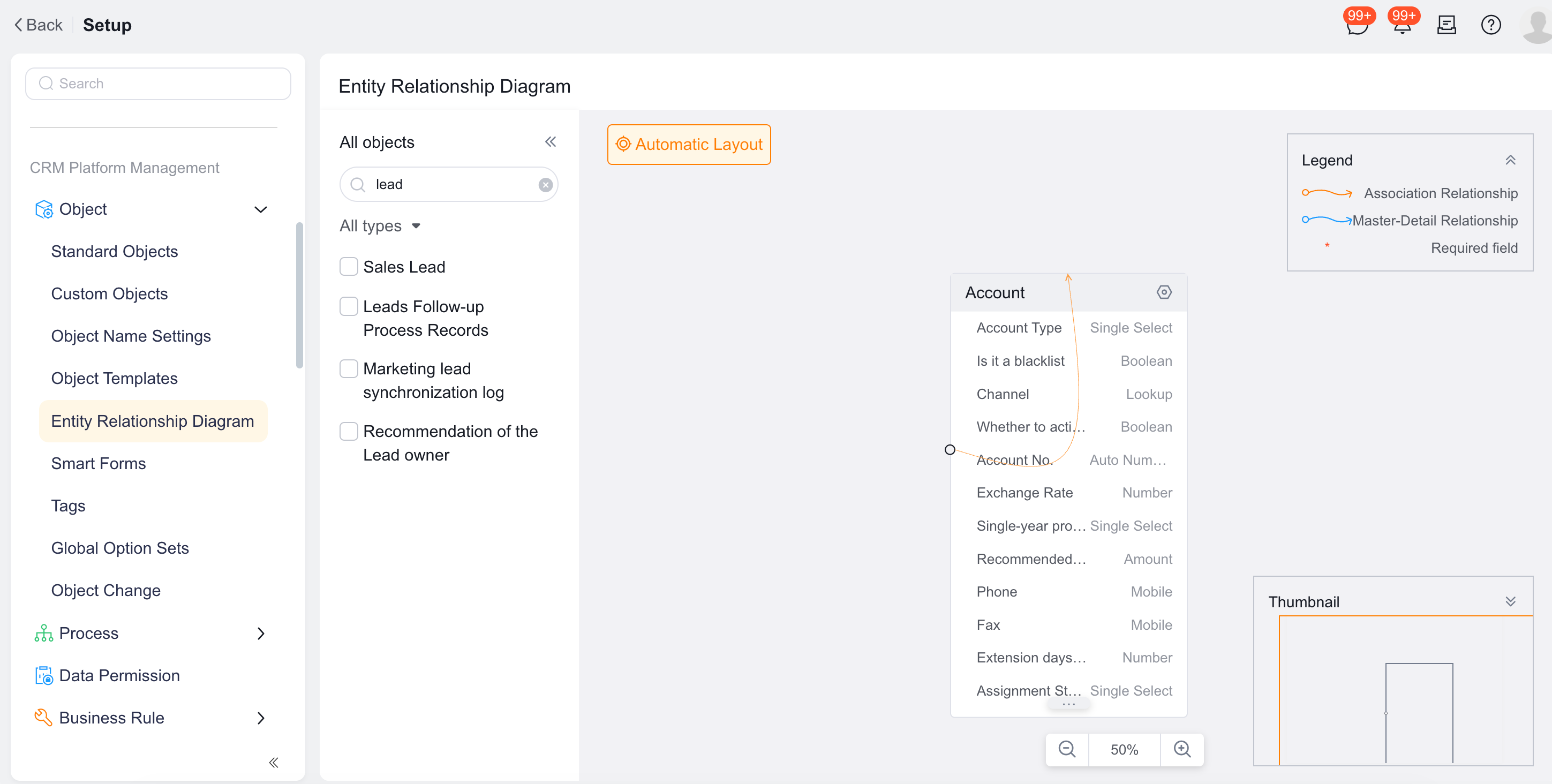
The Entity Relationship Diagram is a visual modeling tool provided by the PaaS platform. Administrators can use the diagram to view and organize data dependencies and connection architecture among objects in the system, ensuring a sound data model.
As enterprise business expands, lookup, master-detail, and reference relationships between objects become increasingly complex. The Entity Relationship Diagram displays the data model topology of a specified object and its related objects through graphical connections. It also provides quick navigation for editing.
Log in to Setup.
In the top search box, enter Entity Relationship Diagram, or navigate to Enterprise Management > Object Management > Entity Relationship Diagram in the left menu.
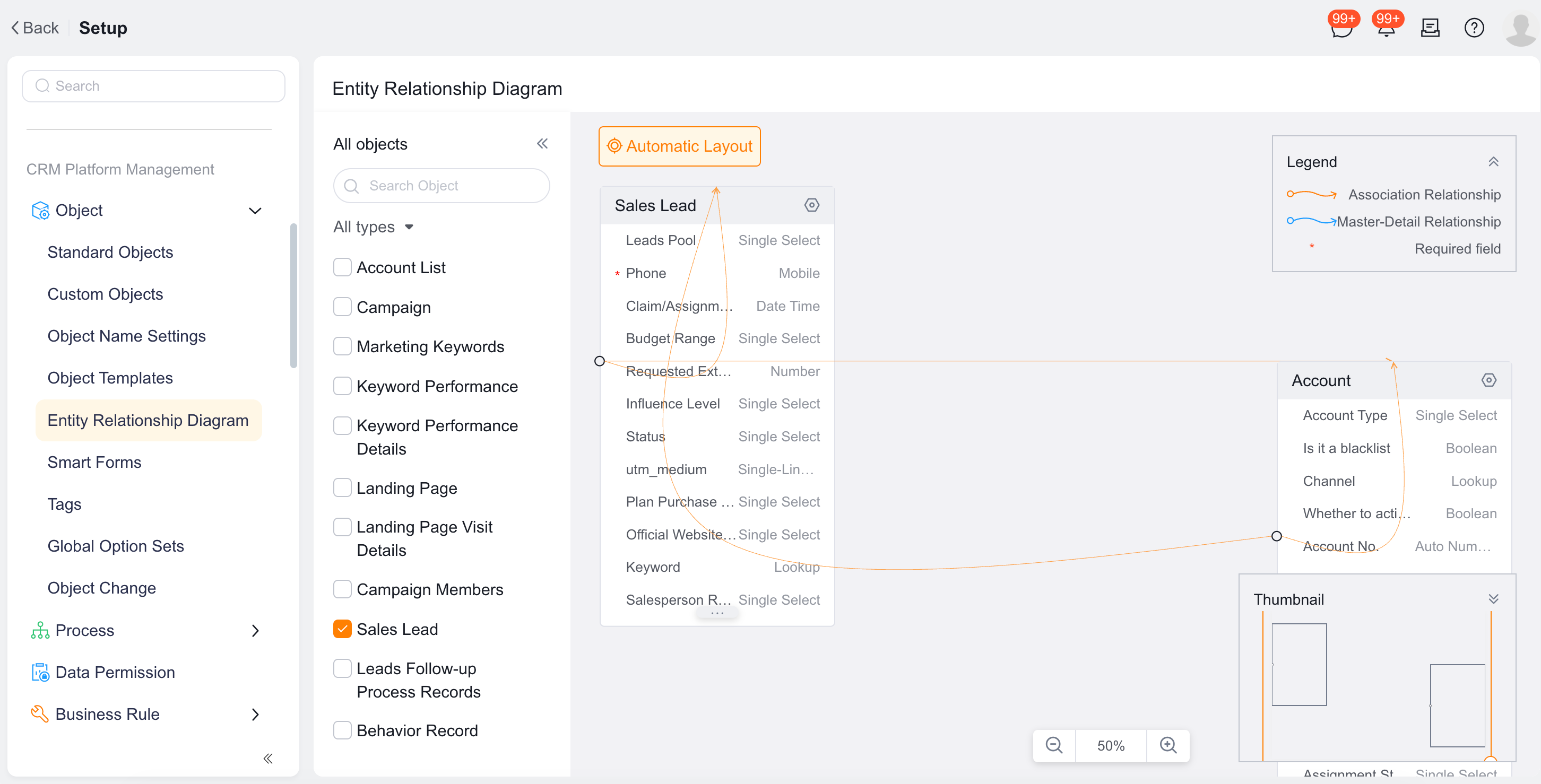
In the All Types dropdown list on the left navigation panel, select the target object to view (for example, "Product and After-Sales Service").
Expand fields: Click a target object card in the auto-layout diagram on the left to expand and view all physical fields it contains.
Display two-level relationships: Click the settings icon (gear icon) on an object card and select Show All Related Objects of This Object. The system loads and displays all objects that have a Master-Detail Relationship or Lookup Relationship with the selected object.
IMPORTANT
Two-level relationship depth limit: The diagram loads a maximum of two relationship levels. For example, if "Product and After-Sales Service" is related to "Marketing Activity," and "Marketing Activity" is related to "Account," expanding the diagram for "Product and After-Sales Service" displays the "Account" card but does not load any third-level objects related to "Account."
Navigate to object details: Click the gear icon on any object card and select View Object Details. The browser opens a new tab that navigates to the Setup details page of that object, allowing administrators to modify fields or page layouts in real time.
Connection line indicators: