Appearance


Build mobile business entry points with components or connect external H5 pages by URL.
Administrators can build a lightweight Mobile Client Workstation with components. An H5 page connects an existing mobile Web Page, external report, campaign page, or third-party business page.
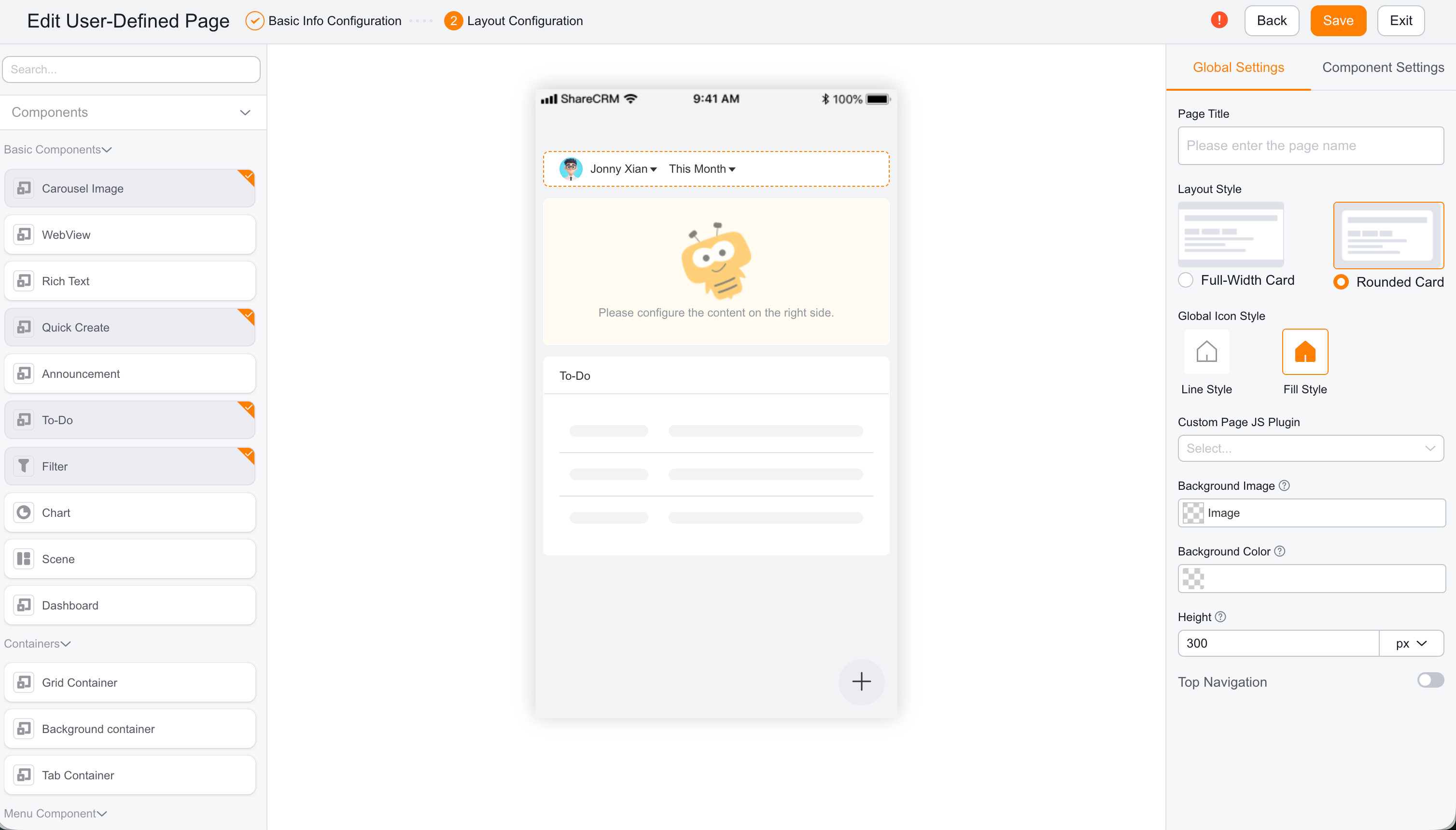
IMPORTANT
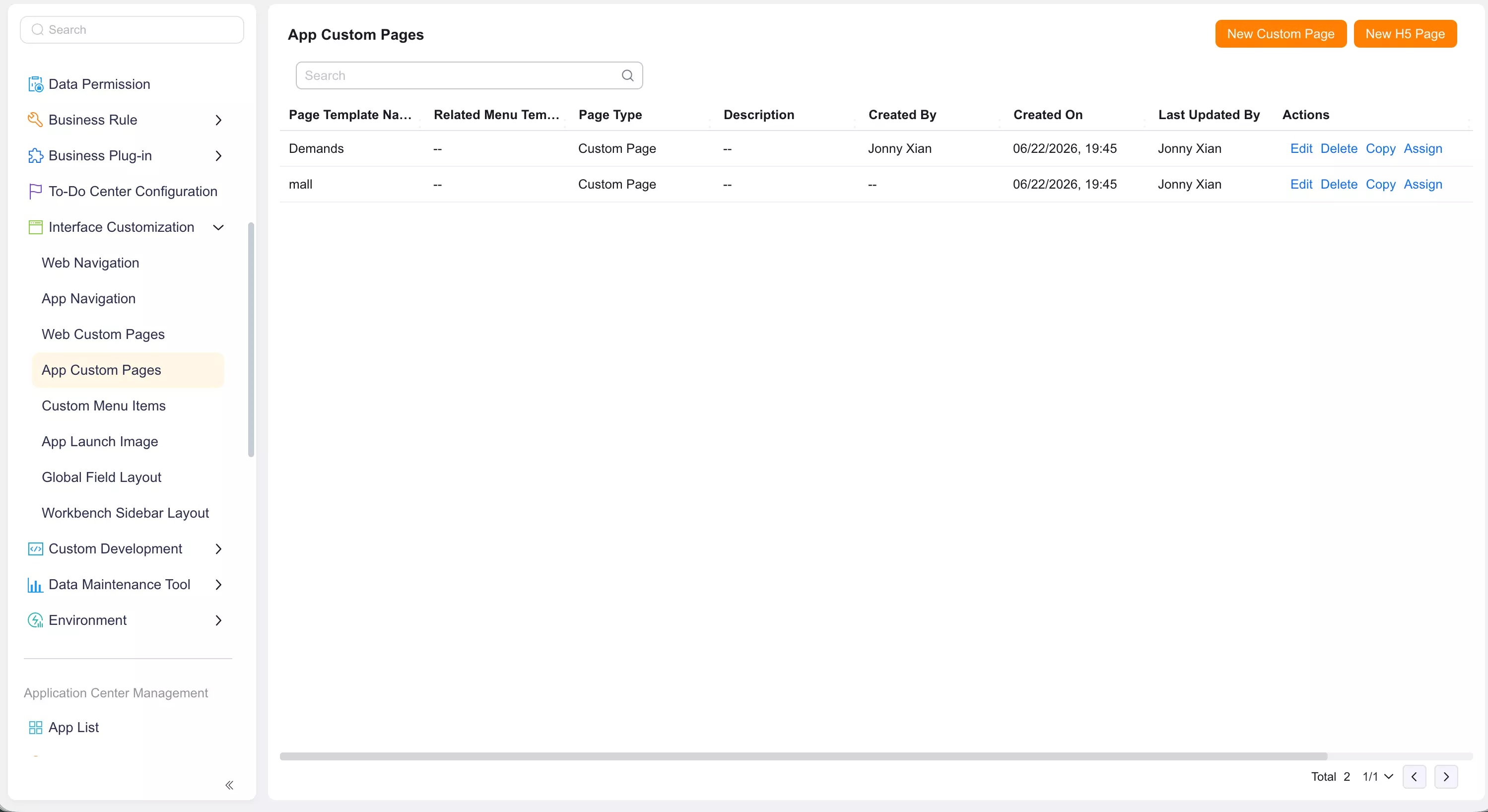
Select New Custom Page.
Enter a Page Template Name of up to 25 characters.
Select or upload a Menu Component Icon and Main Navigation Icon.
Click Next.
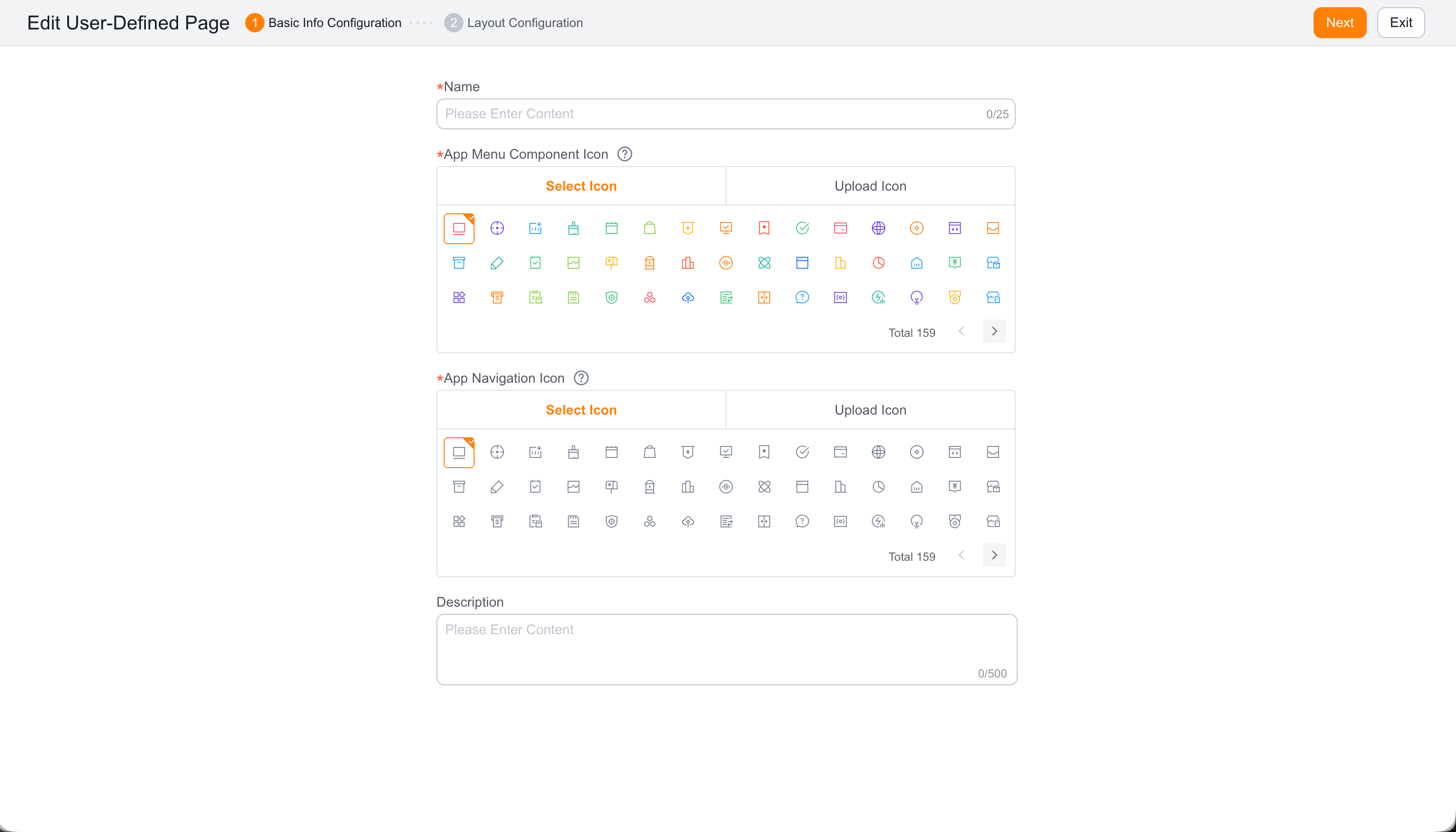
| Field | Description |
|---|---|
| Page Template Name | Mobile page name, up to 25 characters. |
| Menu Component Icon | Appears when the page is a menu component entry. |
| Main Navigation Icon | Appears when the page is in main navigation. |
| Icon upload | Supports local file uploads. |
The preceding table describes the Page Template Name and icons used by a Custom Page.
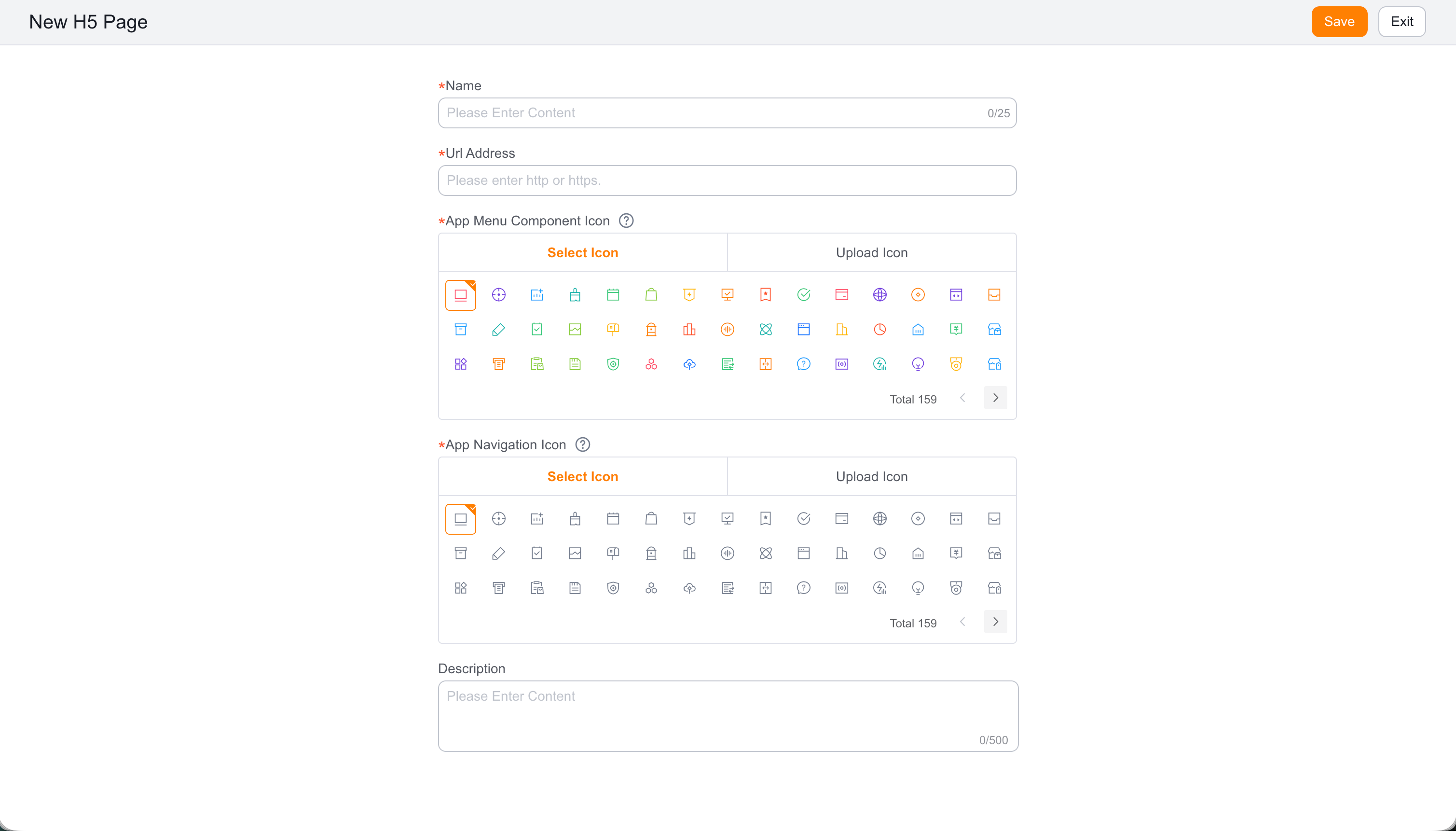
| Field | Description |
|---|---|
| Page Template Name | The H5 page display name in the system, up to 25 characters. |
| Link Address | The address used to Visit the H5 page. |
| Menu Component Icon | Appears when the H5 page is a menu entry. |
| Main Navigation Icon | Appears when the H5 page is a main navigation entry. |
Locate a page in the template list. Click Edit, Delete, Copy, or Assign. Assignment controls the Applicable Scope, application, and view.
Mobile users can Visit the published Custom Page or H5 page from its assigned application or menu.